Route (Single Page Application)
Route Analysis provides performance analysis data for all route loading in single-page applications, and can evaluate performance, analyze trend charts and percentile charts, perform regional analysis, summarize waterfall chart analysis, and track page details for each route.
Feature Overview
Filter Conditions

You can filter by the following dimensions:
- Device name
- Device model
- App version
- Operating system
- Operating system major version
- Browser name
- Browser major version
- Region
- Carrier
- Access method
Metric Analysis
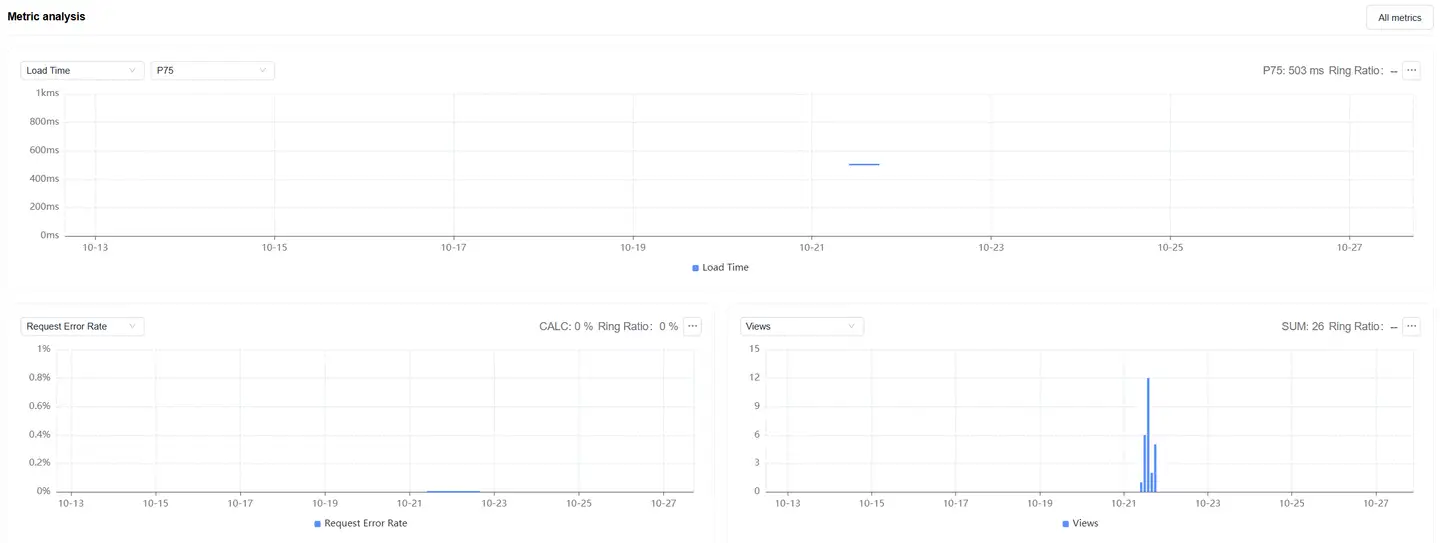
Displays trend charts of route loading performance metrics under the filter conditions:
- Supports filtering and analysis of performance metrics as needed
- Time-based performance metrics support multiple statistical methods:
- Average
- P50
- P75 (default)
- P95
- P99
Dimension Analysis
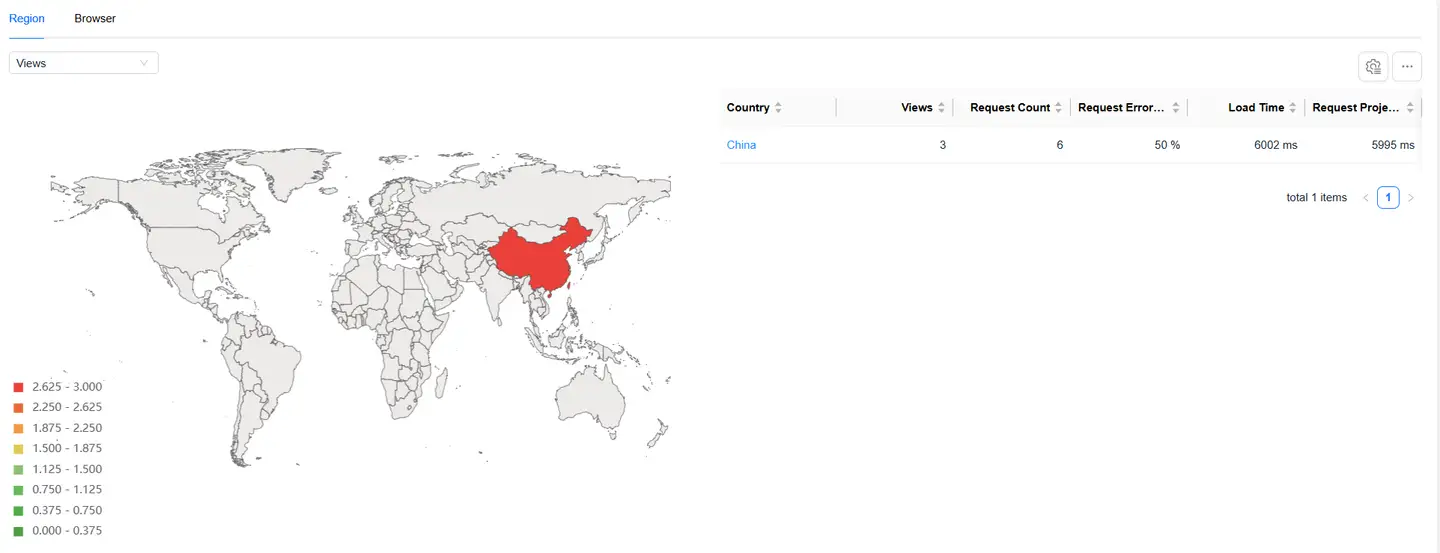
Shows the distribution of route loading performance by region:
- The map can be drilled down to province/state level
- After map drill-down, the corresponding region is added to the filter conditions
- All modules on the page display performance data after filtering
- You can select page loading performance metrics on the left to analyze their performance across different regions
- The list supports customizable headers
Relationship Topology

Displays the complete link between single-page application route loading and backend services, helping to analyze performance bottlenecks.
Data Views
Single Page Application View
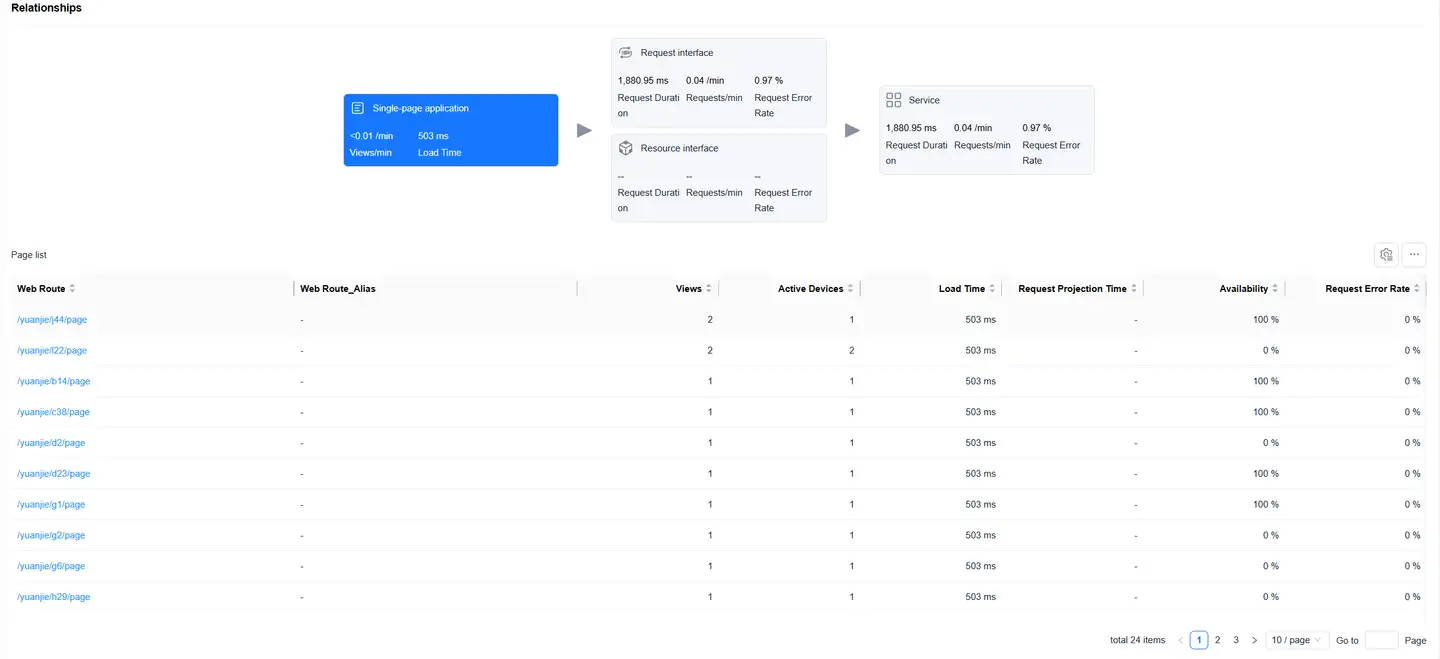
The Single Page Application card is selected by default, with the route loading performance data list displayed at the bottom. The list includes:
- Web route
- Visit count
- Active device count
- Loading time
- Request projection time
- Availability
- Request count
- Request error rate
- Server-side average time
- Server-side count
Click on a Web route in the list to enter Web Route Detail Analysis, which displays detailed data for that Web route.
Request Interface View
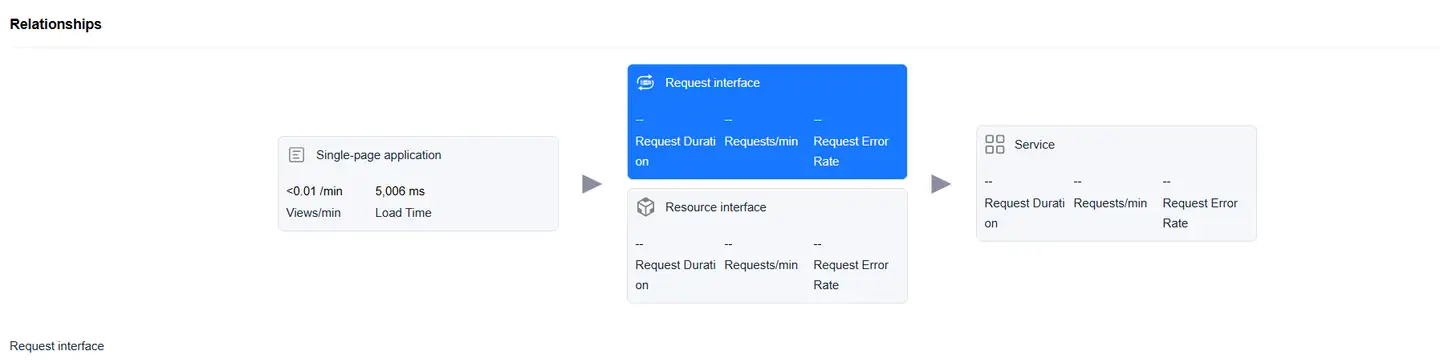
Select the Request Interface card to display the list of requests with "mime-type as text or json". The list includes:
- HTTP request
- Request count
- Request time
- Requests per minute
- Request error rate
- HTTP error rate
- Network error rate
- Server-side trace time
- Slow request count
- Slow request percentage
- Server-side trace error rate
- Upstream traffic consumption
- Downstream traffic consumption
- Availability
Click on an HTTP request to enter Request Detail Analysis, which displays detailed data for that HTTP request.
Resource Interface View
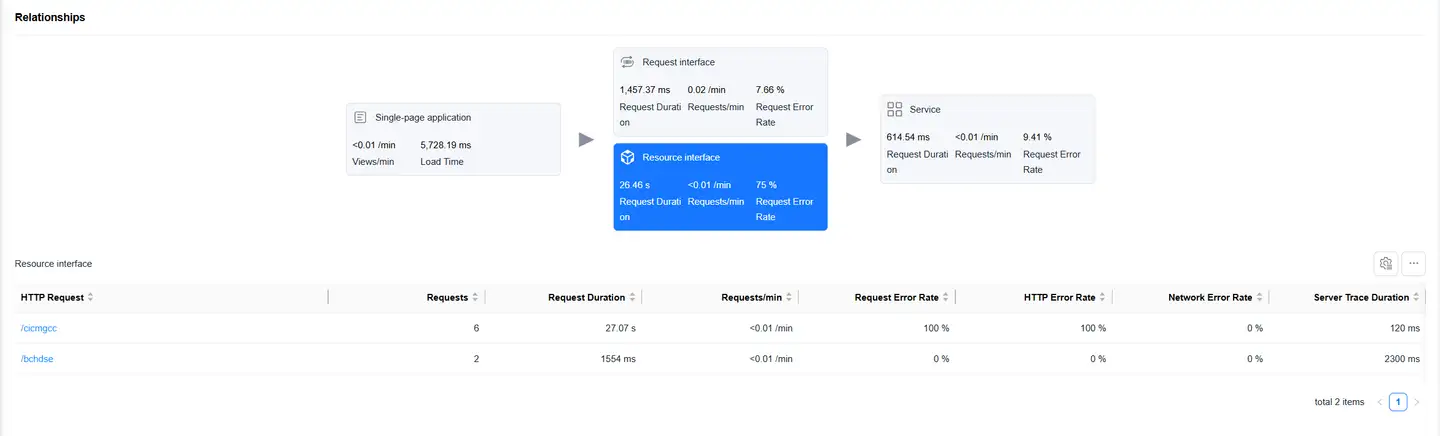
Select the Resource Interface card to display the resource request data list. The list includes:
- HTTP request
- Request count
- Request time
- Requests per minute
- Request error rate
- HTTP error rate
- Network error rate
- Server-side trace time
- Slow request count
- Slow request percentage
- Server-side trace error rate
- Upstream traffic consumption
- Downstream traffic consumption
- Availability
Click on an HTTP request to enter Request Detail Analysis, which displays detailed data for that HTTP request.
Service View
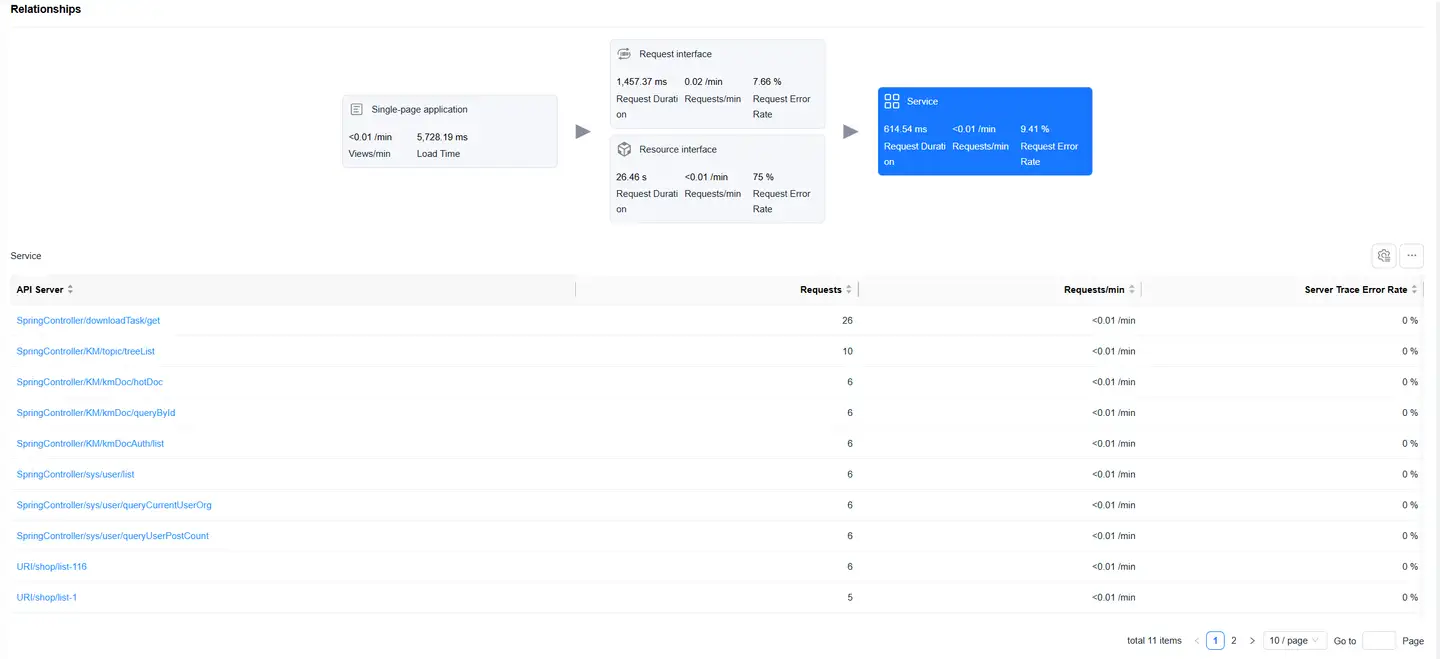
Select the Service card to display the backend service list (requires backend integration with Tingyun APM agent). The list includes:
- Backend service
- Request count
- Requests per minute
- Server-side trace error rate
Route Detail Analysis
Filter Conditions

You can filter by the following dimensions:
- Device name
- Device model
- App version
- Operating system
- Operating system major version
- Browser name
- Browser major version
- Region
- Carrier
- Access method
Metric Analysis
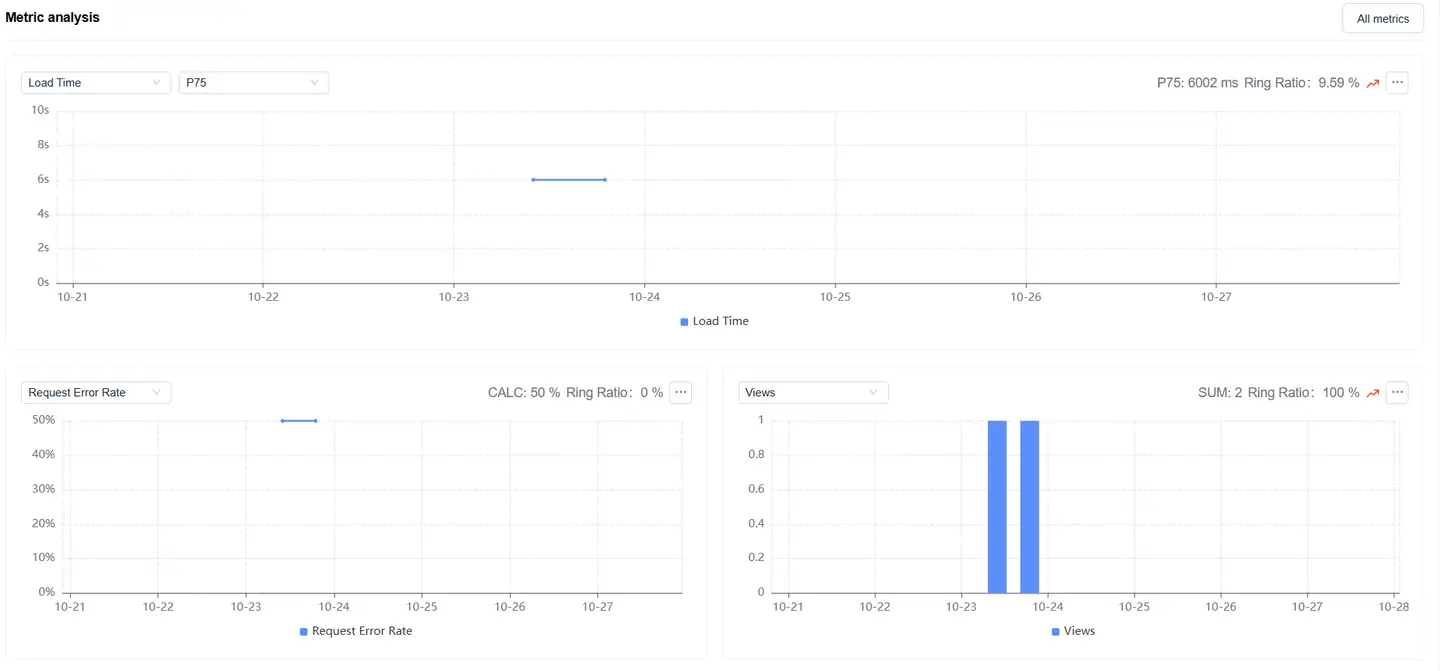
Displays trend charts of route loading performance metrics under the filter conditions:
- Supports filtering and analysis of performance metrics as needed
- Time-based performance metrics support multiple statistical methods:
- Average
- P50
- P75 (default)
- P95
- P99
Dimension Analysis
Shows the distribution of route loading performance by region:
- The map can be drilled down to province/state level
- After map drill-down, the corresponding region is added to the filter conditions
- All modules on the page display performance data after filtering
- You can select page loading performance metrics on the left to analyze their performance across different regions
- The list supports customizable headers
Relationship Topology
Displays the complete link between a single route loading and backend services, helping to analyze performance bottlenecks.
Request Interface Analysis
Select the Request Interface card to display the list of requests with "mime-type as text or json". The list includes:
- HTTP request
- Request count
- Request time
- Requests per minute
- Request error rate
- HTTP error rate
- Network error rate
- Server-side trace time
- Slow request count
- Slow request percentage
- Server-side trace error rate
- Upstream traffic consumption
- Downstream traffic consumption
- Availability
Click on an HTTP request to enter Request Detail Analysis, which displays detailed data for that HTTP request.
Service Analysis
Select the Service card to display the backend service list (requires backend integration with Tingyun APM agent). The list includes:
- Backend service
- Request count
- Requests per minute
- Server-side trace error rate
Sample Details
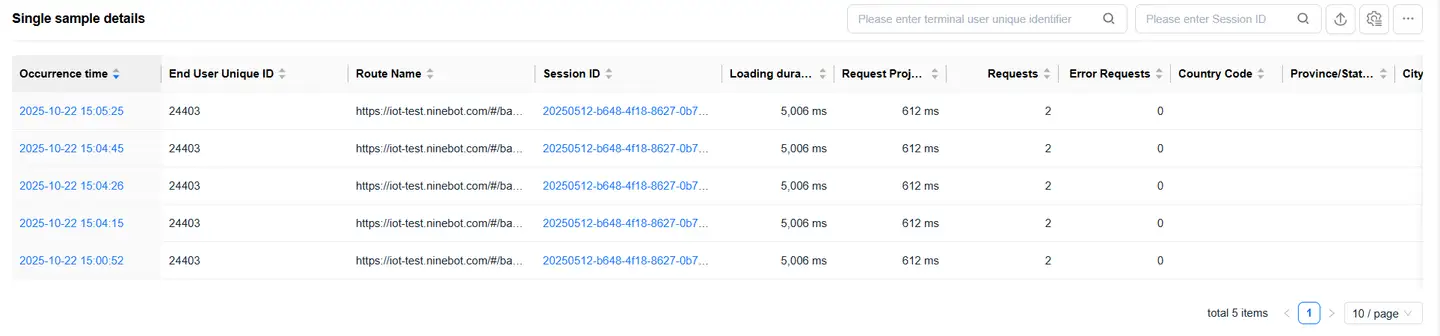
The details list displays all sample details data for the selected route loading. The list includes:
- Timestamp (occurrence time)
- Unique end-user identifier
- Session ID
- Loading time
- Country
- Province/State
- City
- And more
List features:
- Supports filtering by user ID and session ID
- Supports export
- Supports customizable headers
Click on the Session ID to jump to the session details.