Integrating Zabbix Data
Supported Versions and Requirements
Zabbix Server 5.0/6.0/7.0.
Minimum Collector version: 4.2.0.0, with the Guanyun Collector module enabled.
Confirming the Collector Deployment Location
Collector reads Zabbix Server export files and calls the Zabbix API.
We recommend deploying Collector on the same host as Zabbix Server. If Zabbix Server stores exported files on shared storage (for example, an NFS mount), you can deploy Collector on any host that can access the shared storage. This host also needs to be able to reach the Zabbix API over the network.
Configuring Network and Port Rules
The following IP addresses and ports are examples. Update them based on your environment before applying the network rules.
| Source Address | Target Address | Target Port | Description |
|---|---|---|---|
| Collector Host | Guanyun Platform | 80 | Installing Collector and uploading data to Guanyun Platform |
| Collector Host | Zabbix API | 80 | Calling the Zabbix API |
Installing Collector
-
Log in to Guanyun Platform, and in the left navigation menu select All Apps > Deployment Status > Collectors Operation.
-
Click Create in the upper-right corner and configure the Collector parameters.
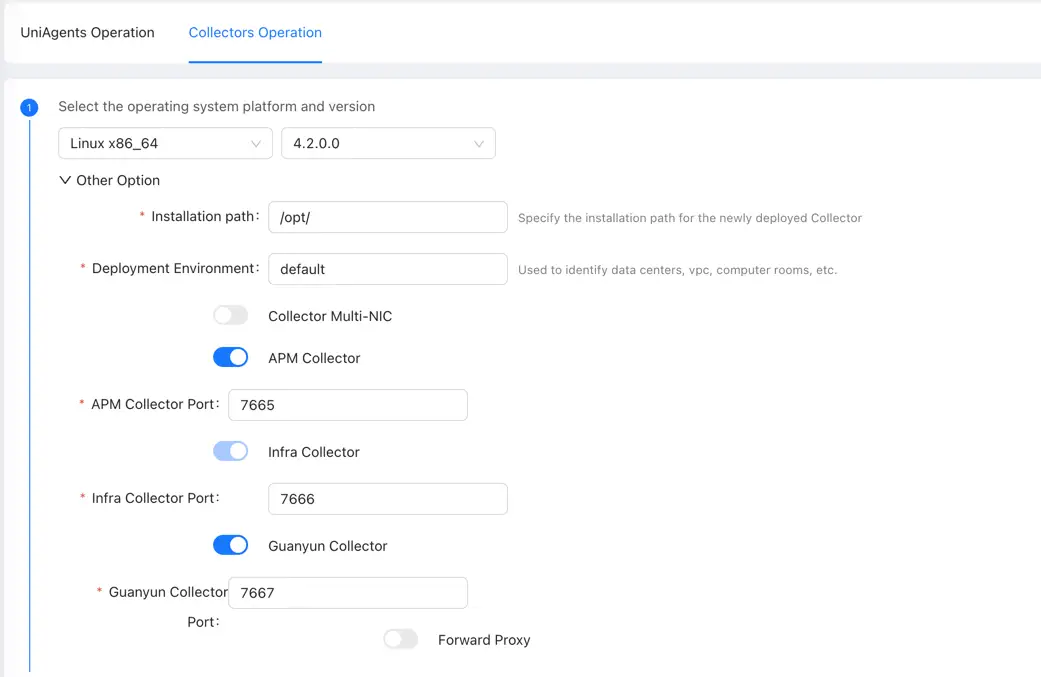
We recommend disabling the APM Collector function to reduce CPU overhead on the Zabbix Server host.
You need to enable the Guanyun Collector function to ingest monitoring data from Zabbix, Prometheus, OpenTelemetry, external data sources, and more.
Copy the installation script and install Collector on the Zabbix Server host.
Configuring Zabbix Server Export Files
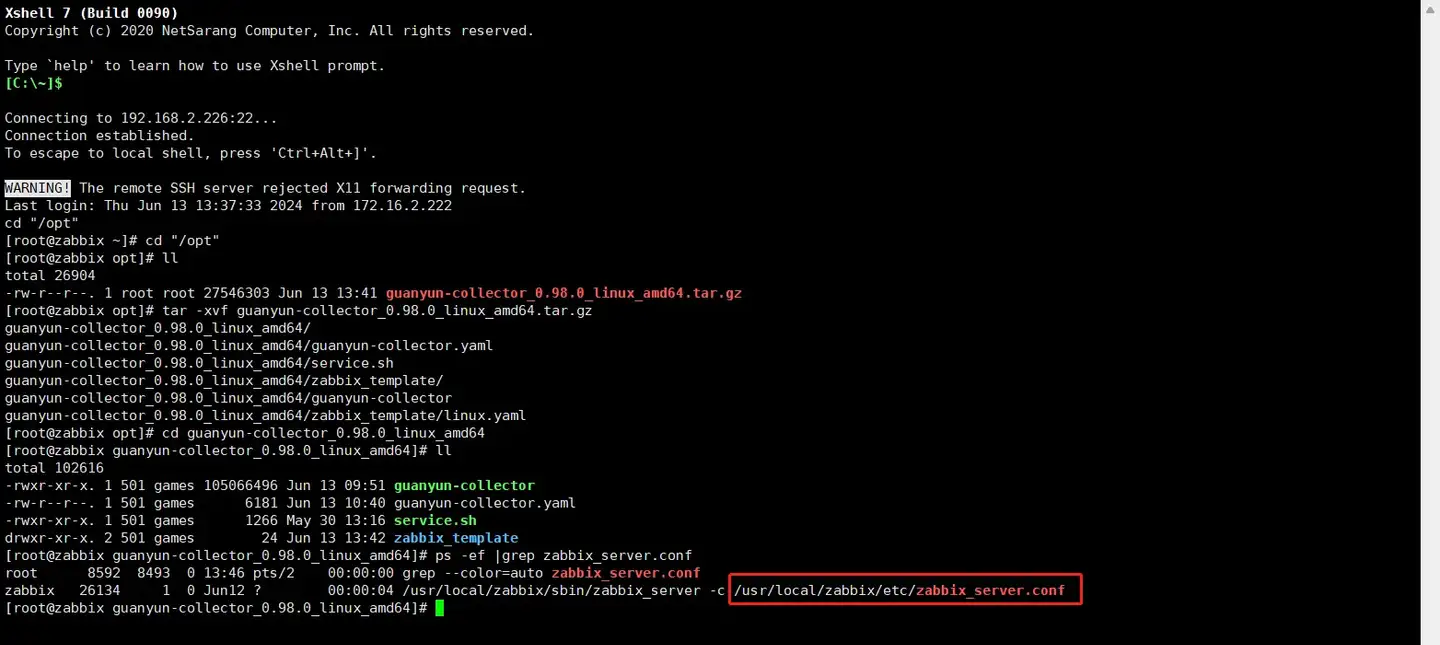
Finding the Zabbix Server Configuration File
Run the following command on the Zabbix Server:
ps -ef |grep zabbix_server.conf
Modifying the Zabbix Server Configuration File
Use vim to open the zabbix_server.conf file found above, and update the configuration as follows:
# ExportDir=
# Set this to the directory for exporting metric data. The user running zabbix server need to have read/write permissions for this directory.
# Note: This directory needs to be created manually in advance.
#ExportDir=/data/zabbix/data
ExportDir=
### Option: ExportFileSize
#       Maximum size per export file in bytes.
#       Only used for rotation if ExportDir is set.
#
# Mandatory: no
# Range: 1M-1G
# Default:
# ExportFileSize=1G (configure as needed)
ExportFileSize=1G

### Option: ExportType
#       List of comma delimited types of real time export - allows to control export entities by their
#       type (events, history, trends) individually.
#       Valid only if ExportDir is set.
#
# Mandatory: no
# Default:
# ExportType=events,history,trends
ExportType=history
Restarting Zabbix Server
sudo systemctl restart zabbix-server.service
Validating Zabbix Server Export Data
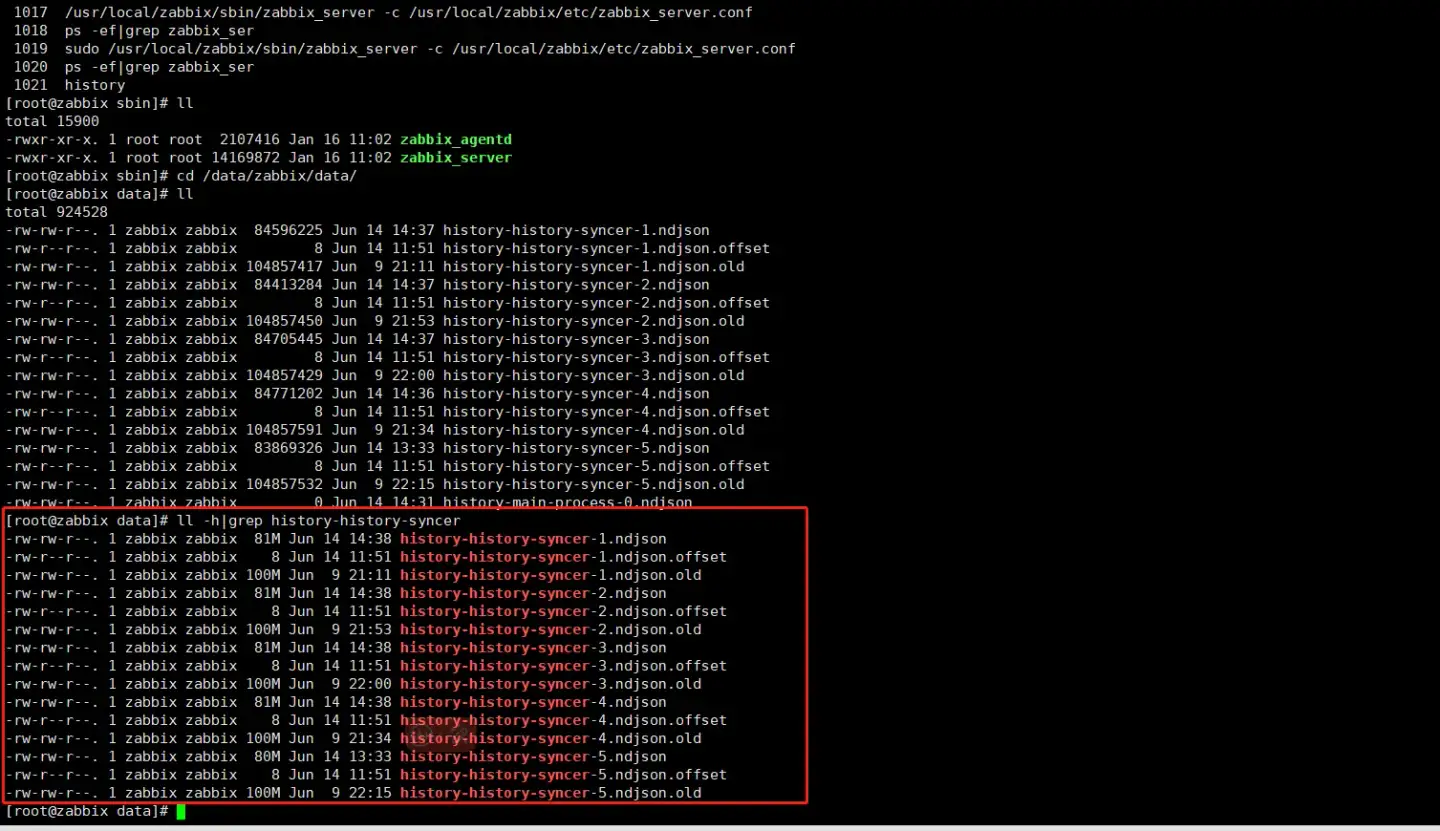
Go to the export directory for metric data: ExportDir (e.g., /data/zabbix/data)
As shown below, if files with the field history-history-syncer appear, metric data is being generated.
Configuring Collector to Receive Zabbix Data
Entering Collector Installation Directory
cd /opt/tingyun-collector/
Enabling Zabbix Module
sudo mkdir -p /opt/tingyun-collector/zabbix/checkpoint/
cd conf.d/zabbix
sudo cp host-receiver.yaml.example host-receiver.yaml
sudo cp host-processor-exporter.yaml.example host-processor-exporter.yaml
Edit the configuration to receive Zabbix data:
sudo vim host-receiver.yaml
receivers:
    zabbix:
        # Required
        # Zabbix URL address
        # Example: http://localhost/zabbix/api_jsonrpc.php
        url:

        # Required
        # Zabbix dashboard login user
        # Example: Admin
        user:

        # Required
        # Zabbix dashboard login password, supports plaintext and encrypted (pass-gen) passwords
        # Example: zabbix
        password:

        export:
            # Required
            # Directory for Zabbix metric export, need to have read/write permissions
            # Example: /data/zabbix/data
            directory:
            # Required
            checkpoint: ${env:TINGYUN_COLLECTOR_HOME}/zabbix/checkpoint
To generate the password, use the following command: /opt/tingyun-collector/bin/watchdog -mode passgen -plaintext 'your_plaintext_password'
Restarting Collector
After modifying the configuration, you need to restart Collector.
sudo systemctl restart tingyun-collector
Validating Data
tail -f /opt/tingyun-collector/logs/guanyun/collector.log
Viewing Data in Guanyun Platform
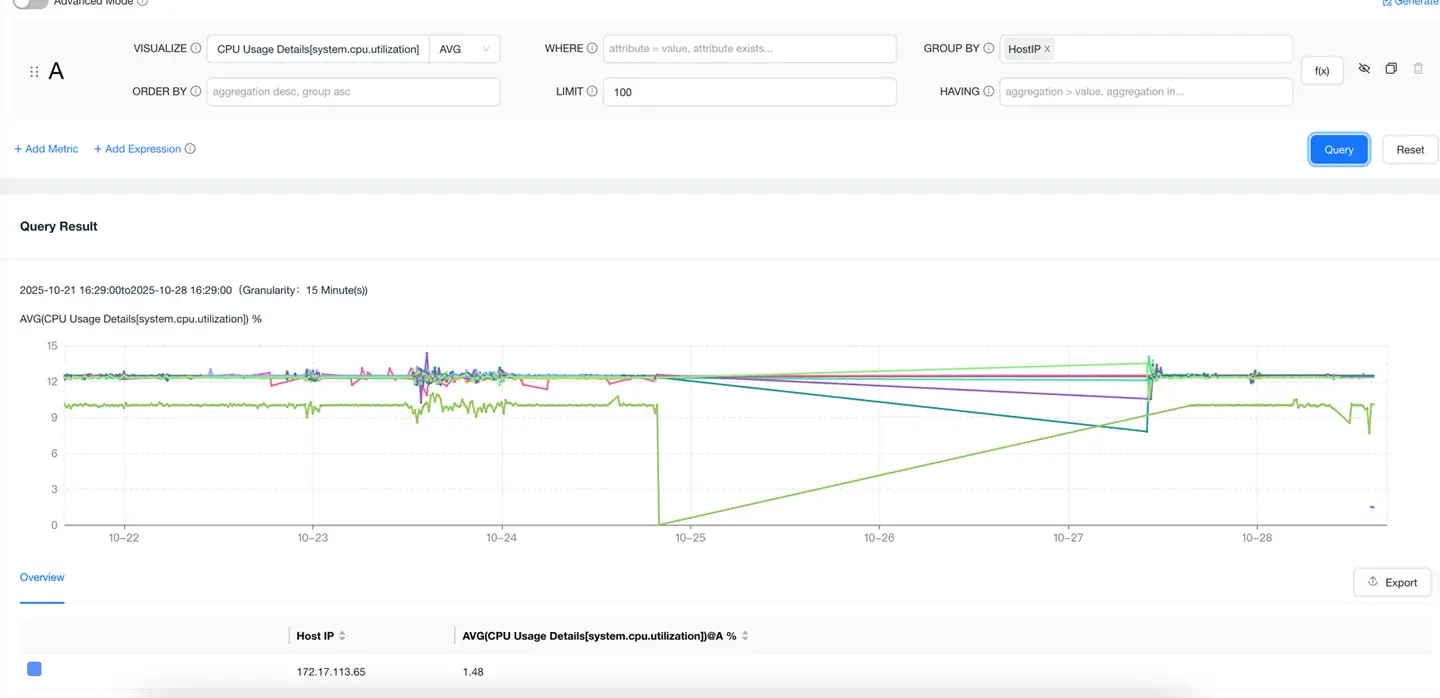
Go to the Data Explorer lite App, select METRIC as the data model, query any host metric, group by host IP, and confirm that the host IP of the integrated Zabbix data appears in the list.