Integrating External Data Sources
Supported Versions and Requirements
Currently, only MySQL is supported. Minimum Collector version: 4.2.0.0, with the Guanyun Collector module enabled.
Integrating MySQL Data
Integration Steps Overview
-
Confirm Integration Target
Research the MySQL environment information that needs to be integrated, including:- MySQL instance IP
- Database name
- Data table name
-
Determine Data Collection Location
Deploy Collector in the same network environment as the target MySQL host, and confirm the Collector IP that will be used to collect data. -
⚠️ Request Database Access Permissions
Contact your operations team to create a read-only monitoring account on the target MySQL instance, with the following requirements:- Permission scope limited to the target database and tables
- Only grant SELECT permission
- Only allow access from the above Collector IP
-
⚠️ Allow Network Access
Contact your operations team to allow firewall access for Collector IP → MySQL IP:port. -
Deploy or Reuse Collector
Confirm that an existing Collector is available, or install and deploy as needed. -
Configuring the Data Source
Log in to Guanyun Platform and navigate to All Apps > Data Integration > Data Access > Database to configure the MySQL data source connection. -
Generating Database Metrics
In Metric System > Generate, configure and generate database metrics based on the integrated data source.
Step 1: Confirming Integration Target
Before integration, please confirm the following information:
- MySQL Instance IP
- Database Name
- Data Table Name
- Collector Deployment IP (needs to be in the same network environment as MySQL)
This information will be used for database account authorization and platform configuration.
Step 2: Preparing or Installing Collector
To collect MySQL data via Collector, you need to ensure that Collector can reach the MySQL host over the network.
2.1 Determining Whether Collector Exists
- If there is already a Collector in the current network environment, you can reuse it directly, without reinstalling.
- If not, please install Collector first.
2.2 Installing Collector
-
Log in to Guanyun Platform, and in the left navigation menu select All Applications > Deployment Status > Collectors Operation.
-
Click Create in the upper-right corner and configure the Collector parameters.
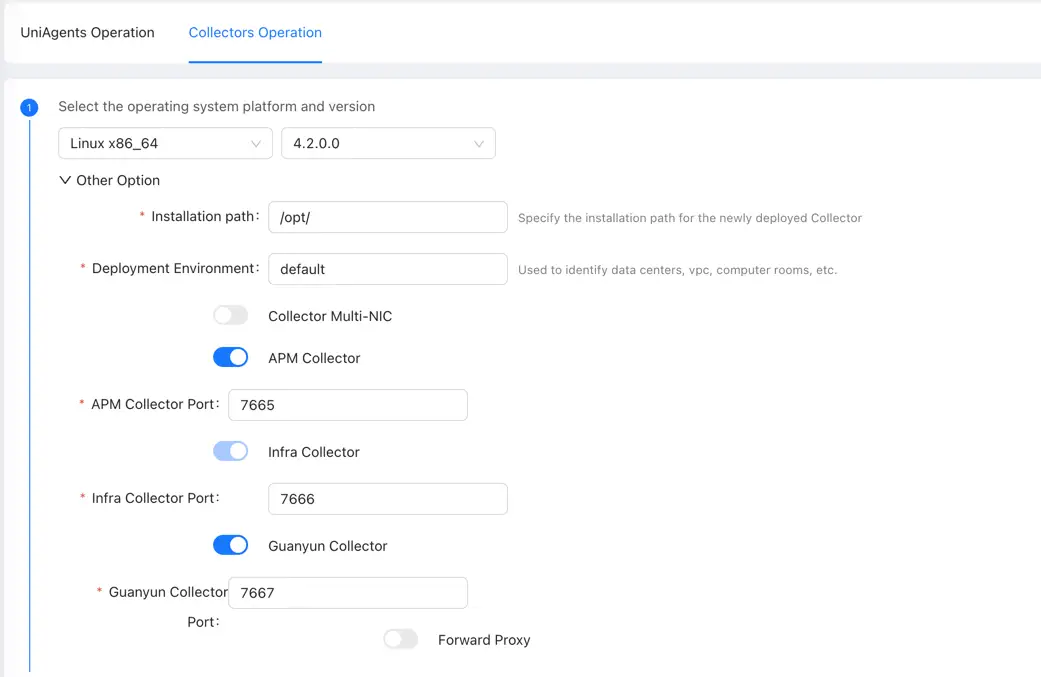
You need to enable the Guanyun Collector function to ingest monitoring data from Zabbix, Prometheus, OpenTelemetry, and external data sources.
Copy the installation script and install Collector on the target machine.
Step 3: Applying for Database Access Permissions
To ensure security and the principle of least privilege, you need to create a read-only account in MySQL and grant read-only permissions, which are only used for data collection.
3.1 Creating Monitoring Account
Execute the following command on the MySQL host (example data, please modify according to actual situation):
CREATE USER 'tingyun_monitor_user'@'Collector IP' IDENTIFIED BY 'your_password';
Where:
tingyun_monitor_user is the read-only user, you can customize the name.
Collector IP needs to be replaced with the actual Collector IP address. Do not use the % wildcard; restrict the source host explicitly.
your_password needs to be changed to a password string with high confidentiality.
3.2 Granting Read-only Permissions
According to the database and tables that need restricted access, only grant SELECT permission, and only open the target database and specific tables (example data, please modify according to actual situation):
GRANT SELECT ON example_db.static_day TO 'tingyun_monitor_user'@'Collector IP';
GRANT SELECT ON example_db.static_hour TO 'tingyun_monitor_user'@'Collector IP';
FLUSH PRIVILEGES;
Step 4: Configuring Firewall Policies
Ensure that Collector can access the MySQL instance. Contact your operations team to allow the following access rules (The following IP addresses and ports are examples. You can update them based on your environment.):
| Source Address | Target Address | Target Port | Description |
|---|---|---|---|
| Collector Host | Guanyun Platform | 80 | Installing Collector and uploading data to Guanyun Platform |
| Collector Host | MySQL Host | 3306 | Collecting MySQL data |
Step 5: Configuring Data Source
-
Log in to Guanyun Platform, and in the left navigation menu select All Apps > Data Integration > Data Access > Database.
-
Configure integration parameters
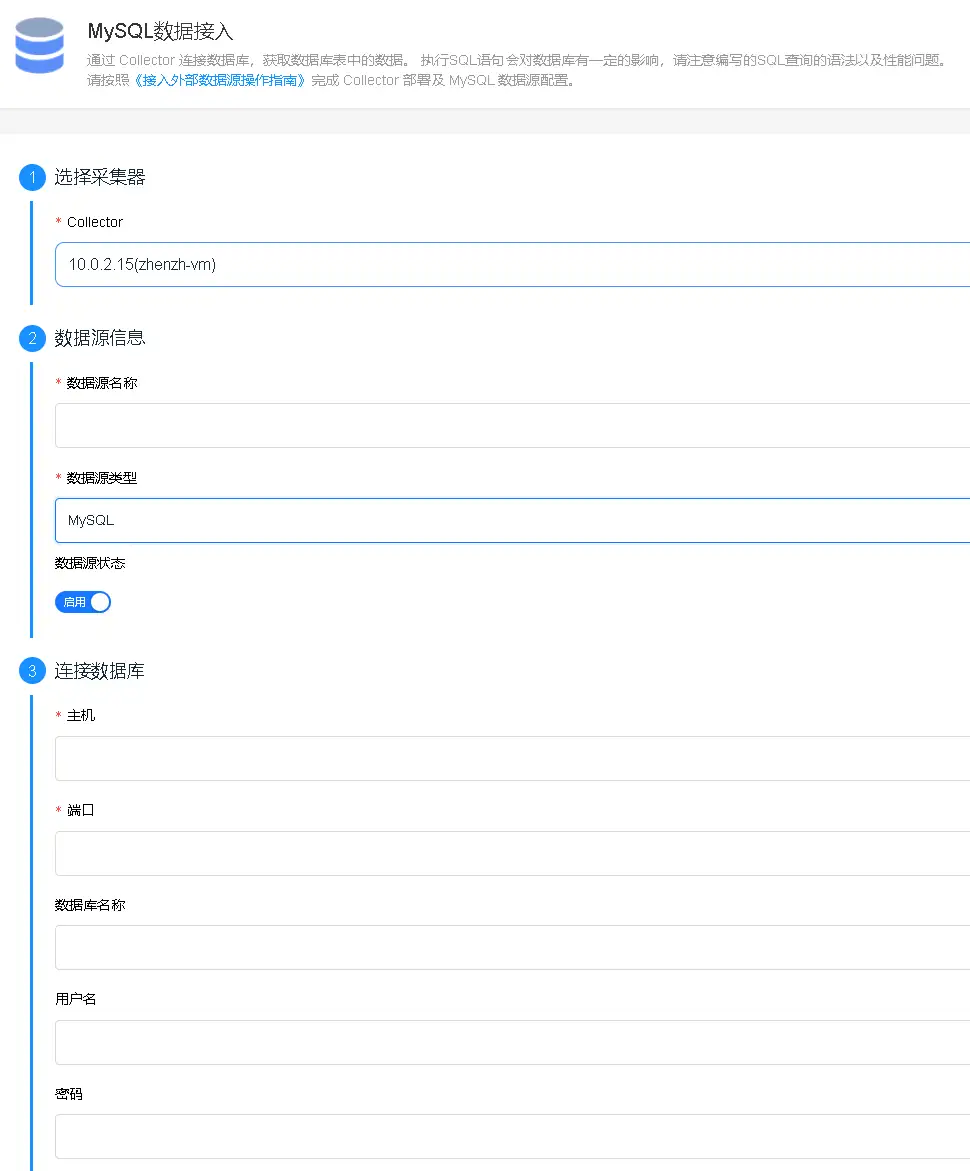
Username/Password: The MySQL read-only monitoring account and password created in the previous step.
Collector: The Collector information confirmed in the previous step.
Step 6: Generating Database Metrics
-
In the left navigation menu, select All Apps > Metric System.
-
Click Generate.
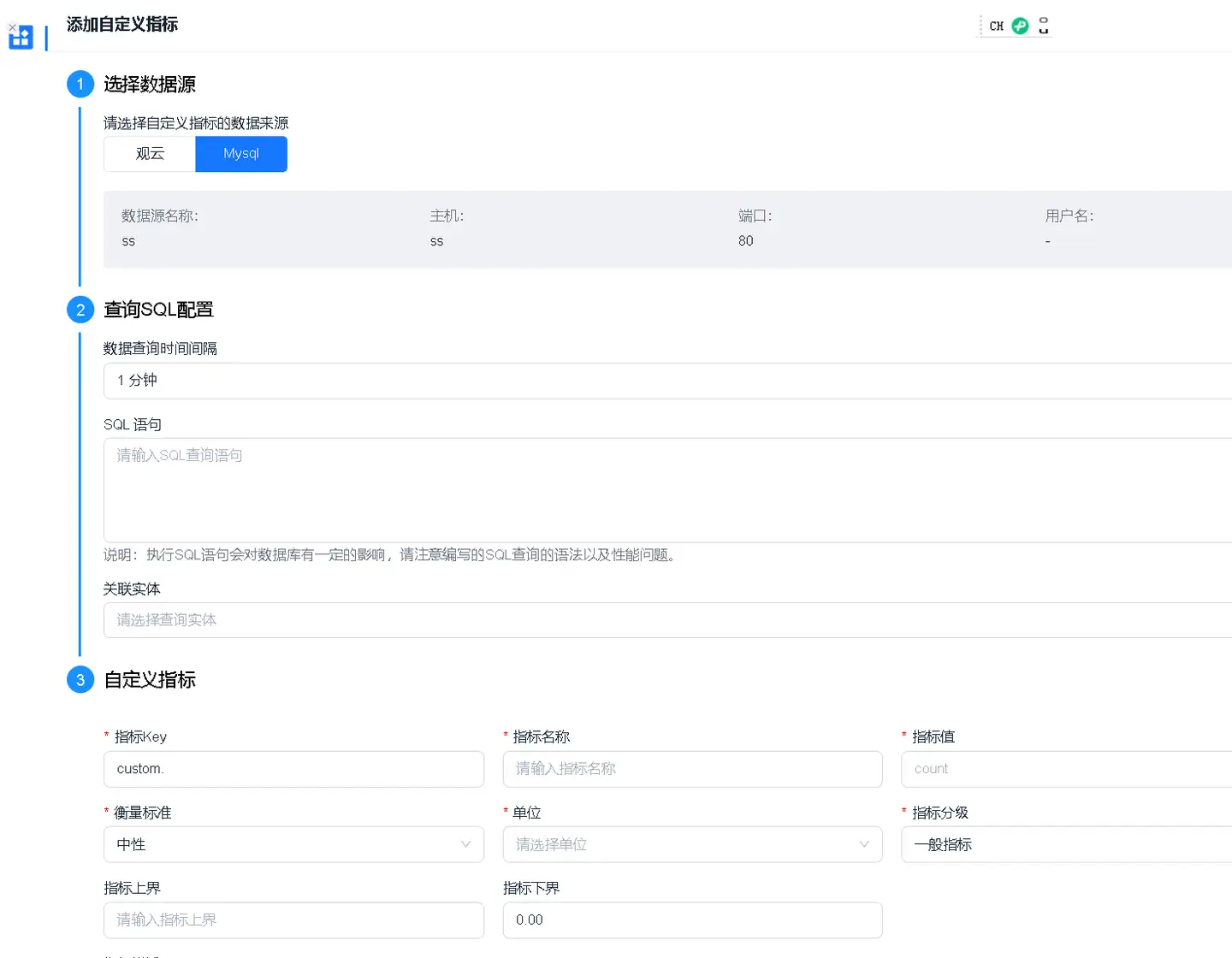
Select the MySQL data source configured in the previous step.
Configure SQL query statement.
Set metric name, unit, dimensions, and other parameters.
-
Click OK.
Step 7: Viewing Data in Guanyun Platform
Go to the Data Explorer lite App, select METRIC as the data model, and query data by the metric name you configured above.