Data Integration
Overview
Data Integration is the entry module for the platform to connect to external data sources, supporting data retrieval from multiple data sources for metric creation and analysis. Data Integration includes the following two core functions:
- Data Access: The platform provides more than ten data access templates, including:
- Monitoring Platforms: Zabbix, Prometheus, Grafana
- UniAgent: for Kubernetes, for Host, Collector, Mobile APP, Web, Mini Program
- External Data: Database
- Data Source: Displays created data access instances for managing and configuring specific data source connections.
Use Cases
When you need to create custom metrics, you can obtain data from monitoring tools, Agents, collectors, and external data to create metrics. Created metrics can be used to set alerts and display statistical data on dashboards.
Configuration Guide
- In Integration, create a specific data integration instance based on data access templates provided by the platform.
- In the Lite App Metric System > Generate, complete custom metric creation.
Prerequisites
You need to install a Collector that integrates with external data first.
For details, see Integrating External Data Source Data to install Collector for MySQL data collection.
Data Access
For different data access templates, fill in connection configuration parameters such as connection address, authentication, etc., to complete data source creation.
Using external data Database as an example:
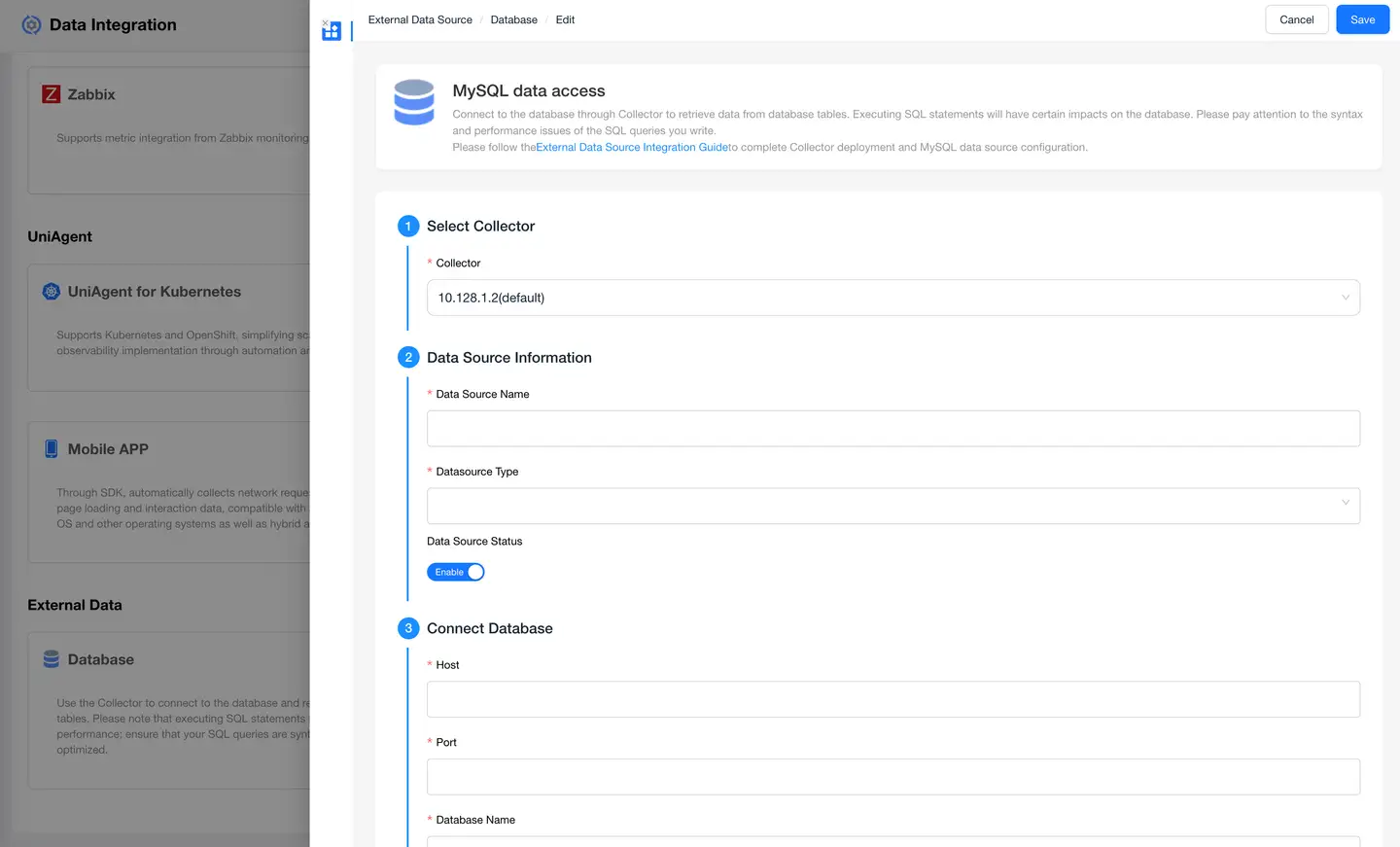
| Step | Item | Description |
|---|---|---|
| 1 Select Collector | Collector | Select a collector that can connect to MySQL. |
| 2 Data Source Information | Data Source Name | Name of the specific database data source. |
| Data Source Type | MySQL | |
| Data Source Status | Enable or disable. Default is enabled. | |
| 3 Connect to Database | Host | IP address of the host where MySQL is located |
| Port | Port of MySQL | |
| Database Name | Database name | |
| Username | Username for connecting to MySQL database | |
| Password | Password for connecting to MySQL database | |
| Timeout (seconds) | Maximum time to continue attempting connection after initial MySQL connection failure. No further connection attempts after exceeding this value. | |
| 4 Configuration Complete | None | None |
Data Source Usage
After establishing a data source, metric data is typically obtained from the data through queries, statistics, and other statements.
Generating Metrics
Overview
Currently, the platform has two types of metric sources: one is metrics collected by system default Agents, and the other is metrics obtained through the data access function under Integration by connecting to external monitoring tools, platform internal business data, and data stored in third-party databases.
Configuration Guide
- Select the metric data source: Guanyun or MySQL.
- When selecting Guanyun, there are four types of model data (METRIC, SPAN, RUM, and LOG) that store business and performance data. Define metric attributes through model selection.
- When selecting MySQL, obtain metric data by configuring SQL query statements.
- After saving the configuration, the platform automatically distributes this configuration to the Collector in the configuration.
- The Collector completes metric collection work according to configuration parameters.
Creating Metrics from Guanyun Models
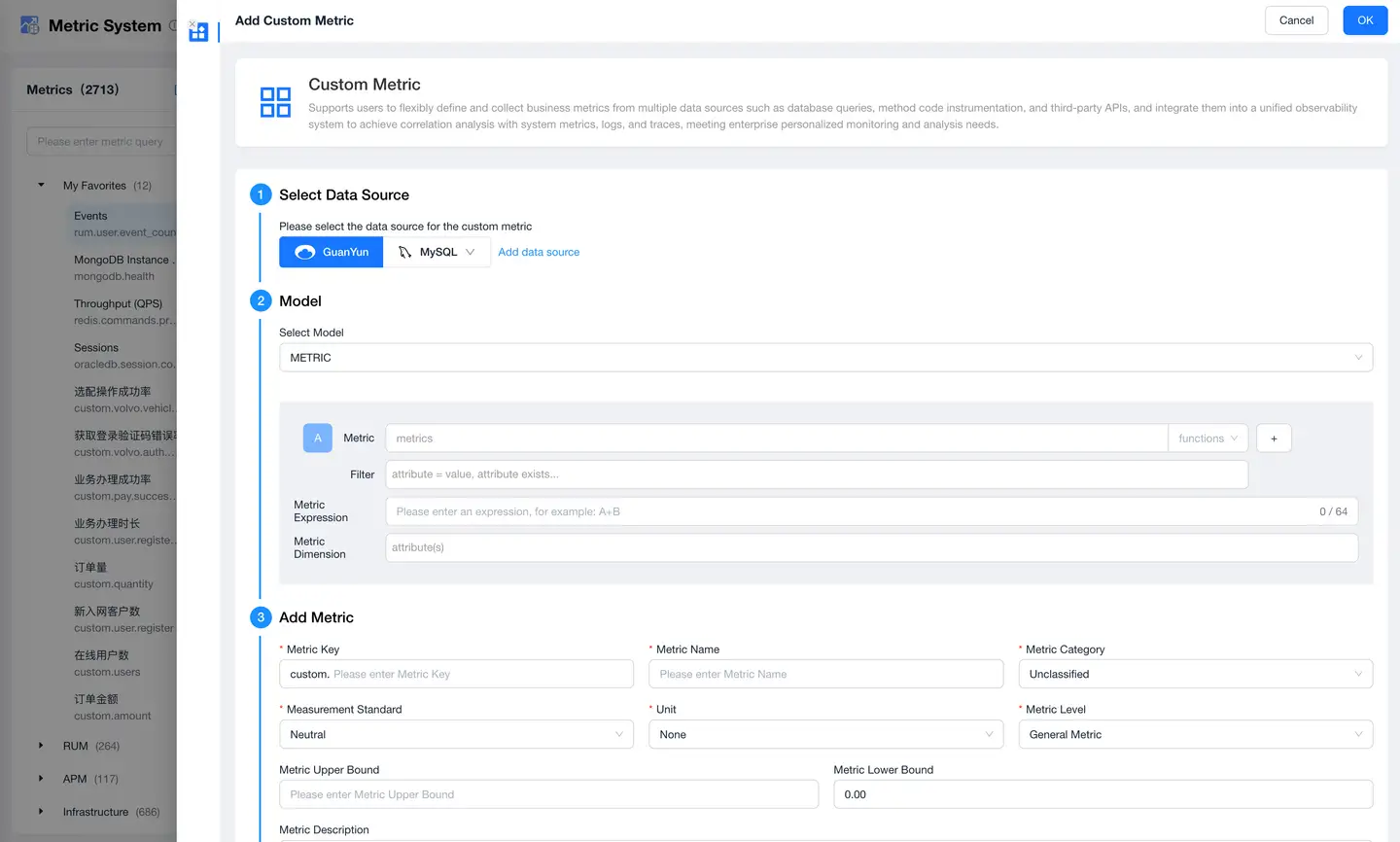
| Step | Item | Description |
|---|---|---|
| 1 Select Data Source | Guanyun | Select the data source for creating metrics |
| 2 Model | Select Model | METRIC: Create derived metrics or composite metrics from system metrics. + Metric, metrics that exist in the current system + Filter, metric attribute filtering + Metric Expression, when multiple metrics appear, generate new metrics through addition, subtraction, multiplication, and division + Metric Dimension, used to filter metric data SPAN: Create metrics from SPAN model data in Traces. + Business System, existing business systems + Application, select corresponding application list under the business system + Data Item, data items configured under this business system + WHERE, data items configured under this business system + GROUP BY, data items configured under this business system RUM: Obtain metric data from RUM protocol data. + VISUALIZE, select data attributes in the model as metrics + WHERE, data items configured under this business system + GROUP BY, data items configured under this business system LOG: Obtain metric data from LOG protocol data. |
| 3 Add Metric | Metric Key | Unique identifier of the metric, usually named in English |
| Metric Name | Chinese meaning of the metric | |
| Metric Category | Resource level classification of entities to which the metric belongs | |
| Measurement Standard | Default neutral, used to determine whether a larger or smaller metric value is better | |
| Unit | Unit of the metric, displayed in user charts | |
| Metric Level | Importance level of the metric | |
| Metric Upper Bound | Maximum value of the metric, exceeding which is abnormal | |
| Metric Lower Bound | Minimum value of the metric, default 0 | |
| Metric Description | More explanatory information about this metric | |
| 4 Associate Entity | Tags | System default assignment |
| 5 Configuration Complete | None | None |
Creating Metrics from MySQL Data Source
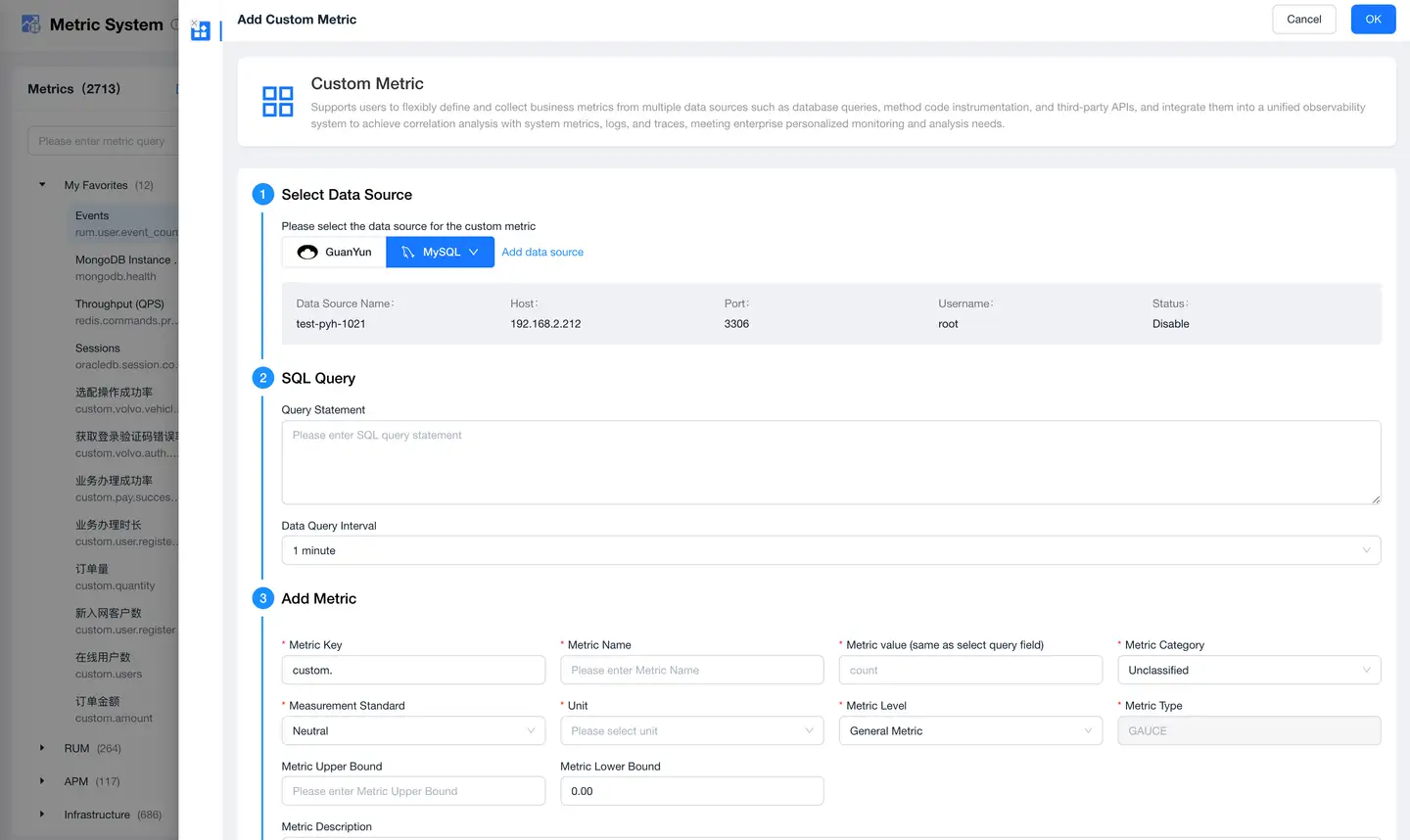
| Step | Item | Description |
|---|---|---|
| 1 Select Data Source | MySQL | Select a specific data source instance under data source type MySQL. After selection, the system displays basic information of this data source. |
| 2 SQL Query | Query Statement | Query statement that must start with Select |
| Data Query Time Interval | How often to connect to the database to query SQL statements | |
| 3 Add Metric | Metric Key | Unique identifier of the metric, usually named in English |
| Metric Name | Chinese meaning of the metric | |
| Metric Category | Resource level classification of entities to which the metric belongs | |
| Measurement Standard | Default neutral, used to determine whether a larger or smaller metric value is better | |
| Unit | Unit of the metric, displayed in user charts | |
| Metric Level | Importance level of the metric | |
| Metric Upper Bound | Maximum value of the metric, exceeding which is abnormal | |
| Metric Lower Bound | Minimum value of the metric, default 0 | |
| Metric Description | More explanatory information about this metric | |
| 4 Associate Entity | Tags | Manually select associated business systems/applications. |
| 5 Configuration Complete | None | None |