Session Settings
In the navigation bar, select Real User Monitoring > User Journey > Settings to enter the Session Settings page by default. Configuration item descriptions are as follows:
-
Journey Replay: After enabling the control switch, the SDK will begin image collection of user steps and synthesize a video file through the backend. This switch is disabled by default.
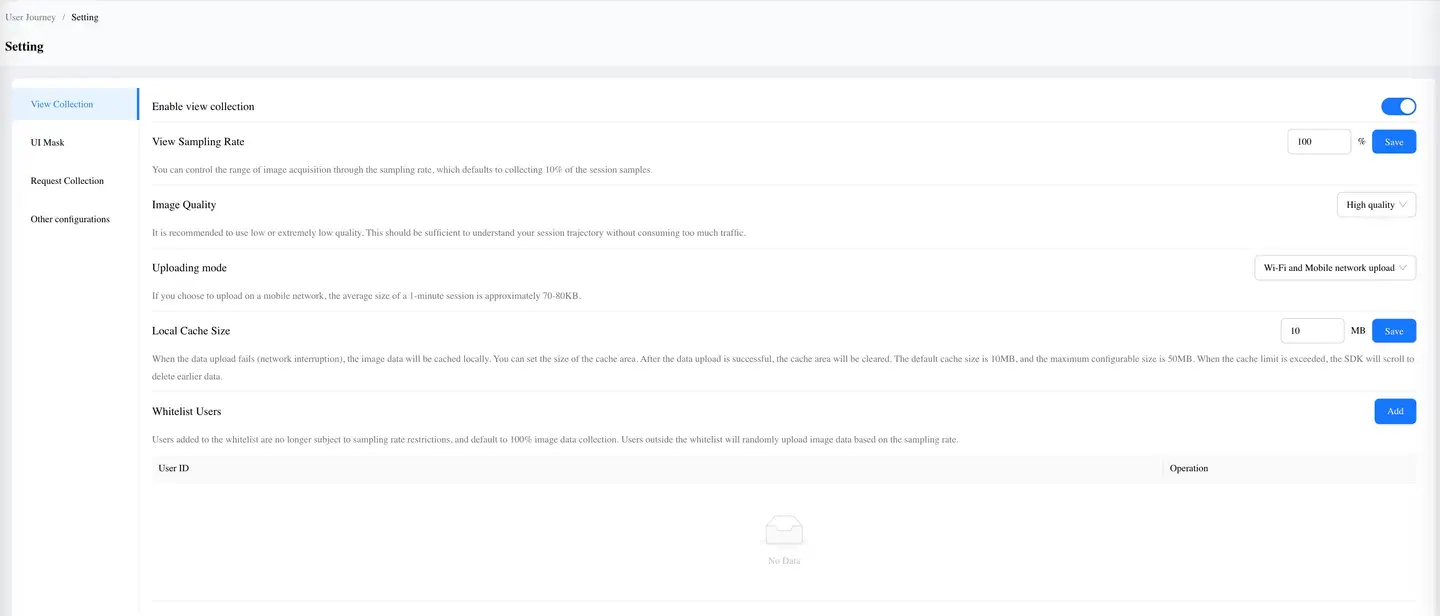
- Video Sampling Rate: Video collection consumes certain performance. You can control the scope of video collection through sampling rate, with 10% of session samples collected by default.
- Image Quality: Video quality determines the size of data upload. It's recommended to use low quality or very low quality.
- Upload Method: You can choose to upload videos via WiFi or WiFi and Mobile Network. Low-quality video recording consumes an average of 70KB~80KB of traffic per minute.
- Local Cache Size: When data upload fails, video data will be cached locally. You can set the cache area size through the platform. The cache will be cleared after successful data upload. The default size is 10MB. When the limit is exceeded, earlier data will be rolled over and deleted. To save storage space, the maximum cache size can be configured to 50MB.
- Whitelist Users: Users added to the whitelist are no longer subject to sampling rate restrictions and have 100% video data collection by default. Users outside the whitelist will upload video data randomly according to the sampling rate.
-
UI Masking
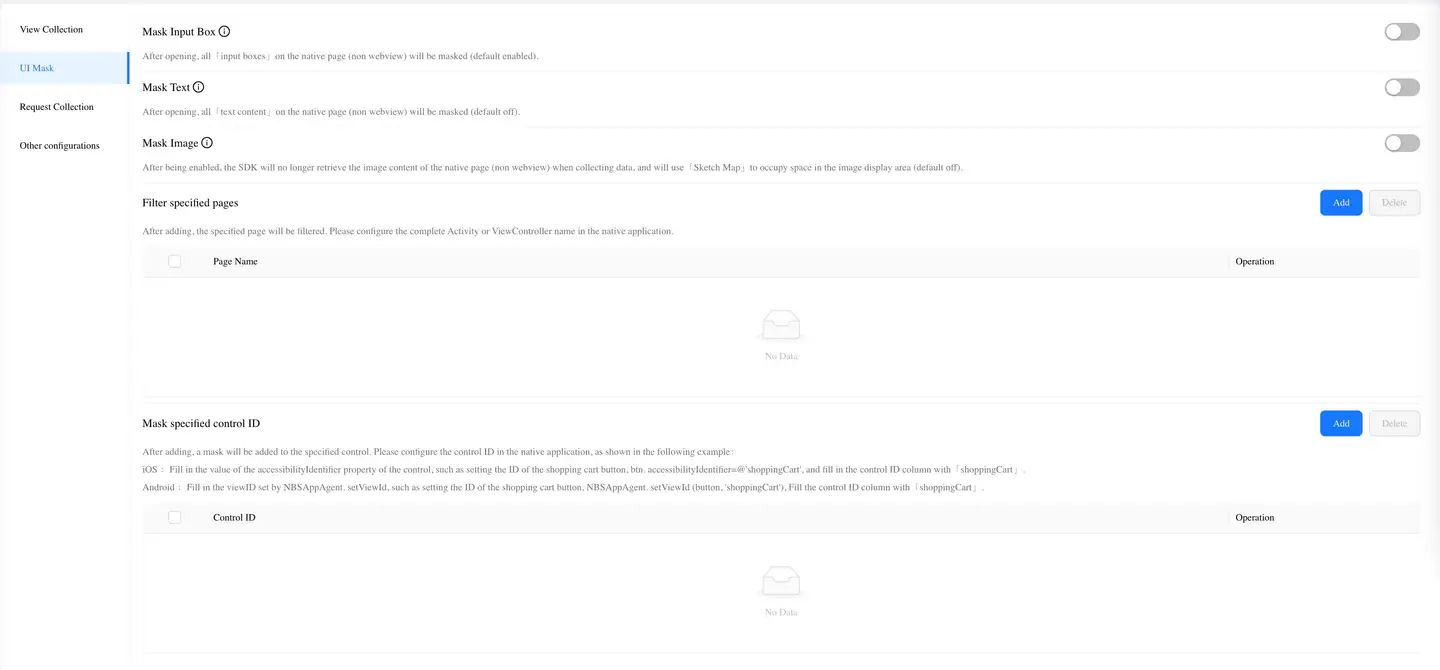
- Mask Input Fields: When enabled, all "input fields" on native pages (non-webview) will be masked (enabled by default).
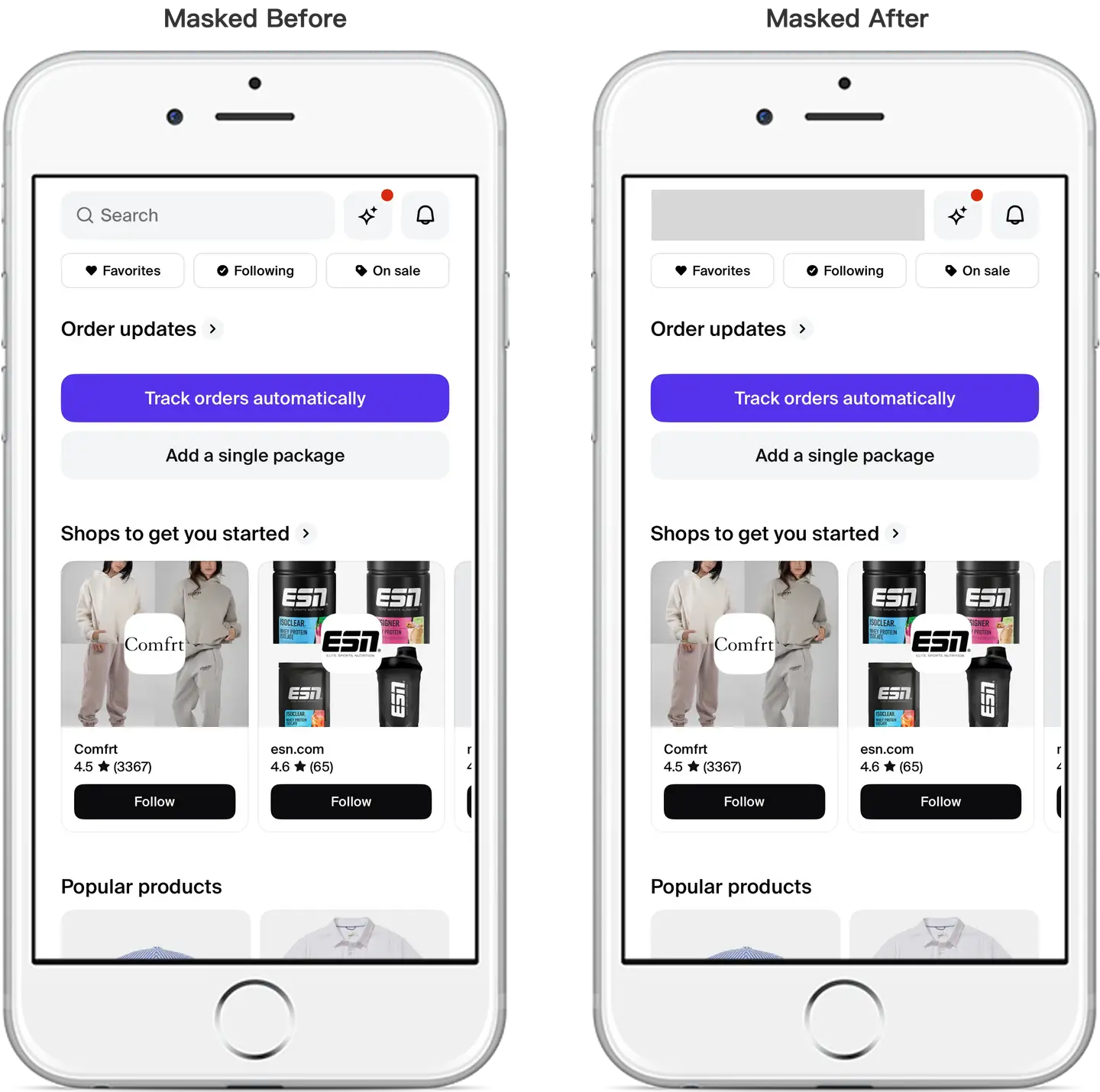
- Mask Text: When enabled, all "text content" on native pages (non-webview) will be masked (disabled by default).
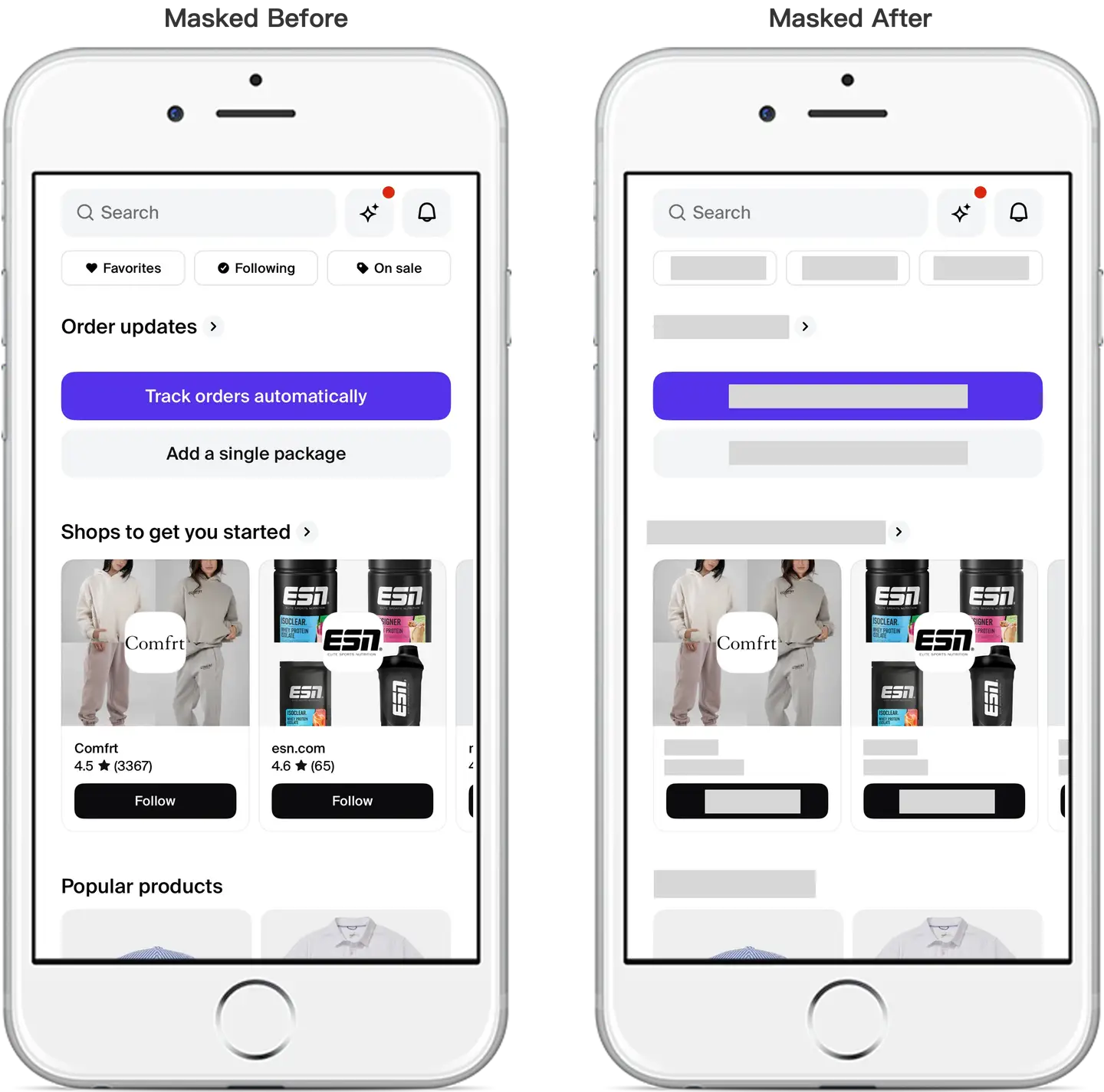
- Mask Images: When enabled, the SDK will no longer capture image content from native pages (non-webview) during data collection and will use "schematic diagrams" as placeholders in image display areas (disabled by default).
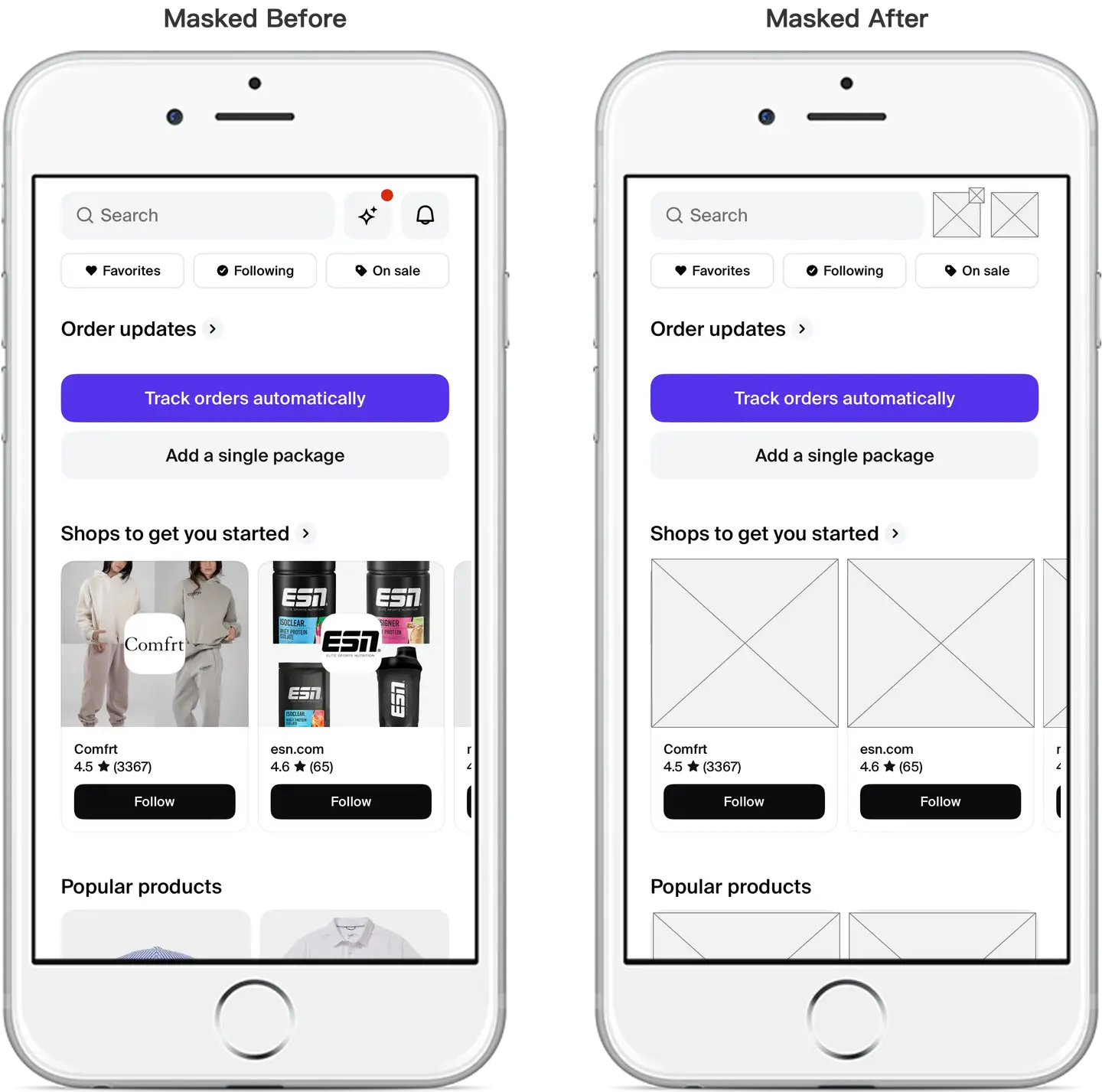
- Filter Specified Pages: After adding, specified pages will be filtered. Please configure the complete Activity or ViewController name in the native application.
- Mask Specified Control IDs: After adding, specified controls will be masked. Please configure the control ID in the native application. Examples are as follows:
- iOS: Fill in the value of the control's accessibilityIdentifier property, such as: setting the shopping cart button ID, btn.accessibilityIdentifier = @"shoppingCart", fill in "shoppingCart" in the Control ID column.
- Android: Fill in the viewID set by NBSAppAgent.setViewId, such as: setting the shopping cart button ID, NBSAppAgent.setViewId(button, "shoppingCart"), fill in "shoppingCart" in the Control ID column.
-
Request Collection

- Record Network Requests: When enabled, "Network Request" data will be displayed in session details.
- Note that different touchpoints handle request types differently. App displays Http/Https type request data; Web displays XmlHttpRequest/Fetch type request data; Mini Program displays request data.
- Only Collect API Requests: To avoid the problem of too many resource requests making analysis content complex, after enabling the control switch, only "API (mime-type is text or json)" request data will be displayed in session details, and resource type request data will no longer be displayed.
- Record Network Requests: When enabled, "Network Request" data will be displayed in session details.
-
Other Configurations

- Rapid Clicking: When enabled, it can identify whether you frequently click the application in a short time. This switch is enabled by default.
- Full Collection of Interaction Trace Data: By default, the platform only retains detail data that exceeds the threshold setting. When enabled, all operation and page loading detail data will be collected. This switch is disabled by default.