Time Picker
The time picker is a core component for data query and visualization. It helps you quickly select the appropriate time range so that you can flexibly and efficiently filter, compare, and display data. This section describes the main functions of the time picker and answers some frequently asked questions.
Quick Time Ranges
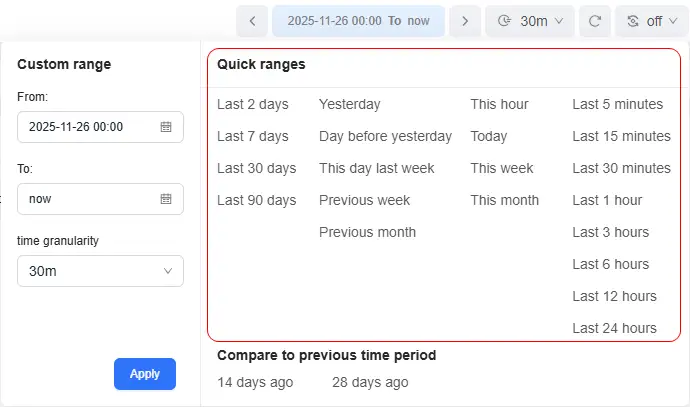
The Quick ranges area provides multiple common preset options such as Last 1 hour and Today. You only need to click the corresponding preset to immediately apply that time range.
Custom Time Range
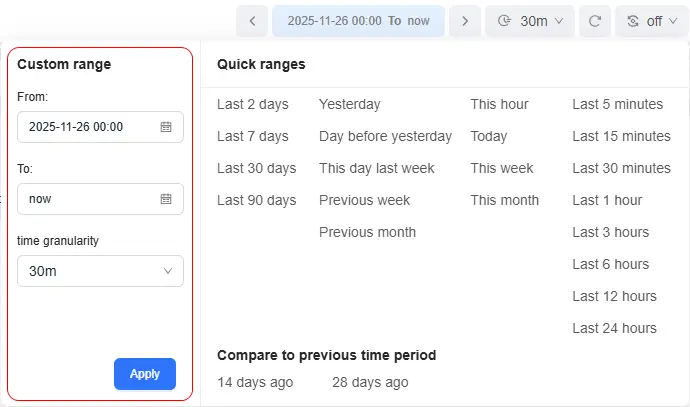
The Custom range area allows you to manually configure an accurate start time and end time. It is suitable when you need to view a specific historical window or build more complex time logic.
The custom range area provides two input boxes: From (start time) and To (end time). You can select the start and end time from a calendar, or manually enter the time in the input boxes. When you choose to enter the time manually, you can use time expressions. For details about the expression formats, see Time Expression Description.
Time Expression Description
When manually entering the From/To time in a custom range, you can use common relative time expressions or absolute time formats, for example the relative time now-1h or the absolute time 2025-08-04 10:30:00.
Common Relative Time Expressions (Recommended)
| Expression | Meaning |
|---|---|
now | Current time |
now-2d | 2 days ago |
now-1h | 1 hour ago |
now-30m | 30 minutes ago |
now-5s | 5 seconds ago |
now+1d | 1 day later (future) |
Supported time units include d (day), h (hour), m (minute), and s (second).
Absolute Time Format (Optional)
The absolute time format is as follows:
YYYY-MM-DD HH:MM:SS
For example:
2025-08-04 10:30:00
If you use absolute time, make sure the format is correct; otherwise, the value may not be parsed.
Time Granularity Settings
Time granularity controls the aggregation interval of data displayed in charts and tables. In the Time granularity drop-down list, select an appropriate interval and the system will aggregate and display the data based on the selected granularity.
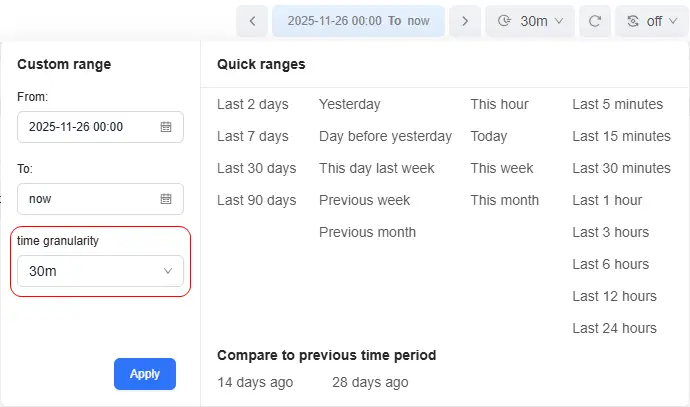
The options available in the drop-down list automatically adjust according to the current time range. The relationship between time ranges and time granularities is as follows:
| Time Range | Default Granularity | Optional Granularity |
|---|---|---|
| ≥ 10 minutes | 1 second | 1s, 5s, 10s, 15s, 30s, 1m |
| ≥ 30 minutes | 5 seconds | 5s, 10s, 15s, 30s, 1m |
| ≥ 1 hour | 10 seconds | 5s, 10s, 15s, 30s, 1m, 5m |
| ≥ 2 hours | 15 seconds | 10s, 15s, 30s, 1m, 5m, 10m |
| ≥ 8 hours | 1 minute | 30s, 1m, 5m, 10m, 15m, 30m |
| ≥ 24 hours | 1 minute | 1m, 5m, 10m, 15m, 30m, 1h, 2h |
| ≥ 7 days | 1 hour | 15m, 30m, 1h, 2h, 3h, 4h, 6h, 12h |
| ≥ 14 days | 1 hour | 30m, 1h, 2h, 3h, 4h, 6h, 12h, 1d |
| ≥ 28 days | 2 hours | 1h, 2h, 3h, 4h, 6h, 12h, 1d, 2d |
| ≥ 60 days | 4 hours | 2h, 3h, 4h, 6h, 12h, 1d, 2d, 3d |
Set time granularity reasonably according to data collection frequency and analysis needs. Avoid extremely fine granularities that may cause performance degradation.
Time Offset
The Time Offset function allows you to shift the current query time range forward or backward as a whole. It is often used to compare data across different periods without modifying the original time expression.
To use the time offset function, take the following steps:
- In the time picker, select the offset amount.
- Click the arrow before or after the current time range to shift the entire range forward or backward.
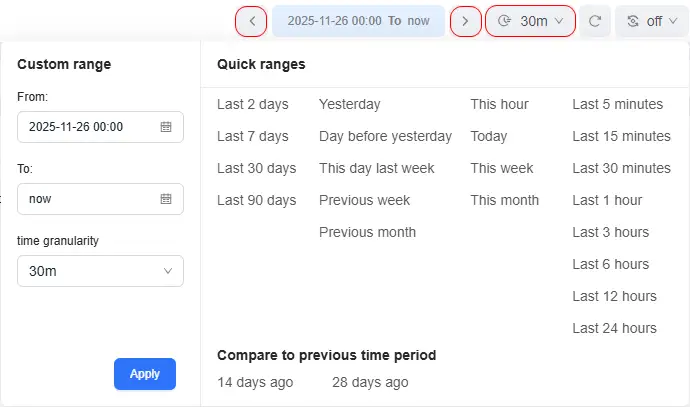
The time offset feature preserves the original time logic while performing a global shift, facilitating A/B testing or periodic comparisons.
Refreshing Immediately
Click Refresh to manually trigger a data query and immediately load the latest data. This function is suitable for the following scenarios:
- You want to see the result immediately after modifying filter conditions.
- You suspect that there is data delay and want to force synchronization with the latest state.
- You have disabled automatic refresh and want to temporarily obtain new data.
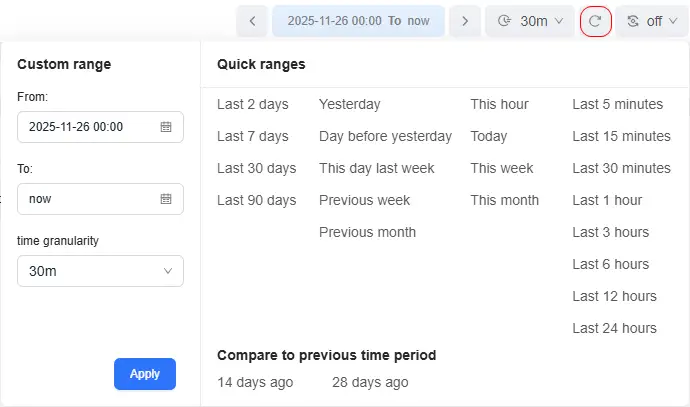
The refresh operation uses the current time range and time granularity that have already been configured.
Scheduled Refresh
The Scheduled Refresh function allows the page to automatically re-query data at a fixed interval. It is suitable for scenarios such as real-time monitoring VisBoards, dashboards, and fault tracing.
To use the scheduled refresh function, take the following steps:
-
In the time control, click the Scheduled Refresh drop-down list (for example,
Off V). -
Select a refresh frequency:
Option Description Off Disables automatic refresh 30s High-frequency refresh, suitable for real-time alerts 1m / 10m Recommended for routine monitoring 30m / 1h Low-frequency summary analysis or inspection
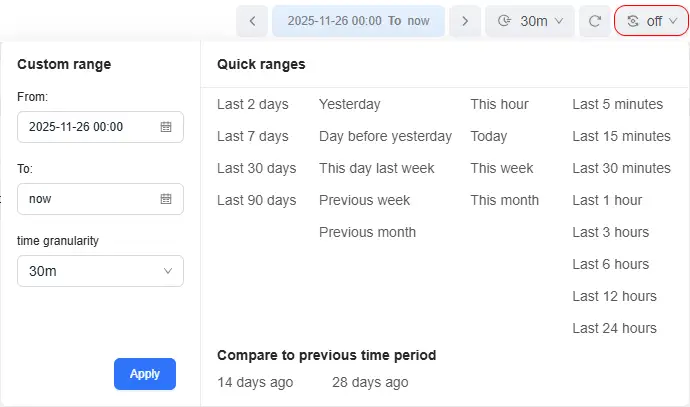
After you enable the scheduled refresh function, the page automatically executes queries and updates charts or tables according to the selected interval.
- If the time range is an absolute time range (for example,
2025-08-04 10:00~11:00), scheduled refresh does not change the time range, but only re-queries data in that fixed period (usually with no changes). - If the time range is a relative time range (for example,
Last 1 hour), each refresh automatically extends to the most recent "last 1 hour." - During refresh, a loading status is displayed to help you avoid repeated operations.
Comparing with Previous Period
The Comparing with previous period area provides comparison with previous periods, enabling year-on-year or period-on-period analysis and intuitive comparison of performance across different periods.
For example, you can select:
- 7 days ago: Compare the current time range with the same time window 7 days ago.
- 28 days ago: Compare the current time range with the same time window 28 days ago.
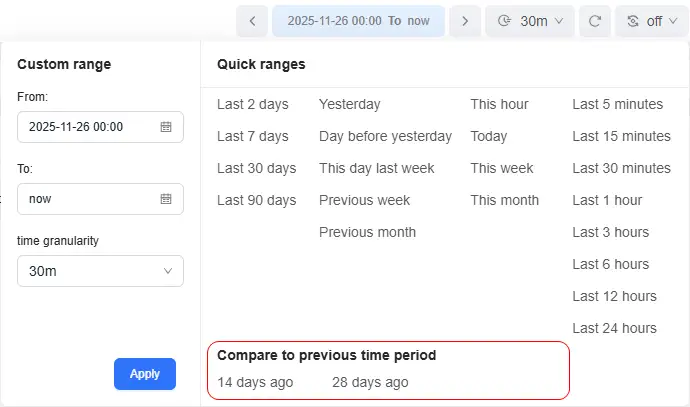
Using this function helps you intuitively view growth trends, abnormal fluctuations, and other key information.
From an implementation perspective, the system automatically applies time offsets such as
-7dto generate the comparison curve.
FAQ
Q1: What Is the Difference Between Time Offset and Comparing with Previous Period?
A:
- Time Offset: Modifies the main query time range (only the shifted data is displayed).
- Comparing with Previous Period: Displays both the original data and the shifted comparison data at the same time (two curves).
Q2: Why Does Scheduled Refresh Not Update the Data?
A: Check the following:
- Whether the time range is a relative time range (for example,
Last 1 hour). A relative time range "moves forward" as time passes, while an absolute time range just re-queries the same fixed period: for a historical fixed period you usually will not see new data, and for a future period you only see changes when new data is written for that time window. - Whether the network connection and permissions are normal.
- Whether new data is actually being written to the data source.
Q3: Does Refreshing Immediately Reset Scheduled Refresh?
A: No. Refreshing immediately only triggers a one-time query and does not affect the scheduled refresh task that has already been configured.