Platform Core Capabilities
Landing Page
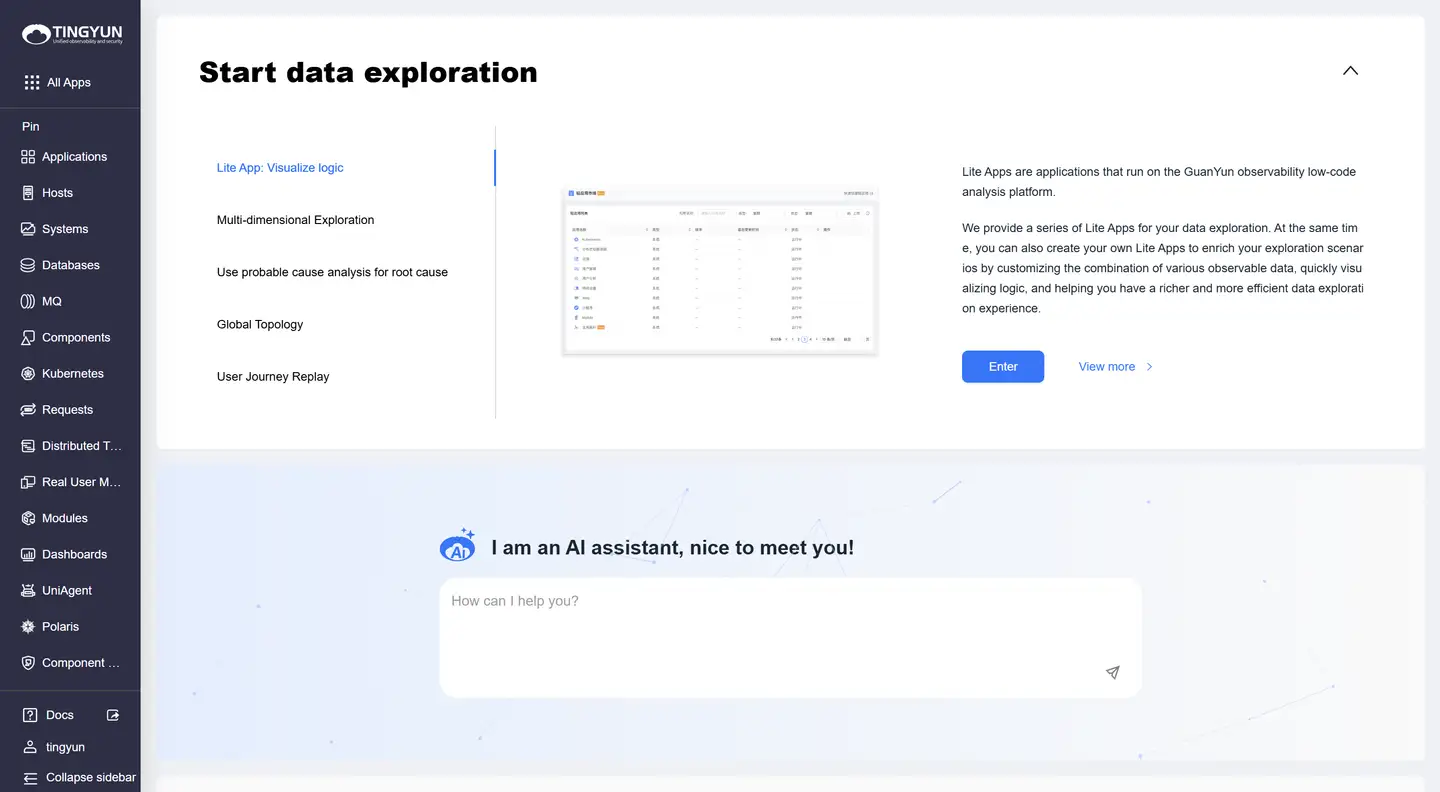
Functional Areas
-
Navigation Menu
- The left side contains the main navigation menu with entry points to various functional modules.
- Supports expand/collapse operations for easier access to more menu items.
-
Data Exploration
- Supports quick access to data exploration features.
- Provides specialized exploration, usage analysis, and other analytical dimensions.
- Can view key metrics and user access profiles.
-
AI Assistant
- Built-in intelligent AI assistant providing real-time conversational support.
- Supports natural language interaction to answer platform usage questions.
- Supports contextual understanding and provides personalized assistance.
-
Data Collection Tools
- UniAgent for Kubernetes: Supports data collection in containerized environments such as Kubernetes and OpenShift.
- UniAgent for Host: Supports data collection from hosts including Linux and Windows.
- Collector: Supports collection and forwarding of various types of data.
- Mobile App: Supports mobile application data collection, covering platforms such as Android, iOS, and HarmonyOS.
- Web: Supports data collection for web applications, suitable for mainstream frameworks such as H5, Vue, React, and Angular.
- Mini Program: Supports data collection for Mini Programs, covering mainstream platforms such as WeChat and Alipay.
Basic Functions
- Access Console
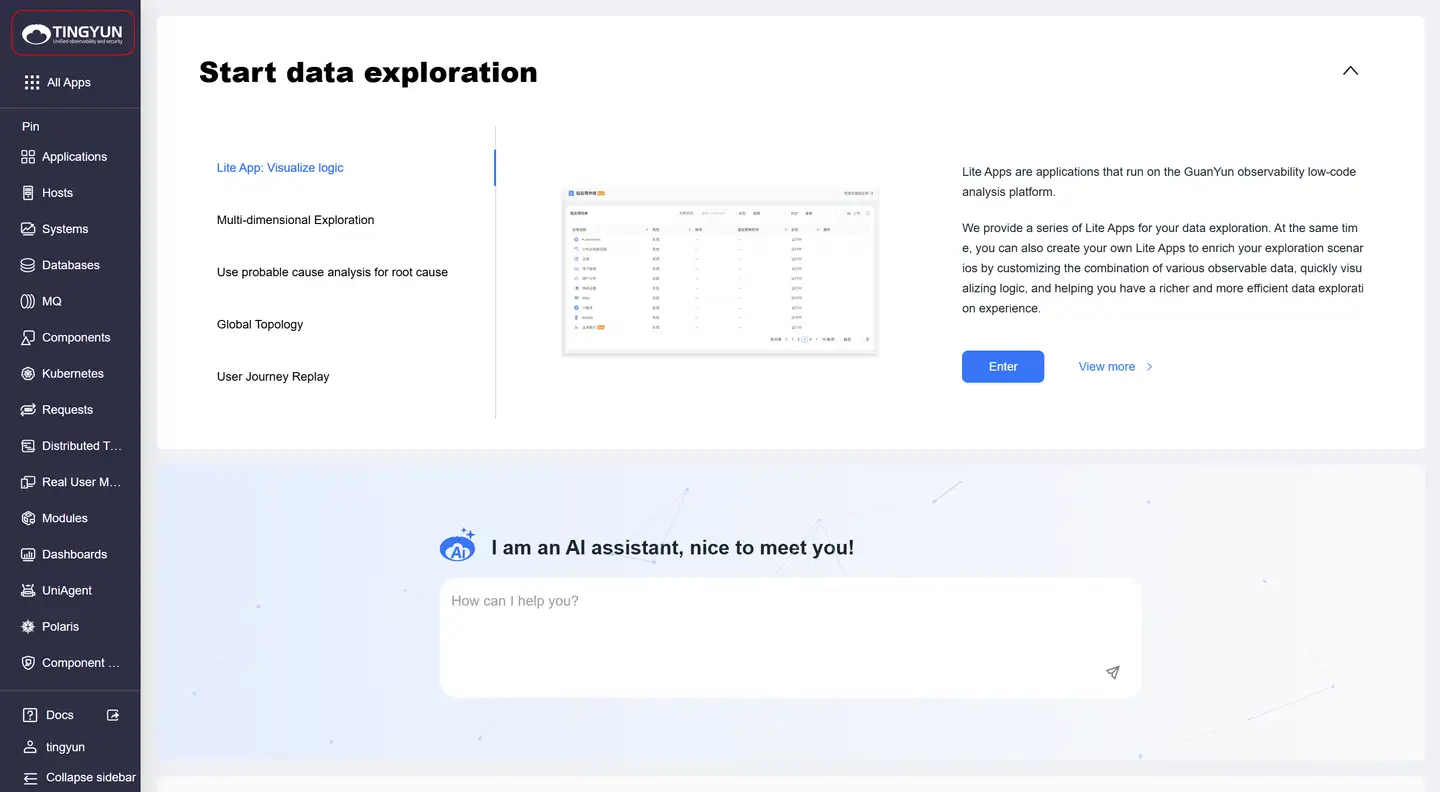
- Click the platform Logo to access the console.
- All Applications
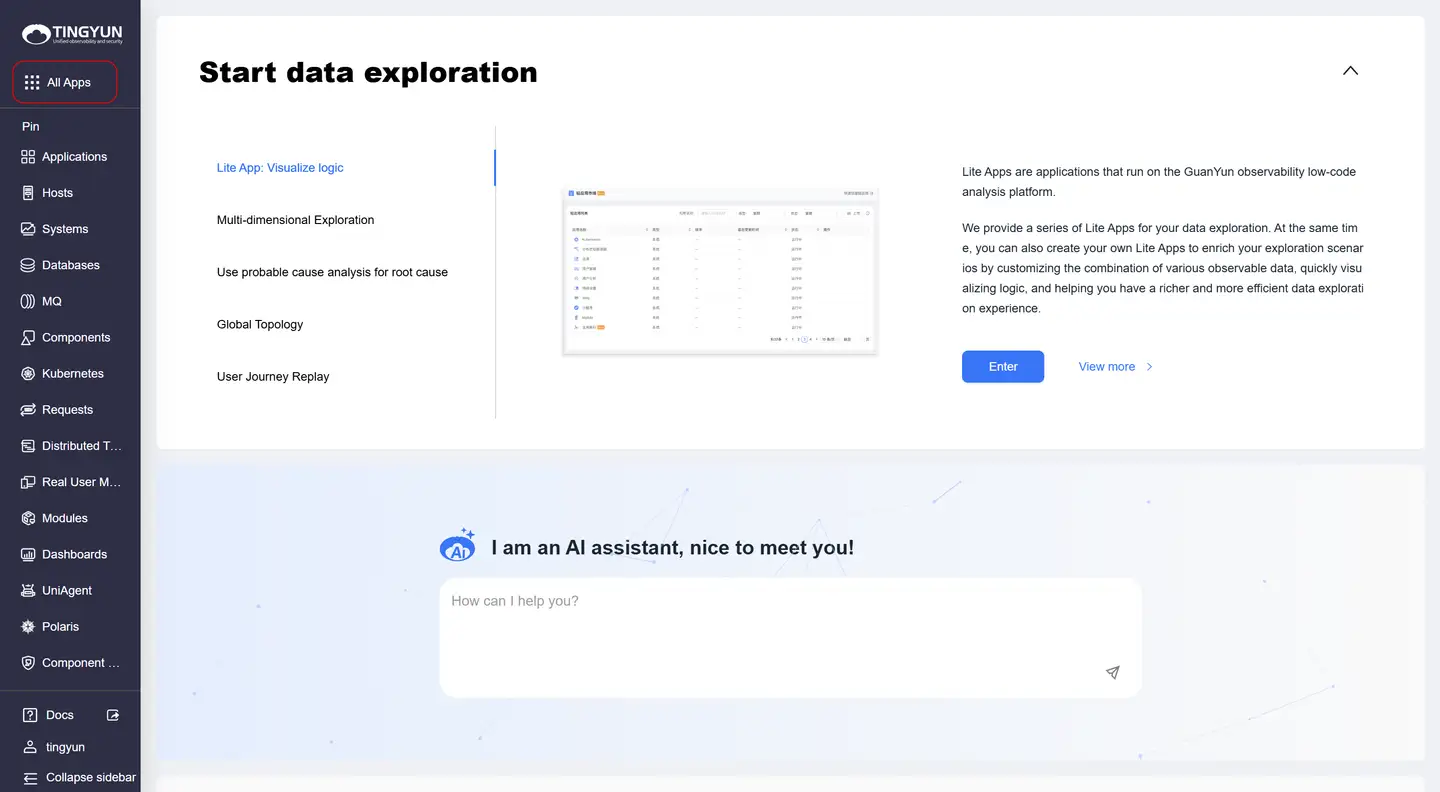
- Click All Apps to open the lite application list.
- Supports application search.
- Click an application icon to open it.
Application Management
-
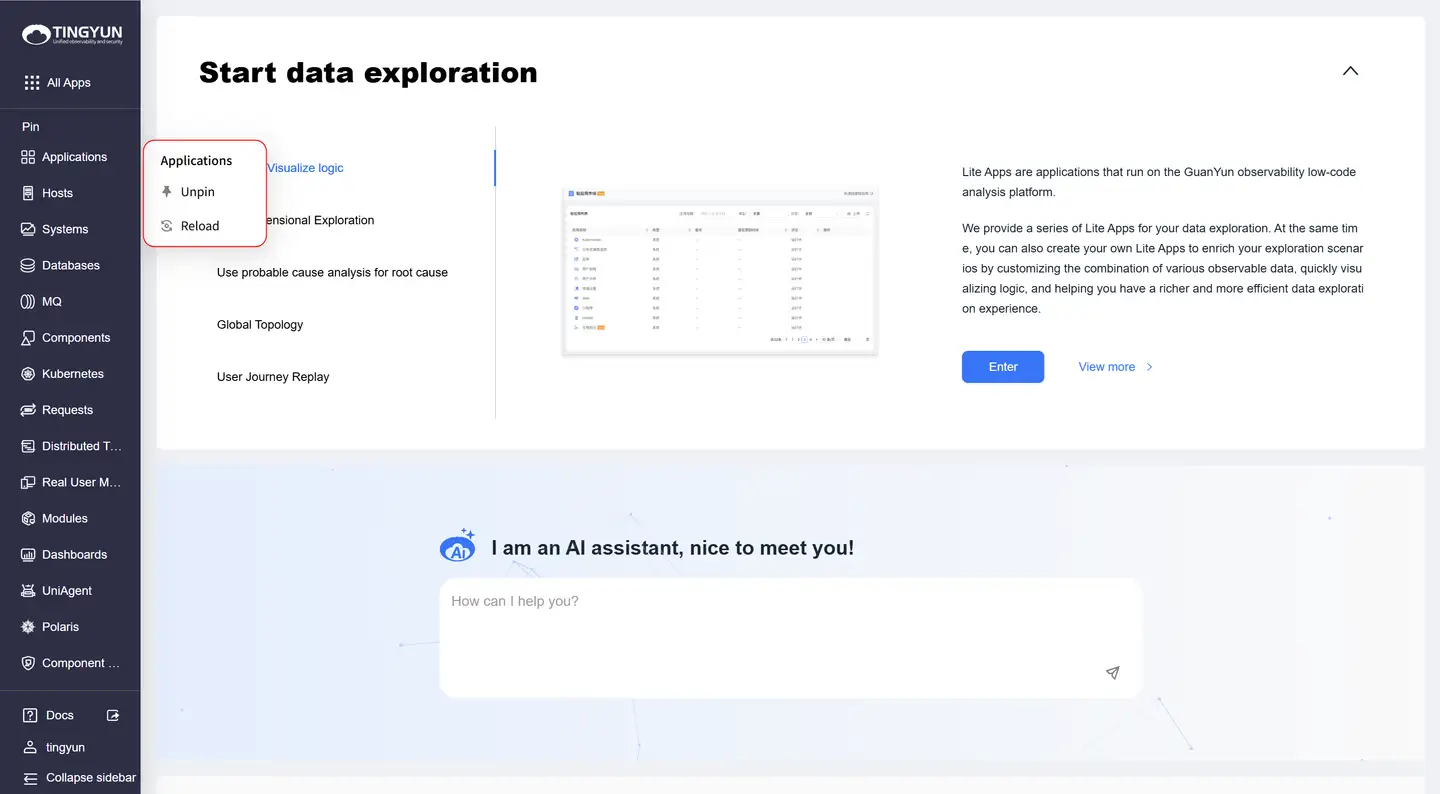
Pinned Applications
- Lite applications can be pinned to the Dock bar.
- Right-click the application icon: Supports Unpin and Reload.
-
Recently Used
- Displays the 5 most recently used applications.
- Right-click application icons: Supports Add to Pinned and Reload.
-
Other Operations
- Reload: Click to restart the lite application.
- Width Adjustment: Click Collapse sidebar to fold the Dock and adjust the viewing area.
System Functions
Documentation Center
- Click Docs in the lower left corner to jump to the documentation center.
Account Management
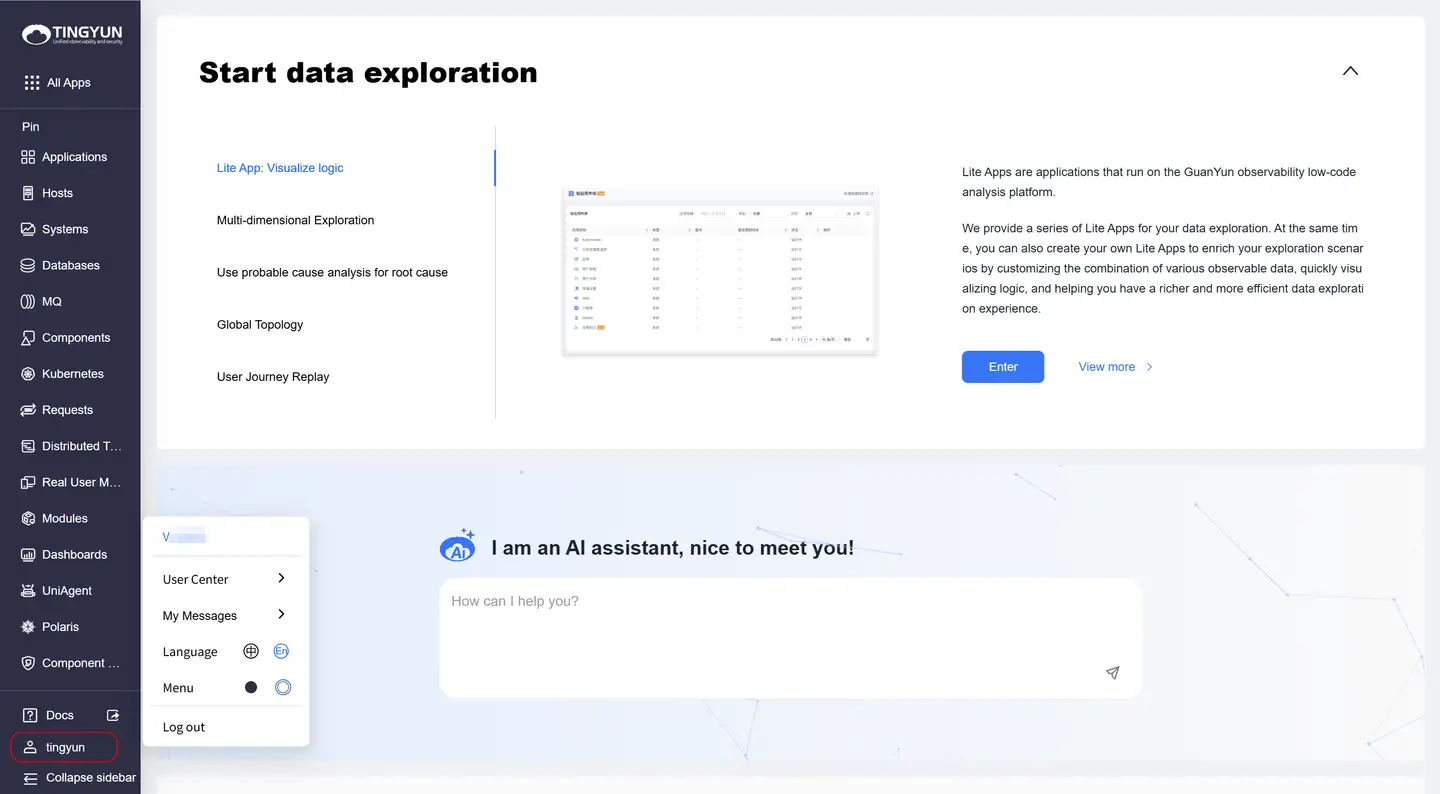
-
User Center
- Click the account in the lower left corner and select User Center.
- Functions: Manage accounts, assign permissions, configure push information, and view usage.
-
Message Center
- Click the account in the lower left corner and select My Messages.
- View and manage personal messages and notifications.
-
Language Settings
- Click the account in the lower left corner and select Language.
- Supports switching between Chinese and English interfaces.
-
Signing Out
- Click the account in the lower left corner and select Sign out.
Usage Recommendations
System Requirements
- Browser: Chrome V81+ recommended.
- Resolution: 1920x1080.
Note
Firefox is currently not supported.