Application Overview
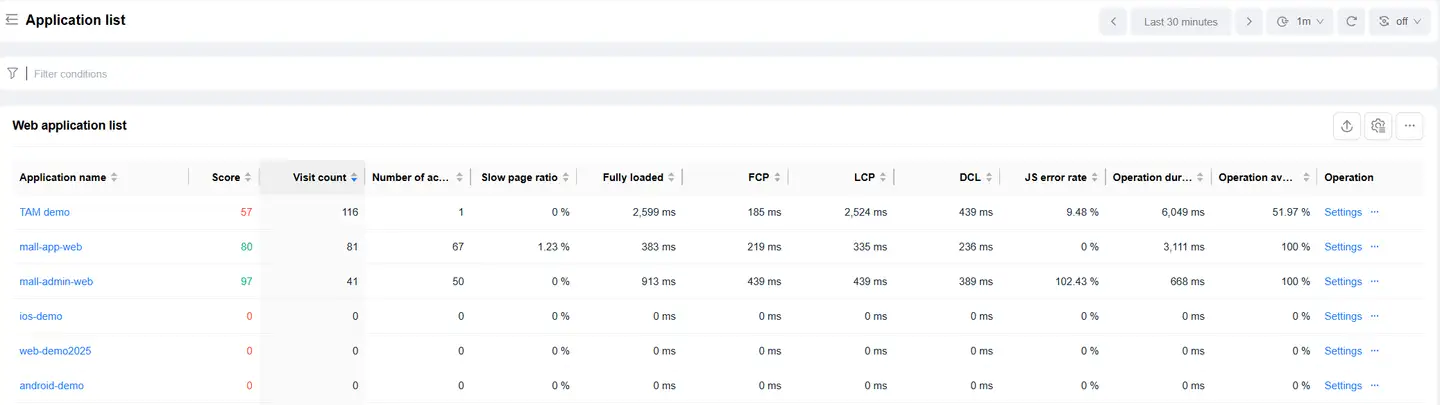
Click on an application in the Application List page to enter the Overview page, which displays the application's score and performance metrics for the selected time period.
Application Score Analysis
Score Display

The left side displays the application's score in a pie chart, while the right side shows the performance metrics used in the score calculation and their period-over-period comparison.
Performance metrics included in the score calculation:
- FCP (First Contentful Paint)
- LCP (Largest Contentful Paint)
- Operation Availability
- Operation Time
- DCL (DOMContentLoaded)
- Slow Page Percentage
Score Details

You can hover over the pie chart to view detailed information for each performance metric:
- Performance metric name
- Points contributed to the application score
- The metric's own score
- Performance metric value
Performance Metrics Analysis
Trend Analysis
Displays trend charts of performance metrics, which you can filter and analyze as needed:
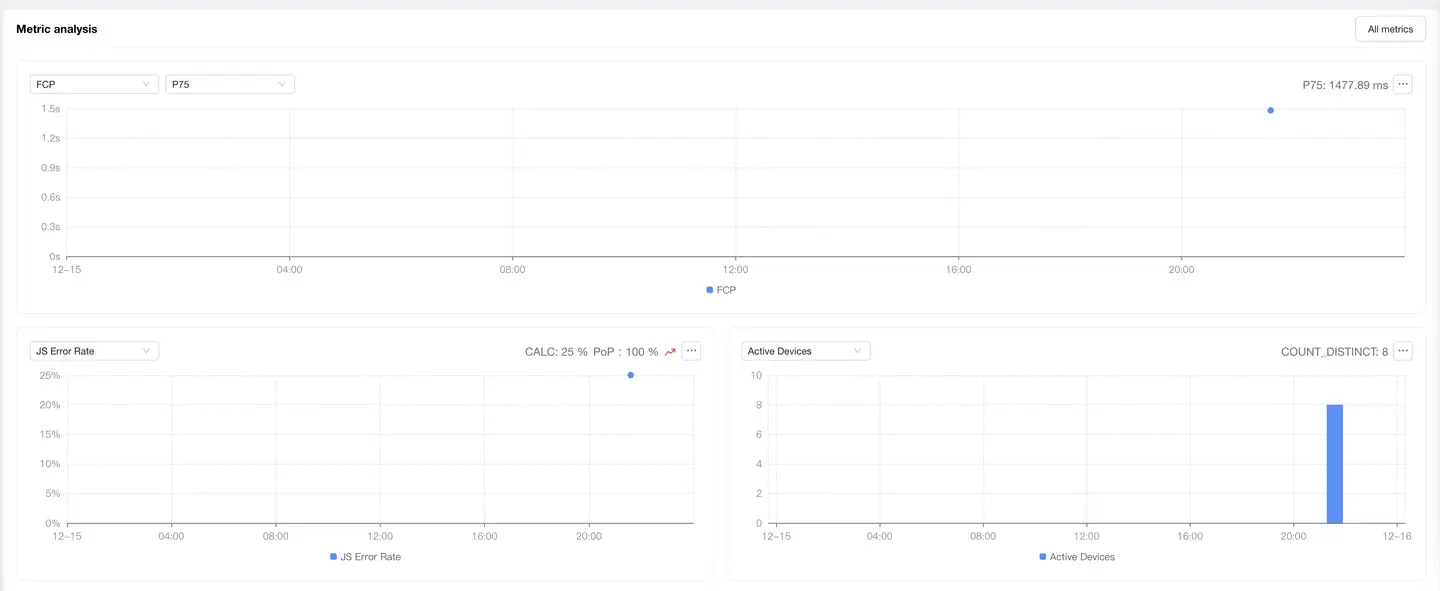
- Time-based performance metrics support multiple statistical methods:
- Average
- P50
- P75 (Default)
- P95
- P99
- Supports analysis of the following metrics:
- Active Device Count
- Page View Count
- Request Count
Metrics System
Click All Metrics on the right to enter the Metrics System page:
- Displays attribute information for each metric
- Supports metric search
Relationship Topology Analysis
Displays the complete chain from Web user experience to backend services, helping to analyze performance bottlenecks.
Multi-page Application View

Select the Multi-page Application card to display a list of multi-page application loading performance data, including:
- Web Page
- Visit Count
- Active Device Count
- TTFB
- FCP
- LCP
- FID
- CLS
- Complete Load
- TTI
- TBT
- LoadEventEnd
- JS Error Rate
- Slow Page Count
- Slow Page Percentage
Click on a Web page in the list to enter Web Page Detail Analysis, which displays detailed data for that Web page.
Single-page Application View
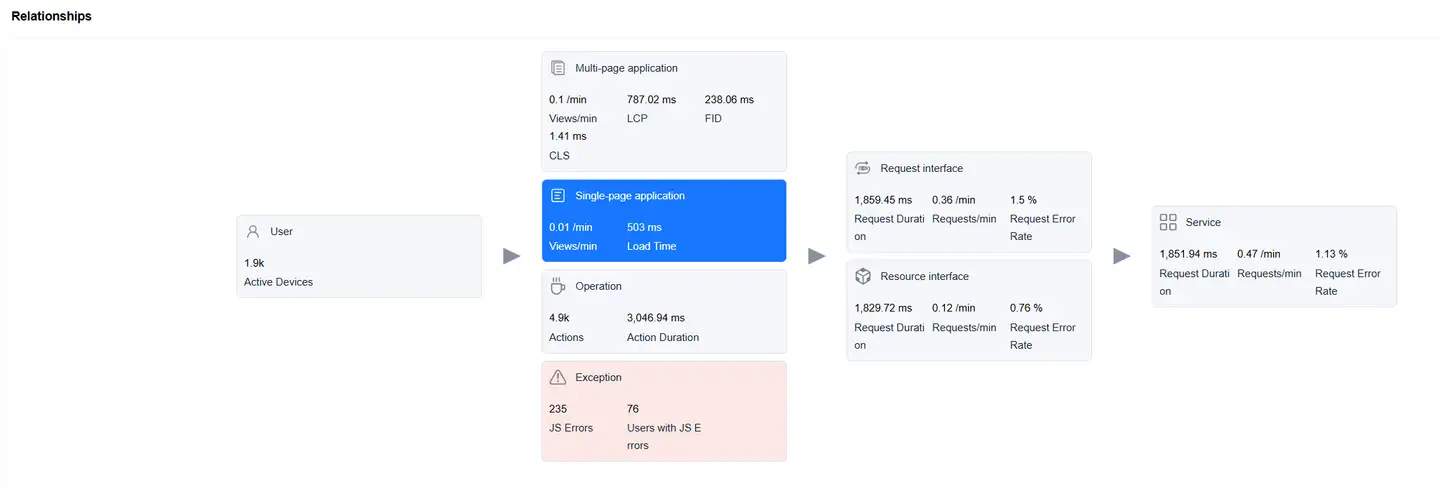
Select the Single-page Application card to display a list of single-page loading performance data, including:
- Web Route
- Visit Count
- Active Device Count
- Loading Time
- Request Projection Time
- Availability
- Request Count
- Request Error Rate
- Backend Average Time
- Backend Count
Click on a Web route in the list to enter Web Route Detail Analysis, which displays detailed data for that Web route.
Operation View
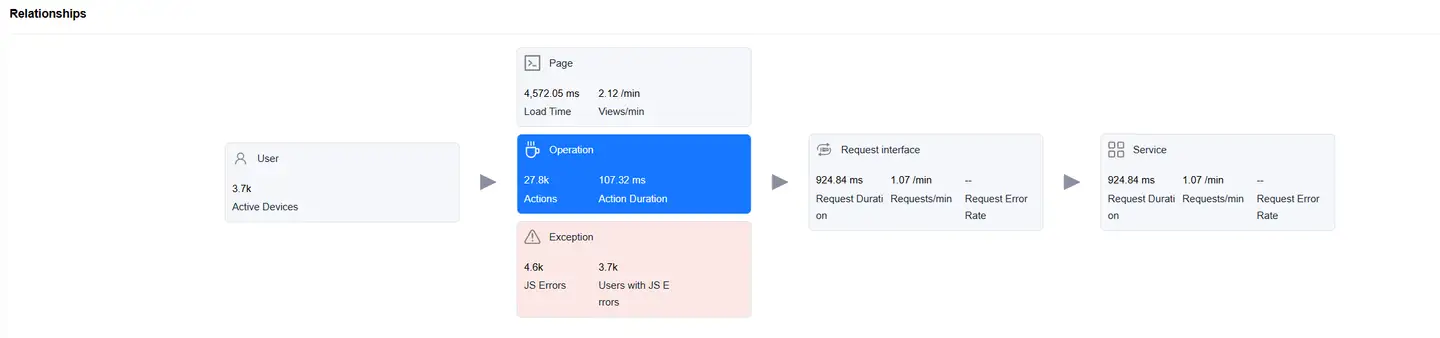
Select the Operation card to display a list of operation performance data, including:
- Web Operation
- Operation Availability
- Operation Count
- Request Count
- Operation Request Projection Time
- Average Request Count
- Operation Time
- Active Device Count
- Request Error Rate
- Operations Per Minute
- Failed Operation Count
- Failed Operation User Count
- Operation Failure Rate
Click on an operation in the list to enter Operation Detail Analysis, which displays detailed data for that operation.
Exception View
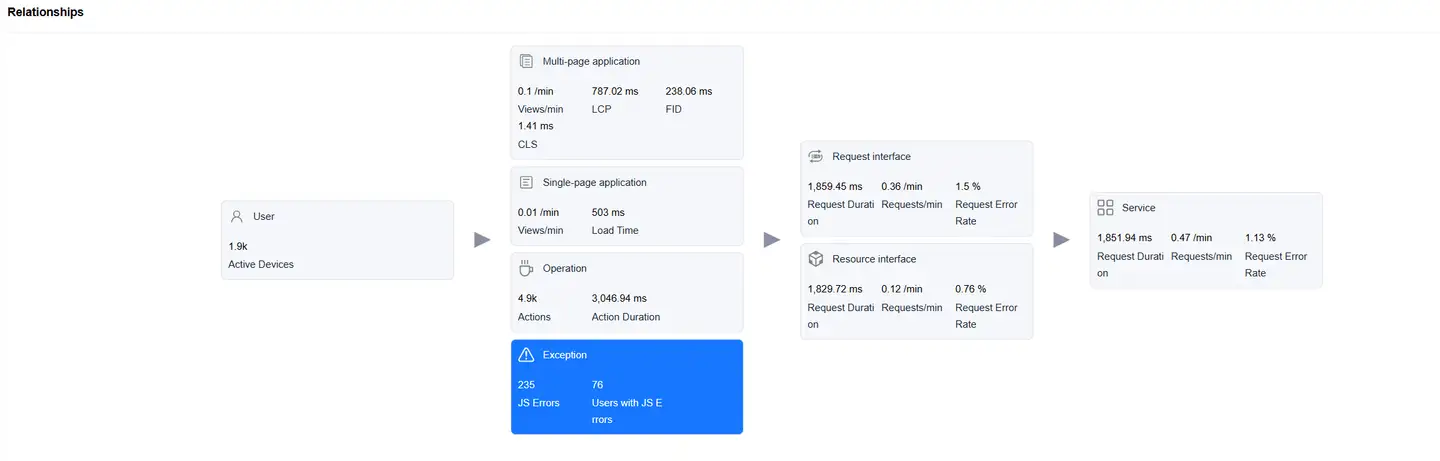
Select the Exception card to display a list of JS errors, including:
- Exception ID
- Exception Issue
- Occurrence Count/Percentage
- Affected Device Count/Percentage
- Handler
- Handling Status
List features:
- Supports export
- Supports custom headers
Click on an exception issue to enter Exception Detail Analysis, which displays detailed data for that exception.
Request Interface View
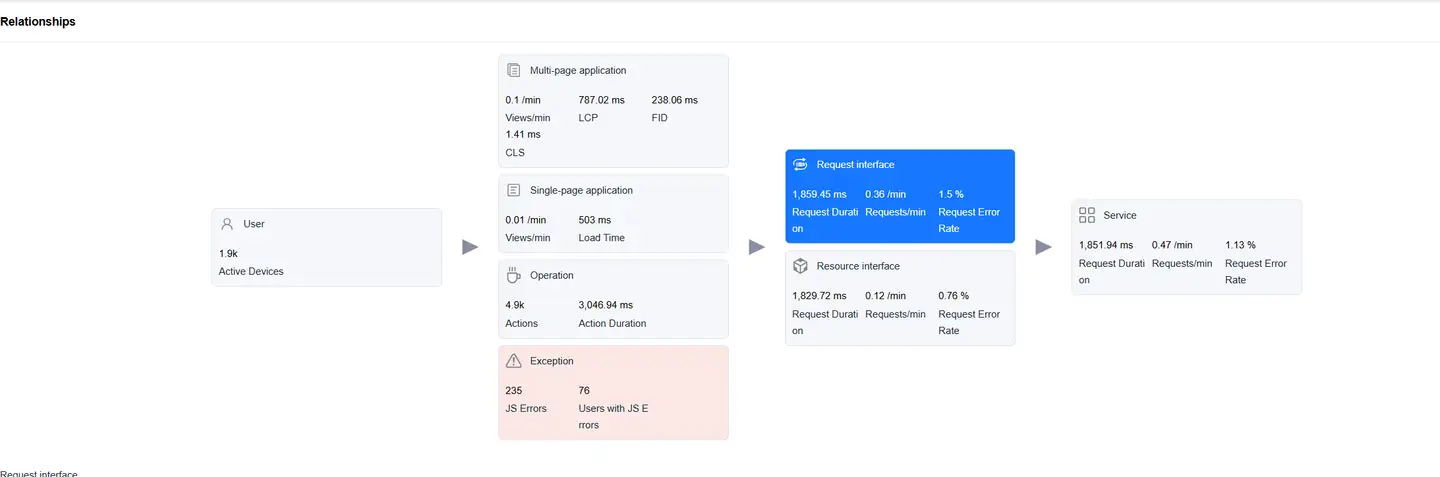
Select the Request Interface card to display a list of requests (with mime-type of text or json), including:
- HTTP Request
- Request Count
- Request Time
- Requests Per Minute
- Request Error Rate
- HTTP Error Rate
- Network Error Rate
- Backend Trace Time
- Slow Request Count
- Slow Request Percentage
- Backend Trace Error Rate
- Upstream Traffic Consumption
- Downstream Traffic Consumption
- Availability
Click on an HTTP request to enter Request Detail Analysis, which displays detailed data for that HTTP request.
Resource Interface View
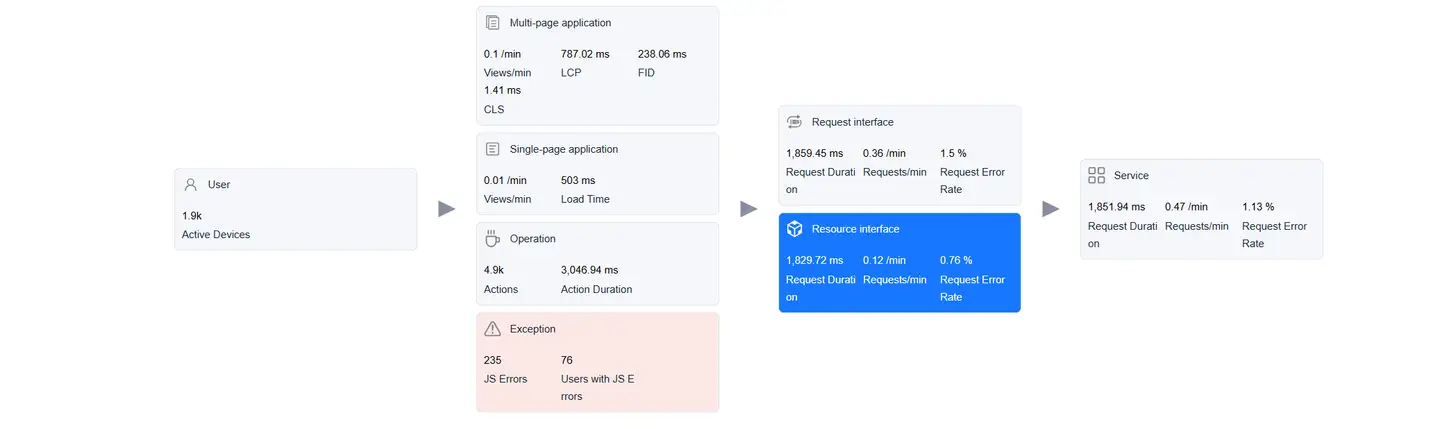
Select the Resource Interface card to display a list of resource requests, including:
- HTTP Request
- Request Count
- Request Time
- Requests Per Minute
- Request Error Rate
- HTTP Error Rate
- Network Error Rate
- Backend Trace Time
- Slow Request Count
- Slow Request Percentage
- Backend Trace Error Rate
- Upstream Traffic Consumption
- Downstream Traffic Consumption
- Availability
Click on an HTTP request to enter Request Detail Analysis, which displays detailed data for that HTTP request.
Service View
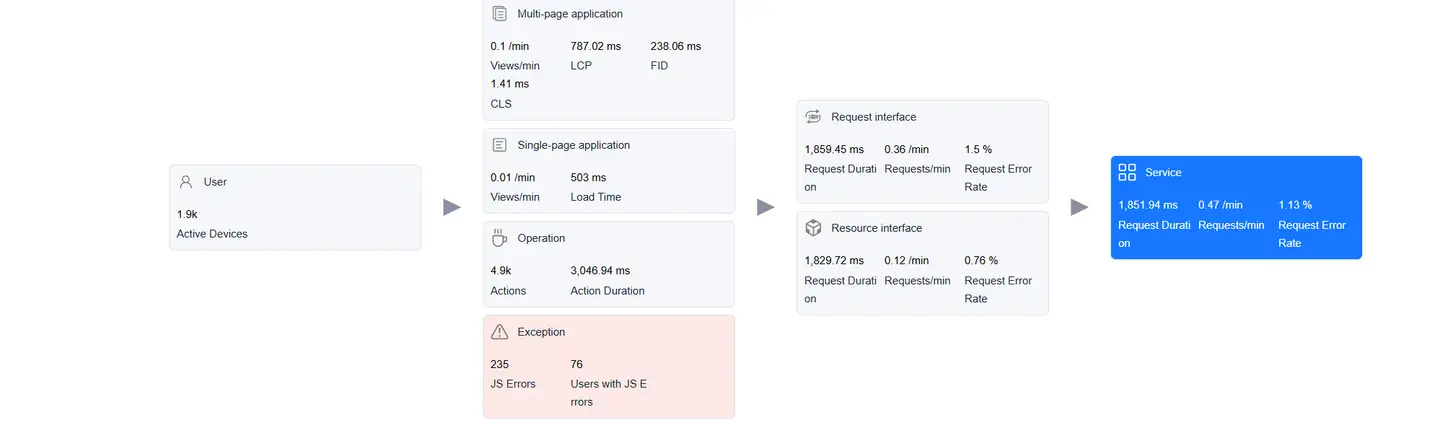
Select the Service card to display a list of backend services (requires backend integration with Tingyun APM agent), including:
- Backend Service
- Request Count
- Requests Per Minute
- Backend Trace Error Rate