Operation
Operation analysis is mainly used to monitor and analyze the response time and availability of user click events on the page. Optimizing operation user experience helps improve user conversion rates at key steps.
Feature Overview

Filter Conditions
You can filter by the following dimensions:
- Device Name
- Device Model
- App Version
- Operating System
- Operating System Major Version
- Region
- Carrier
- Access Method
Metrics Analysis
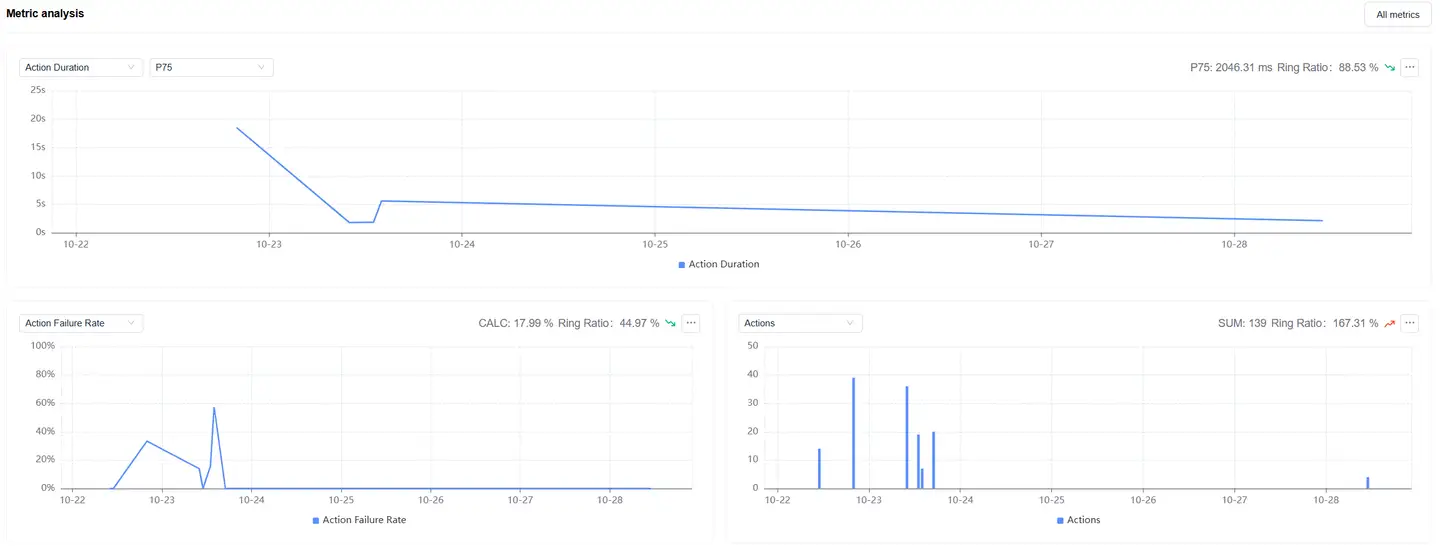
Displays trend charts of operation performance metrics under the filter conditions. You can filter and analyze performance metrics as needed. Time-based performance metrics support multiple statistical methods:
- Average
- P50
- P75 (default)
- P95
- P99
Dimension Analysis
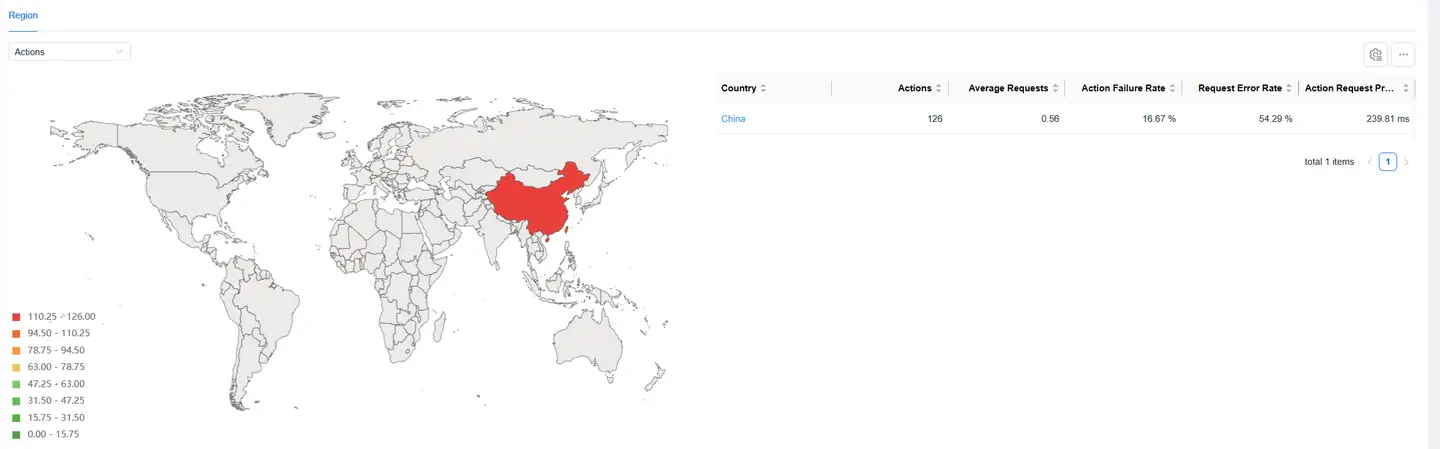
Shows the performance distribution of operations by region:
- The map can be drilled down, supporting drill-down to province/state
- After map drill-down, the corresponding region is added to the filter conditions
- All modules on the page display performance data after filtering
- You can filter operation performance metrics on the left to analyze their performance in different regions
- The list supports custom headers
Relationship Topology

Displays the complete chain of user operations and backend services, helping to analyze performance bottlenecks.
Data Views
Operation View
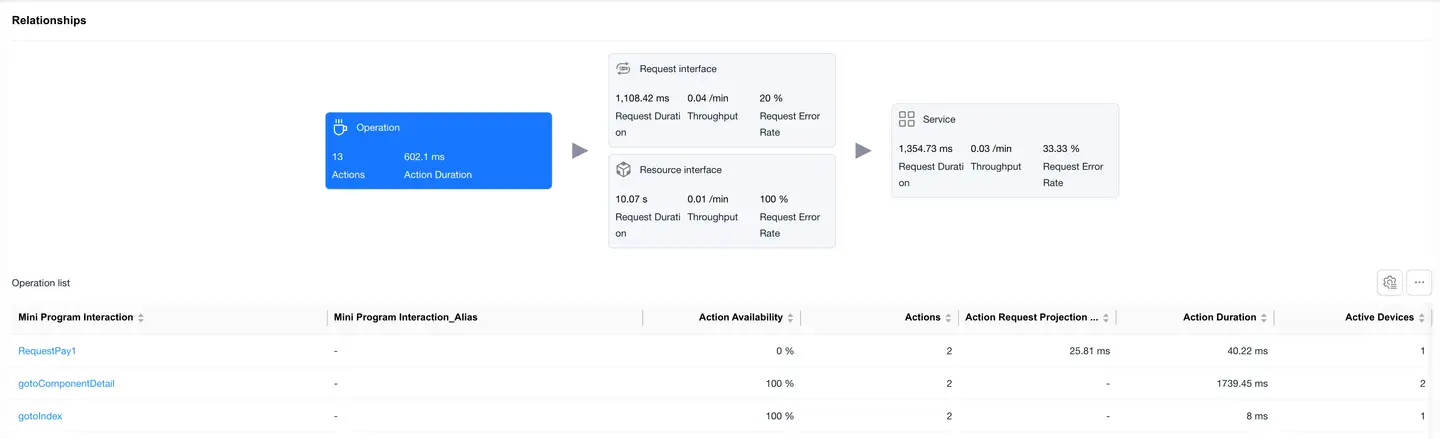
The Operation card is selected by default, and the bottom displays a list of operation performance data, including:
- Mini Program Operation
- Operation Availability
- Operation Count
- Request Count
- Operation Request Projection Duration
- Average Request Count
- Operation Duration
- Active Device Count
- Request Error Rate
- Operations Per Minute
- Failed Operation Count
- Failed Operation User Count
- Operation Failure Rate
Click on an operation in the list to enter the Operation Detail Analysis, which displays detailed data for that operation.
Request Interface View
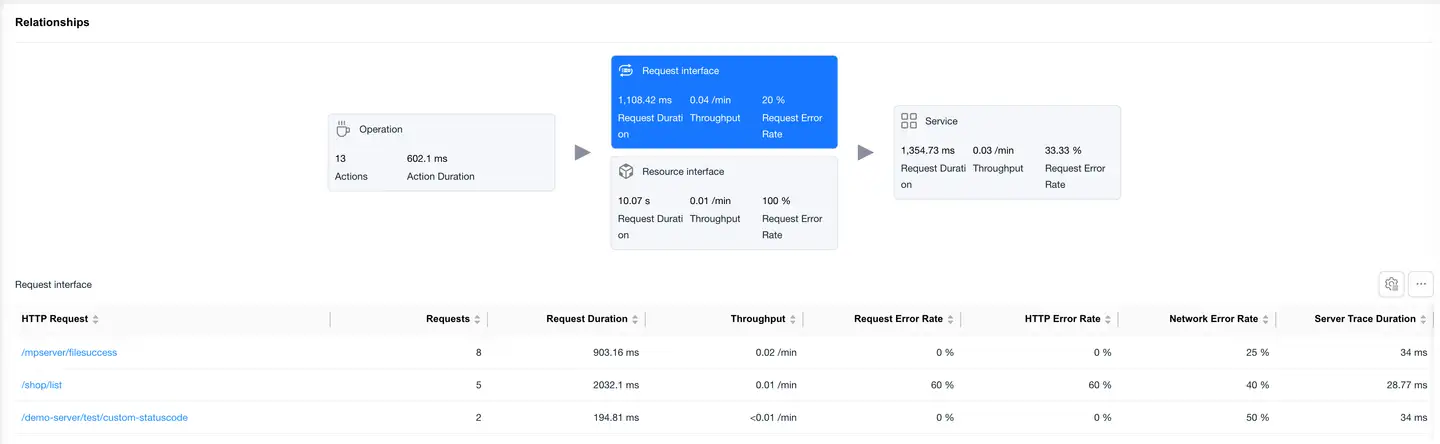
Select the Request Interface card, and the bottom displays a list of requests with mime-type as text or json, including:
- HTTP Request
- Request Count
- Request Duration
- Requests Per Minute
- Request Error Rate
- HTTP Error Rate
- Network Error Rate
- Server-side Trace Duration
- Slow Request Count
- Slow Request Percentage
- Server-side Trace Error Rate
- Upstream Traffic Consumption
- Downstream Traffic Consumption
- Availability
Click on an HTTP request to enter the Request Detail Analysis, which displays detailed data for that HTTP request.
Resource Interface Overview
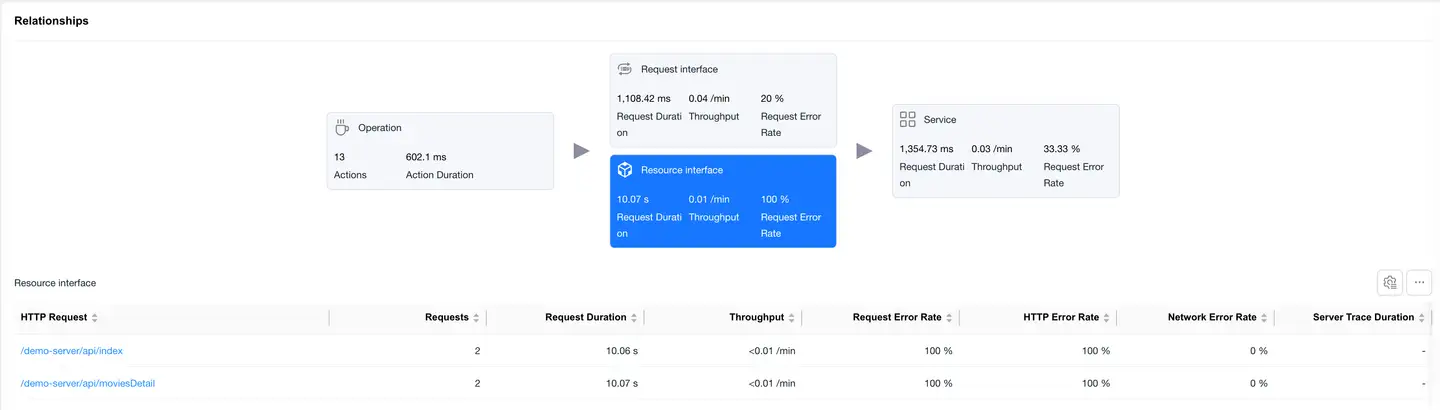
Select the Resource Interface card to display the loading performance data of static resources (images, JS, CSS, etc.).
List Fields
- Same fields as the request interface
- Focus on resource load time and data transfer volume
Click on an HTTP request to enter the Request Detail Analysis, which shows detailed data for that HTTP request.
Service View
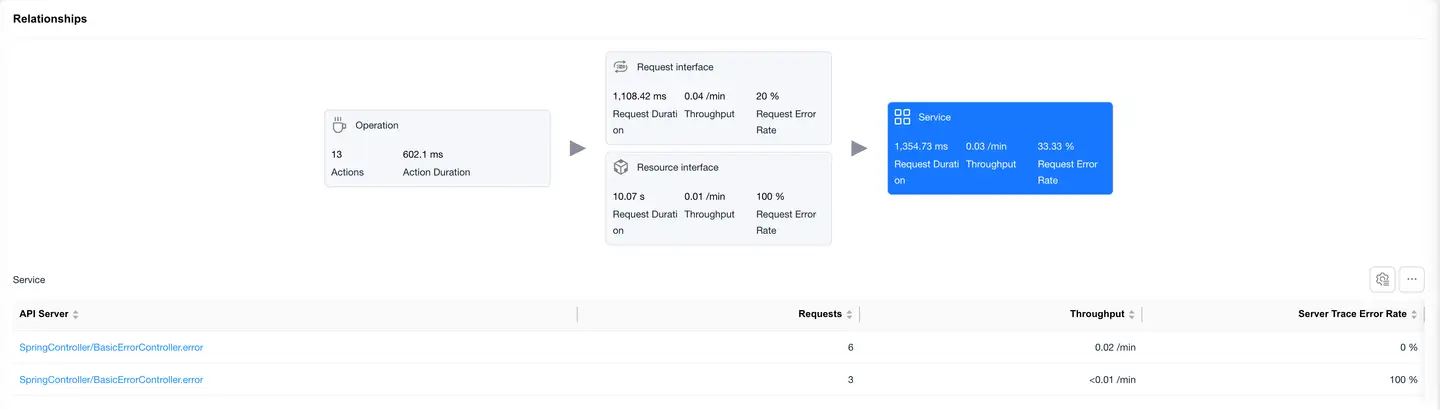
Select the Service card, and the bottom displays a list of backend services (requires backend integration with Tingyun APM agent), including:
- Backend Service
- Request Count
- Requests Per Minute
- Server-side Trace Error Rate
Operation Details
Filter Conditions

You can filter by the following dimensions:
- Device Name
- Device Model
- App Version
- Operating System
- Operating System Major Version
- Region
- Carrier
- Access Method
Metrics Analysis
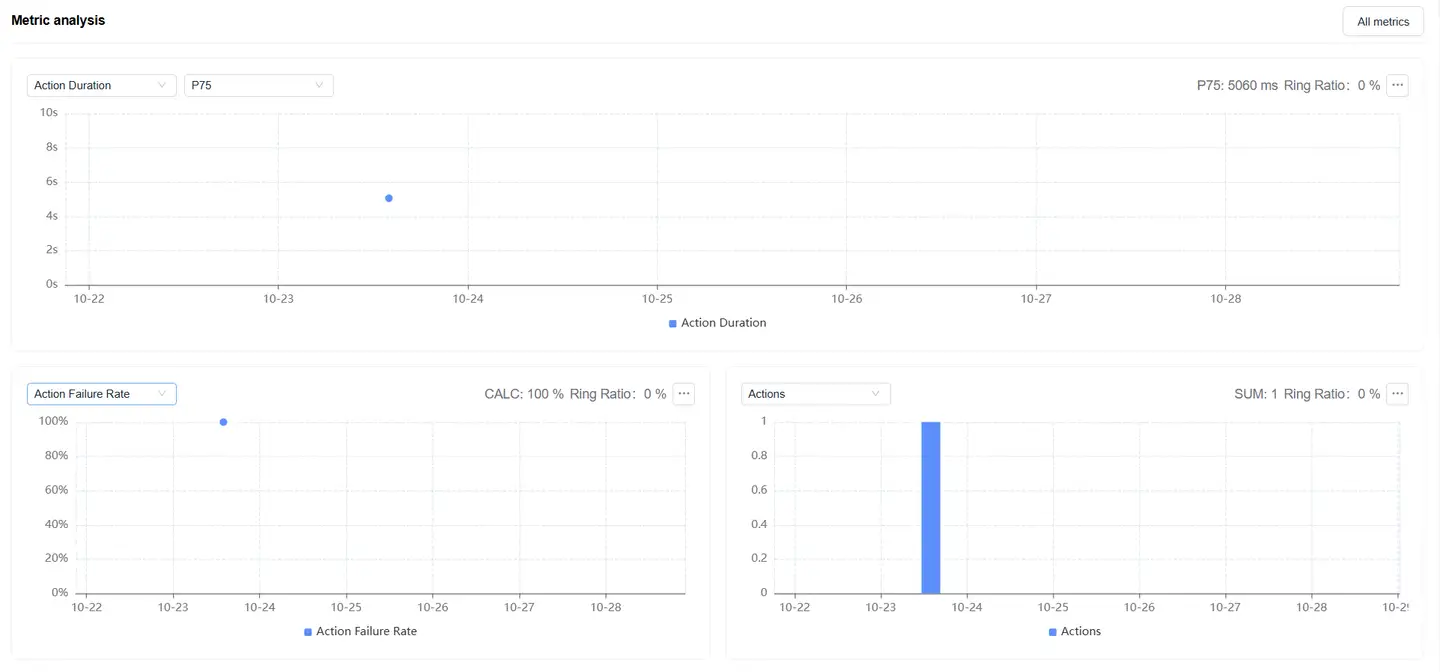
Displays trend charts of operation performance metrics under the filter conditions. You can filter and analyze performance metrics as needed. Time-based performance metrics support multiple statistical methods:
- Average
- P50
- P75 (default)
- P95
- P99
Dimension Analysis
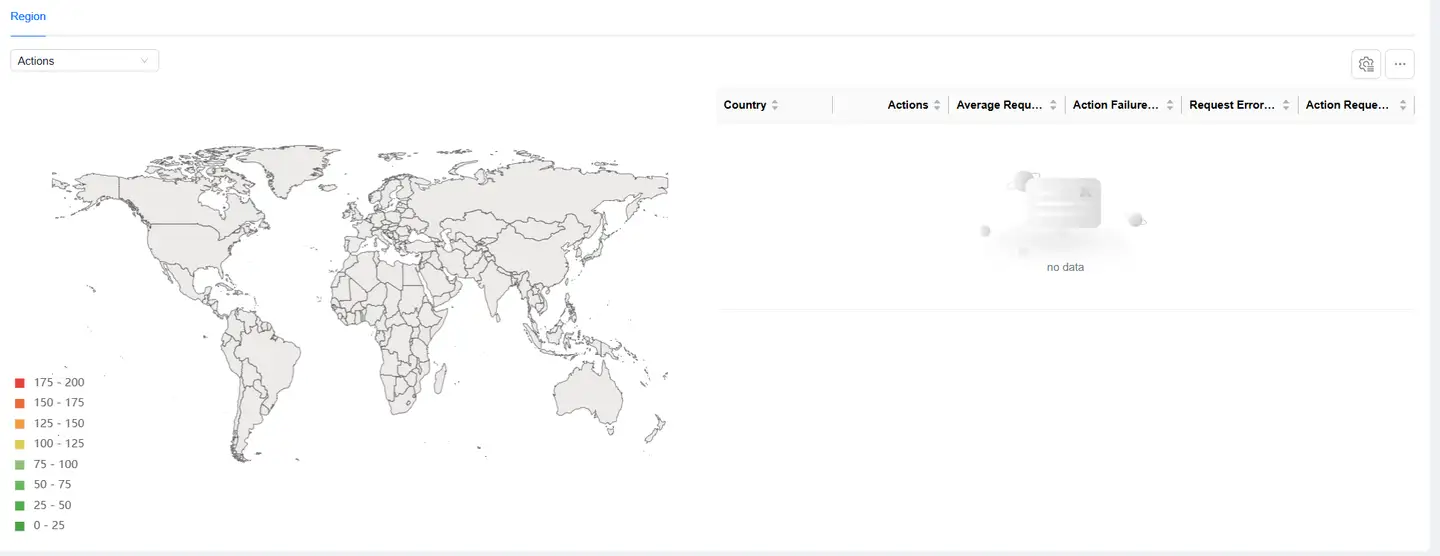
Shows the performance distribution of operations by region:
- The map can be drilled down, supporting drill-down to province/state
- After map drill-down, the corresponding region is added to the filter conditions
- All modules on the page display performance data after filtering
- You can filter operation performance metrics on the left to analyze their performance in different regions
- The list supports custom headers
Relationship Topology
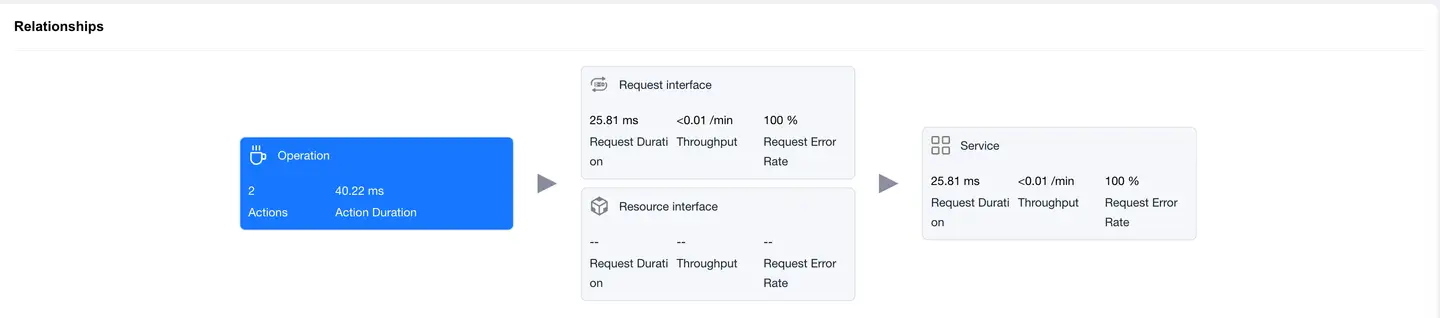
Displays the complete chain of a single user operation and backend services, helping to analyze performance bottlenecks.
Request Interface
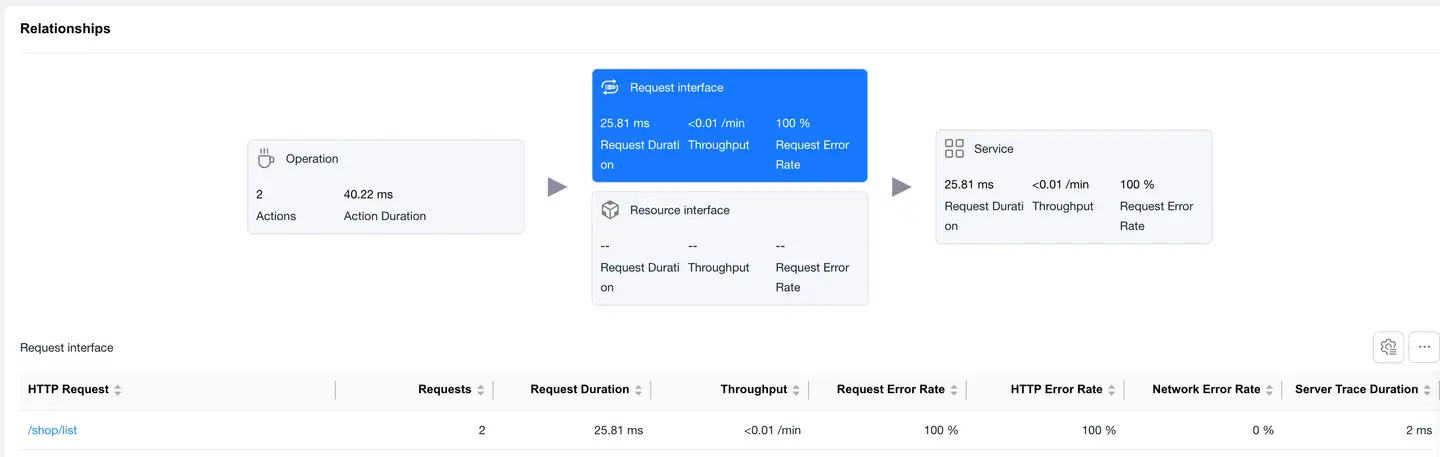
Select the Request Interface card, and the bottom displays a list of requests with mime-type as text or json, including:
- HTTP Request
- Request Count
- Request Duration
- Requests Per Minute
- Request Error Rate
- HTTP Error Rate
- Network Error Rate
- Server-side Trace Duration
- Slow Request Count
- Slow Request Percentage
- Server-side Trace Error Rate
- Upstream Traffic Consumption
- Downstream Traffic Consumption
- Availability
Click on an HTTP request to enter the Request Detail Analysis, which displays detailed data for that HTTP request.
Resource Interface Overview
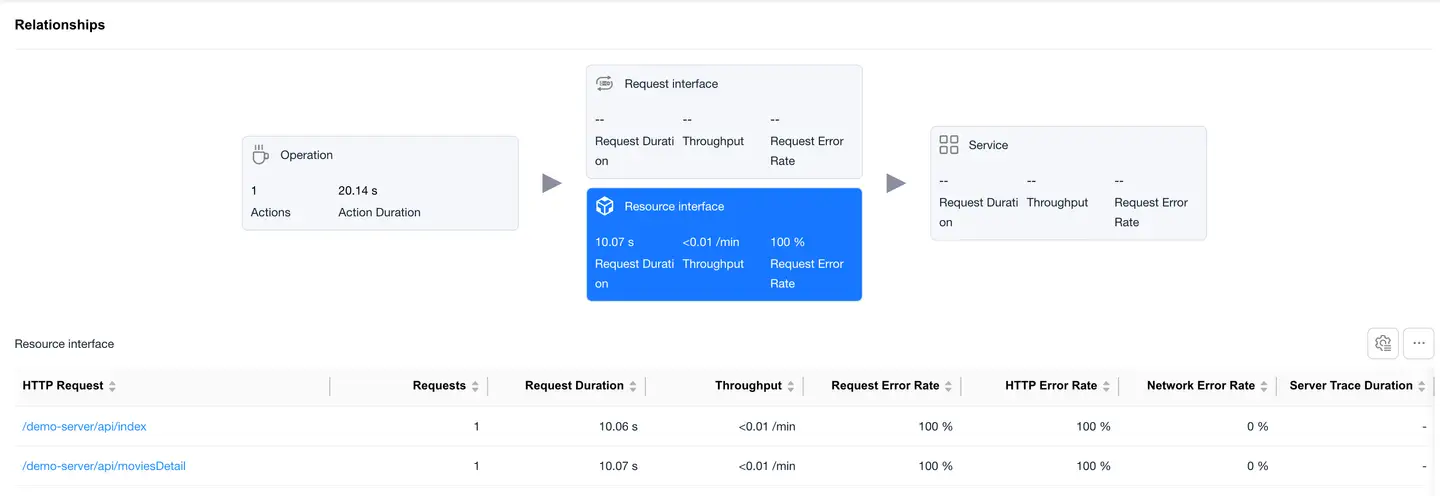
Select the Resource Interface card to display the loading performance data of static resources (images, JS, CSS, etc.).
List Fields
- Same fields as the request interface
- Focus on resource load time and data transfer volume
Click on an HTTP request to enter the Request Detail Analysis, which shows detailed data for that HTTP request.
Service
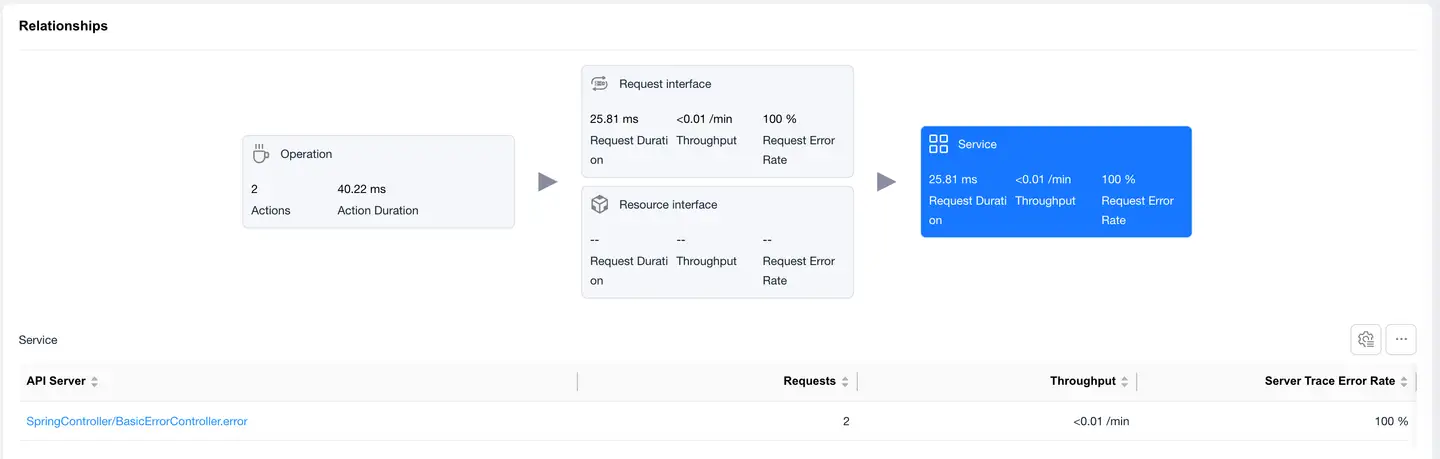
Select the Service card, and the bottom displays a list of backend services (requires backend integration with Tingyun APM agent), including:
- Backend Service
- Request Count
- Requests Per Minute
- Server-side Trace Error Rate
Sample Details

The details list displays all sample data for the selected operation, including:
- Timestamp
- Unique Terminal User ID
- Session ID
- Operation Duration
- Request Count
- Request Projection Duration
- App Version
- Country
- Province/State
- City
- etc.
List features:
- Supports filtering by User ID, Session ID
- Supports export
- Supports custom headers
Click on the Session ID to jump to the session details.
Trace Detail Tracking
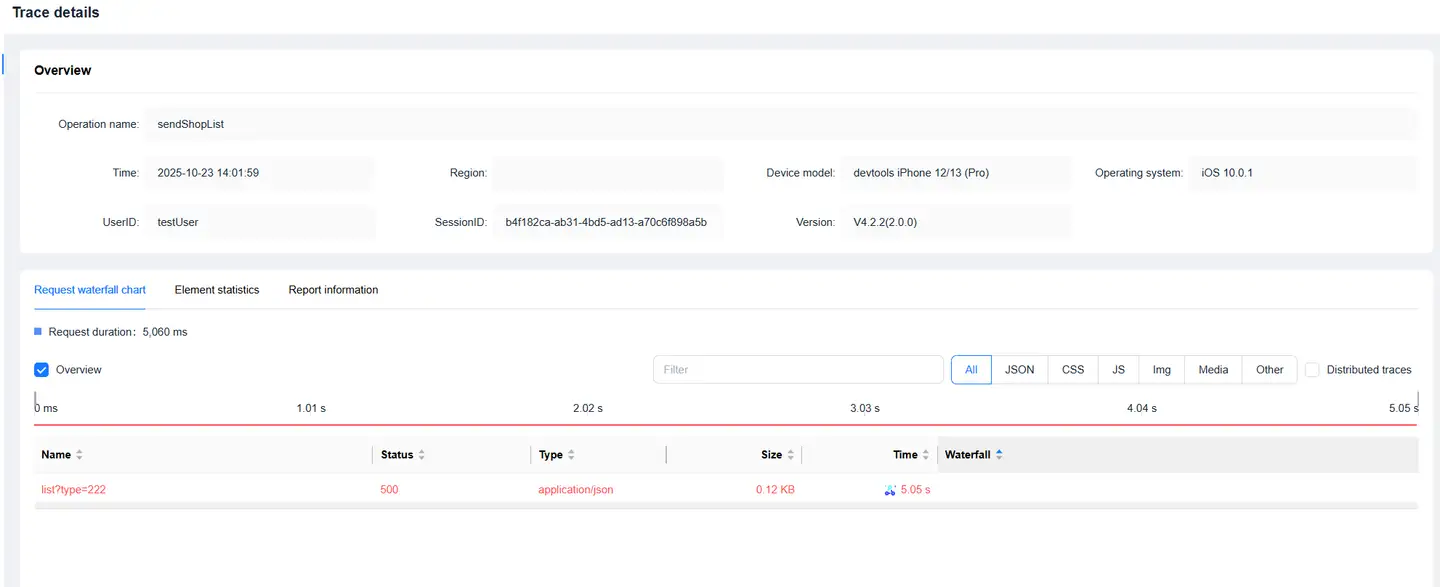
Click on the timeStamp in the details list to enter the Trace Detail Tracking page, which displays request information during the user operation.
Request Waterfall

Displays request information triggered during the user operation in a waterfall format:
- Supports filtering by request type
- Supports searching request URLs
Reported Information
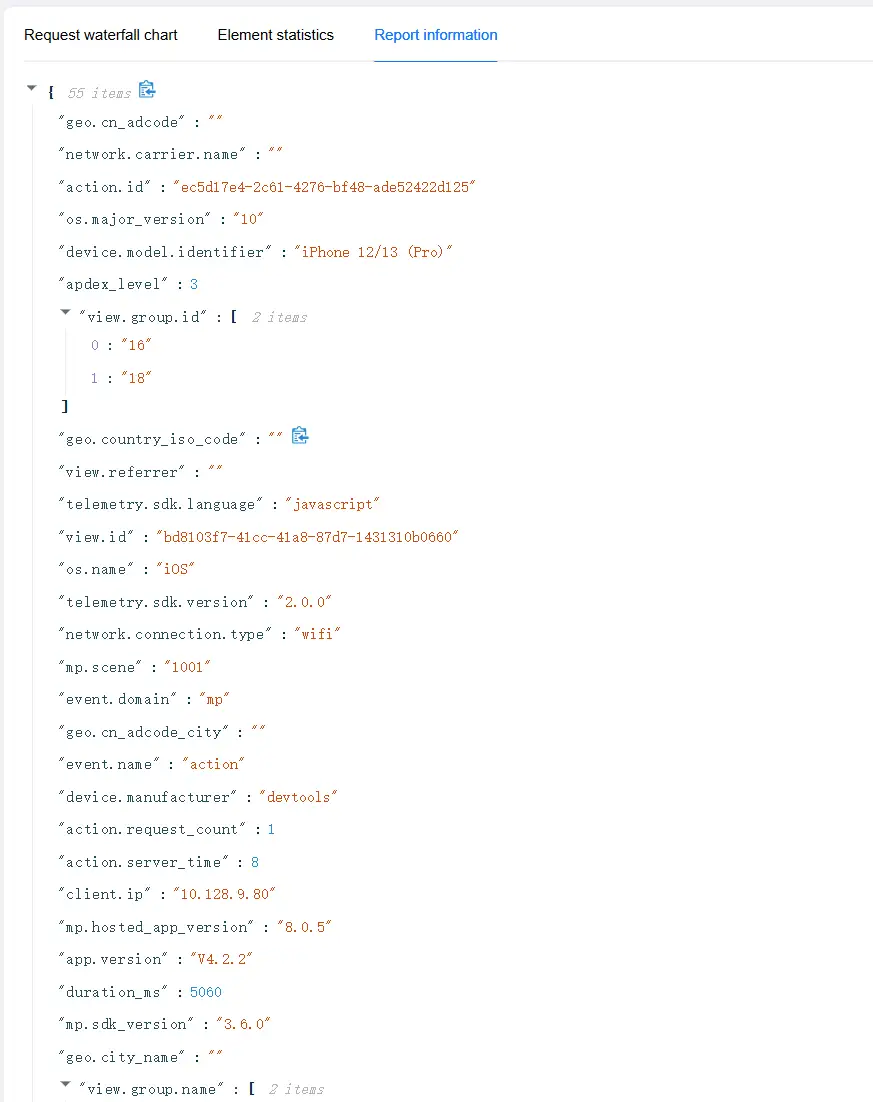
Displays the original information of this Trace Detail Tracking.