Log Retrieval
Function Overview
The Log Retrieval feature provides R&D teams with on-demand remote access to client logs, helping them quickly identify and resolve online issues. Unlike traditional full log upload solutions, Log Retrieval stores client logs locally and only retrieves logs for specific users through tasks when needed, significantly reducing storage costs and improving log utilization.
Comparison with Traditional Solutions
Issues of Traditional Full Log Solutions
- All user logs are uploaded to the platform
- Extremely low log utilization (only 5% of the data is used)
- 95% of the data is never viewed, resulting in significant storage resource waste
- Continuous bandwidth and storage costs
- Poor query performance for massive logs
Advantages of Log Recovery Solutions
- Client logs are stored locally and not actively uploaded
- Logs for specific users are retrieved only when needed
- Log utilization nears 100% (on-demand retrieval)
- Significantly reduces storage costs and bandwidth consumption
- High query performance and precise problem location
Core Values
- On-demand retrieval: Only retrieves the user logs that need analysis, achieving near-100% log utilization
- Cost optimization: Avoids full uploads, saving over 95% of storage and bandwidth costs
- Quick problem location: Obtains complete client logs for rapid problem recovery
- Batch troubleshooting: Supports simultaneous retrieval of logs for multiple users and batch analysis
- Privacy, security, and controllability: Pull data on demand and automatically cancel data upon expiration to protect user privacy.
What is Log Recovery?
Log recovery is a technical method for remotely accessing local client logs. When difficult online issues arise that cannot be analyzed using basic data, create a log recovery task. The SDK will upload the log data stored locally on the specified user's device to the platform for in-depth analysis by the R&D team.
Workflow
1. Client saves logs locally (7 days)
↓
2. R&D creates a retrieval task (specify user/device, time range)
↓
3. SDK receives task instructions (when user device is online)
↓
4. Uploads logs when conditions are met (Wi-Fi/mobile network)
↓
5. Logs are displayed on the platform
Technical Requirements
- SDK Version: Requires the "Log Retrieval" module to be enabled
- Local Storage: The SDK generates log files on a daily basis, with a maximum file size of 10MB (configurable)
- Storage Capacity: Locally stores up to 7 log files, approximately 70MB
- Network Requirements: Requires the user device to be online and meet network requirements
Important Limitations
SDK Initialization Requirements
- The client must complete SDK initialization before receiving log retrieval tasks
- Devices that have not been initialized or failed to initialize cannot receive retrieval instructions
- Only available in the SDK Local log files will only be uploaded if the system is functioning normally.
Sampling Limitations
- If the client is being sampled (out of monitoring range), log data will not be collected.
- Logs cannot be retrieved from sampled devices even if a recovery task is created.
Note: Before creating a task, it is recommended to confirm that the target device is within monitoring range (not being sampled) and that the SDK has been initialized properly.
Use Cases
Scenario 1: In-depth Crash Troubleshooting
The crash stack trace is insufficient to locate the issue; more contextual logs are required.
Practical Example:
- User reports that the app crashed after a specific operation.
- The crash stack trace is displayed in the third-party SDK, but the cause is unknown.
- Creating a log recovery task using the user ID.
- Recovering the logs revealed a network request anomaly before the crash.
- Identified the cause as an abnormality in the data format returned by the interface.
- After the fix, the crash rate decreased by 85%.
Scenario 2: Root Cause Analysis of Stalling Issues
Stuttering monitoring revealed an issue, but detailed operation logs were required to locate the root cause.
Practical Example:
- A user frequently experienced page lag.
- Stall analysis indicated a main thread blockage, but the specific cause could not be pinpointed.
- Retrieving 7 days of logs for this user.
- The logs showed that each lag was preceded by a large number of image loads.
- Optimizing the image loading strategy resolved the issue.
Scenario 3: Troubleshooting Bulk Users
Multiple users reported the same issue, and it was necessary to retrieve batch logs to analyze commonalities.
Practical Example:
- 50 users reported payment failures in a specific version
- Created a retrieval task to batch retrieve logs for 50 users
- Log analysis revealed failures when calling the payment SDK
- Identified an error in the initialization parameters of the new payment SDK
- Implemented an emergency hotfix to quickly resolve the issue
Core Functionality
1. Task List

Access Path: Top Navigation Menu → Log Retrieval
The task list displays the status and progress of all log retrieval tasks.
List Field
| Field | Description | Status Value |
|---|---|---|
| Task Name | Name entered when creating the task | - |
| Creator | Current logged-in account name | - |
| Task Progress | Current task status | Completed, In Progress, Cancelled |
Task Status Description
| Status | Judgment Criteria | Description |
|---|---|---|
| Completed | Number of devices successfully retrieved logs = Number of configured devices | All device logs successfully retrieved |
| In Progress | Number of devices successfully retrieved logs < Number of configured devices | Waiting for device to come online or meet upload conditions |
| Canceled | Actively clicked Cancel or expiration time reached | Task terminated, no longer pulling data |
Note: Tasks can be configured with multiple devices. The system will record the number of configured devices and the number of devices from which logs were successfully retrieved.
Operation Functions
- View Details: View task configuration and log collection status
- Edit: Modify task configuration (only for ongoing tasks)
- Copy: Quickly create a new task based on an existing task
- Cancel: Stop task execution
- Delete: Delete task records
2. Create a New Task
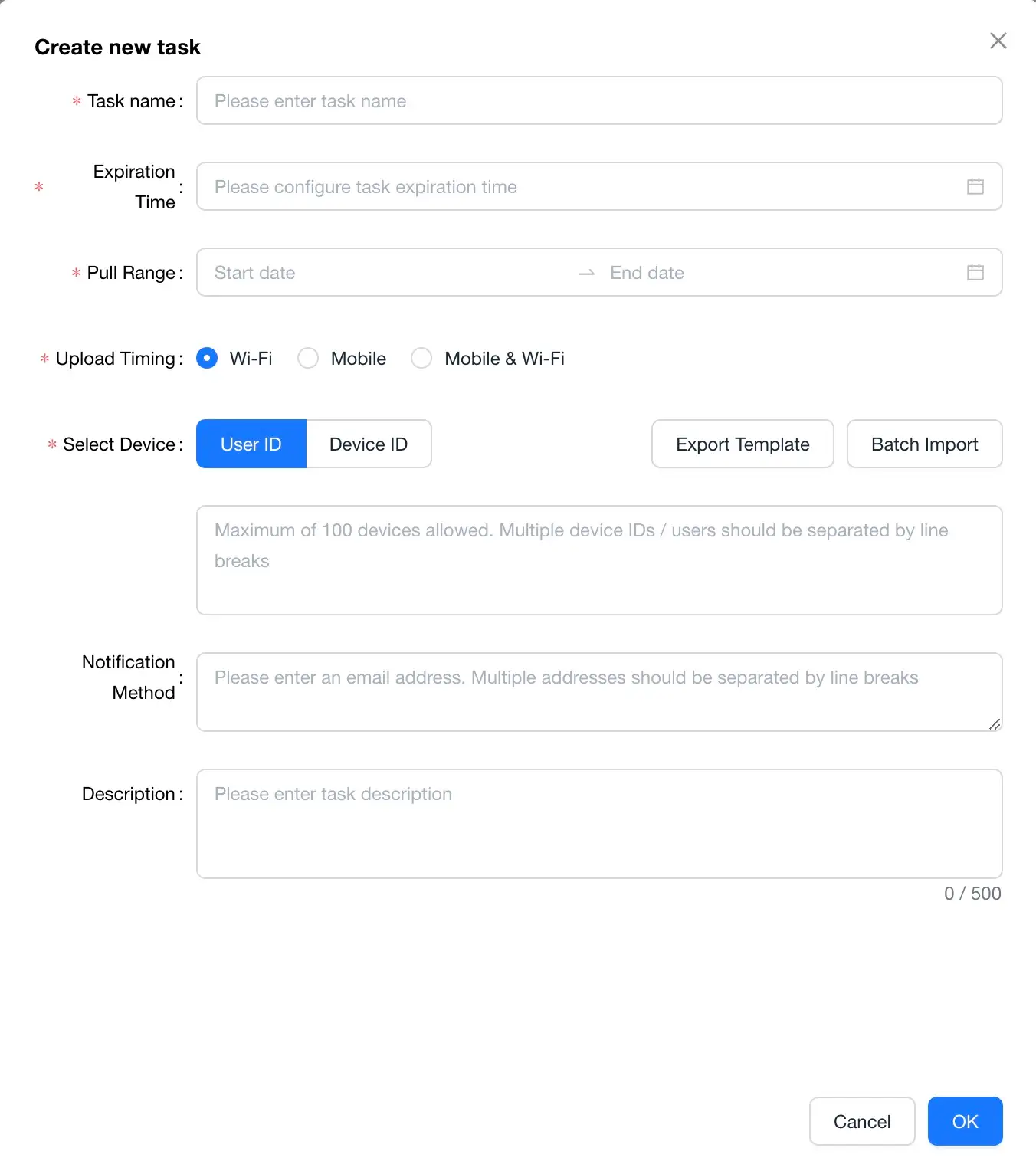
Task Configuration Parameters
Task Name (Required)
- Description: Identify the task name
- Recommendation: Use a meaningful name, such as "Crash Issue - User A" or "Stuttering Troubleshooting - Version 3.5.0"
- Note: Multiple task names can be repeated
Expiration Time (Required)
- Description: The time when the task is automatically canceled
- Purpose: The task is automatically canceled after the expiration time is reached and no client data is pulled
- Recommendation:
- Urgent Issues: Set 1-3 days
- General issues: Set to 7 days
- Long-term monitoring: Set to 15-30 days
Pull range (required)
- Description: The time range for pulling logs
- Purpose: Specifies the time period for retrieving log files
- Example: If a crash occurs on October 5, 2025, to ensure data integrity, you can configure the pull time to include logs from October 1 to October 10.
- Recommendations:
- Expand the time range by 2-3 days before and after the crash
- Avoid overly large time ranges that affect upload efficiency
- Consider the 7-day local log storage limit
Upload time (required)
- Description: The network conditions for client log uploads
- Options:
- WiFi (recommended): Upload only on WiFi to save data
- Mobile: Upload only on mobile networks
- Mobile and WiFi: Upload on any network to quickly retrieve logs
- Recommendations:
- Urgent issues: Select "Mobile and" WiFi"
- General Issues: Select "WiFi Network"
Select Device (Required)
- Description: The device ID for which logs need to be retrieved
- Supported Method:
- User ID: Requires configuration in the SDK
- Device ID: The unique device ID automatically generated by the SDK
- Input Method:
- Single ID: Enter directly
- Multiple IDs: Separate by pressing the Enter key
- Batch Import: Supports uploading a list of IDs
- Limit: Each task supports a maximum of 100 IDs
Notification Method (Optional)
- Description: Notification method upon task completion
- Purpose: Email notification upon successful log retrieval
- Recommendation: Recommended to avoid missing task completion notifications
Task Description (Optional)
- Description: Notes on the task
- Purpose: Record task background, problem description, and relevant personnel
- Recommendation: Keep detailed records for easy follow-up and collaboration
3. Task Details
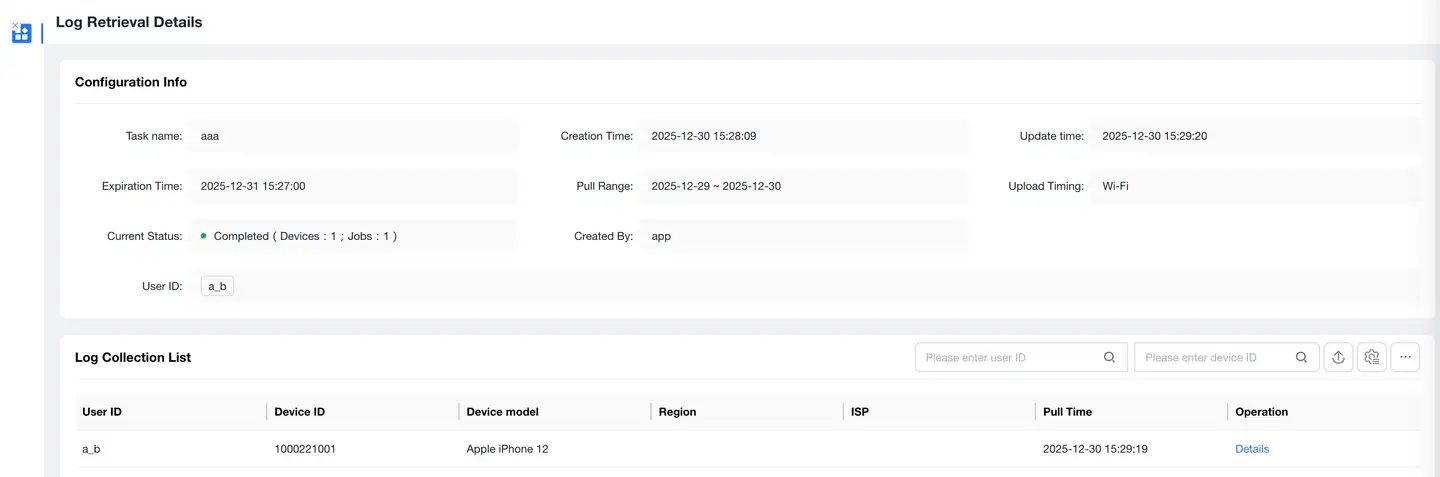
Configuration Information
Displays all configuration parameters when creating a task:
- Task name, expiration time, pull range
- Upload timing, device selection, notification method
- Task Description
Purpose:
- Verify that the task configuration is correct
- Understand the background and purpose of the task
- Facilitate team collaboration and issue tracing
Log Collection List
Displays information about devices that successfully uploaded logs:
List Fields
- User ID / Device ID
- Log upload time
- Log file size
- Log time range
Features
- Search: Supports quick search by user ID or device ID
- Details: Click the [Details] button to view log contents
- Export: Supports exporting log files
Status Description
- Devices in the list: Logs have been successfully retrieved
- Possible reasons for a device not appearing:
- The user is offline
- The upload timing has not been met (e.g., waiting for WiFi)
- Local logs have expired and been deleted
- The SDK has not been initialized or initialization failed
- The device is being sampled and logs are not being collected
4. Log Details
The log details page provides log viewing, filtering, and analysis functions.
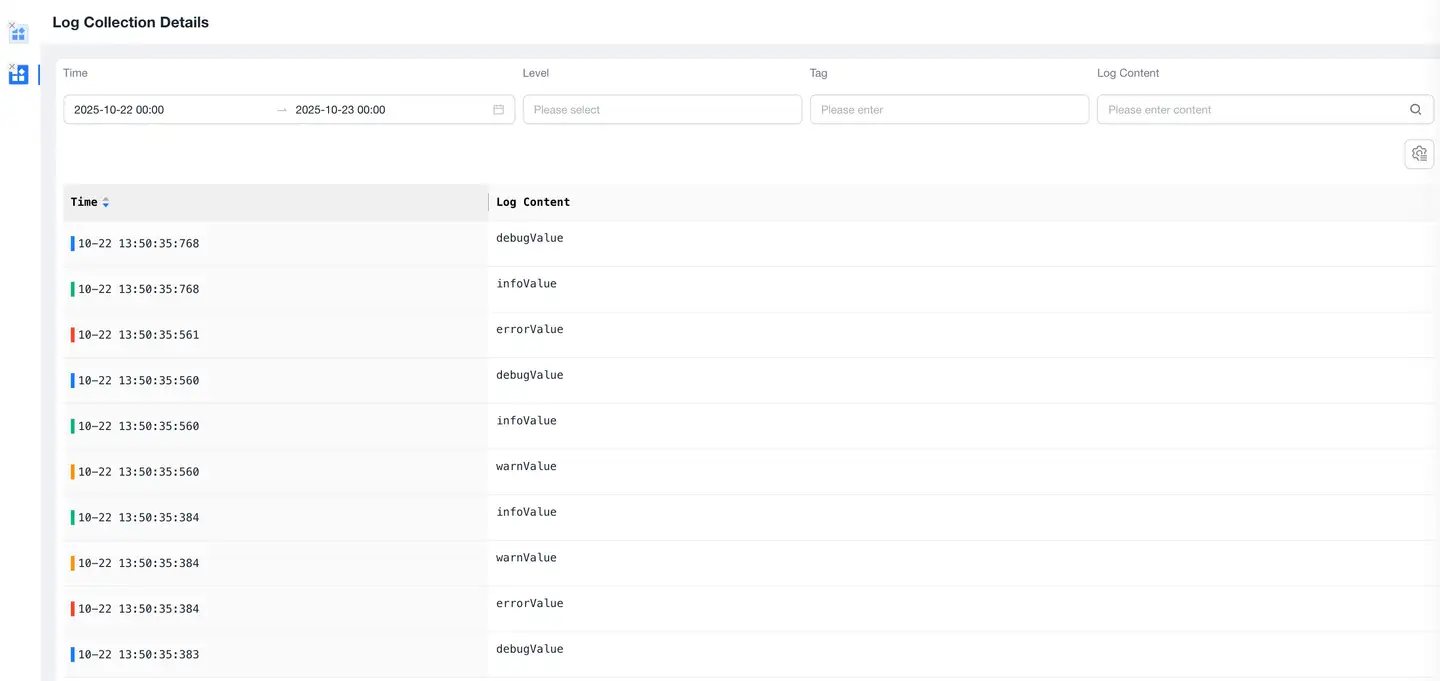
Log Display
- Default Display: 10,000 log lines
- Chronological Order: Arrange in reverse chronological order, with the latest log at the top
- Complete Information: Includes timestamp, log level, tags, and log content
Filtering
Time Filter
- Default Range: Pull time range configured for the task
- Custom: Narrow the time range for precise targeting
- Purpose: Quickly locate logs from the time period when the problem occurred
Level Filter
- Log Level: Debug, Info, Warn, Error
- Default: Display all levels
- Purpose:
- Error: Quickly view error logs
- Warn: View warning messages
- Debug: View detailed debugging information
Tag Filter
- Description: Tag information carried in the log
- Input Requirements: Requires full entry, case-sensitive
- Purpose: Filter logs by functional module or business scenario
Content Search
- Description: Search content within log details
- Support: Fuzzy matching
- Purpose: Quickly find keywords, error messages, and specific methods
Analysis Tips
1. Quickly Locate Errors
Steps:
1. Filter Error-level logs
2. Check the error occurrence time
3. View logs 5-10 minutes ahead
4. Analyze the error context
2. Analyze Abnormal Patterns
Steps:
1. Search for key error messages
2. Check the error frequency
3. Analyze common error characteristics
4. Identify the root cause
Local Log Storage Mechanism
Storage Strategy
File Generation
- The SDK generates log files on a daily basis
- One log file is generated daily
File Size
- Maximum size of a single log file 10MB (configurable)
- Automatically rolls over to a new file when the limit is exceeded
- Adjustable size based on app log volume
Storage Amount
- Locally stores up to 7 log files
- Total size approximately 70MB
- Automatically deletes the oldest file when the limit is exceeded
Storage Location
- Android: App private directory
- iOS: App sandbox directory
- Harmony: App data directory
Important: Logs are only saved for 7 days. Logs older than 7 days cannot be retrieved.
Best Practices
1. Task Creation Strategy
By Issue Type
| Issue Type | Pull Scope | Upload Timing | Number of Devices |
|---|---|---|---|
| Urgent Crash | 1-2 Days Before and After Issue | Mobile Network + WiFi | 3-5 Typical Users |
| Performance Issue | 3-5 Days Before and After Issue | WiFi | 10-20 Users |
| Functional Abnormality | 2-3 Days Before and After Issue | WiFi | 5-10 Users |
| Long-Term Monitoring | Last 7 Days | WiFi | 1-2 Users |
Naming Convention
Structured naming is recommended:
[Issue Type]-[Version]-[Brief Description]-[Date]

Example:
- Crash-v3.5.0-Payment-Page-20251010
- Lag - v3.4.5 - Home Page Loading - 20251008
- Error - v3.5.1 - Network Request - 20251012
2. Device Selection Tips
Priority Selection Principle
- Users with Frequent Issues
- Users who have experienced issues repeatedly
- More complete logs and more typical issues
- Users in Typical Environments
- Mainstream device models
- Mainstream system versions
- Highly representative
- Users with Clear Issues
- Clear issue description
- Clear issue occurrence time
- Easy to locate
- Confirm Device Status
- Device not sampled (within monitoring range)
- SDK initialized normally
- Device recently active
How to Obtain Device ID
| Source | Path | Description |
|---|---|---|
| Crash Details | Exception Analysis → Crash Details → Device Details | Obtain directly from exception details |
| Lagged Details | Anomaly Analysis → Lag Details → Device Details | Obtain directly from Exception Details |
| User Tracking | User Tracking → Search User → User Details | Obtain from User Trajectory |
| Session Details | Any Module → Single Sample Details → Session ID → Session Details | Obtain from Session |
3. Log Analysis Methods
Timeline Analysis Method
- Identify the Issue Time
- Based on the time of the crash or lag
- Accurate to the second
- Tracing Forward
- Review logs from 5-10 minutes before the issue
- Understand user operation paths
- Identify precursors to the issue
- Tracing Backward
- Review logs after the issue
- Understand application recovery status
- Analyze the scope of impact
Keyword Search Method
- Error Keywords
- Exception, Error, Crash
- Failed, Timeout, Null
- Business Keywords
- Payment, Order, Login
- Specific Functional Module Name
- Technical Keywords
- API Calls
- Database Operations
- Third-Party SDKs
Level Filtering
- Error Level
- View all error logs
- Identify frequent errors
- Analyze error patterns
- Warn Level
- View warning messages
- Identify potential issues
- Preventive optimization
- Info/Debug Level
- Understand normal processes
- Compare abnormal processes
- Identify discrepancies
5. Privacy Protection
- It is recommended not to write user private data to log files
- Automatically cancel tasks upon expiration
FAQ
Q1: What should I do if the device hasn't uploaded logs?
A: Possible Causes and Solutions:
1. User Offline
- Symptom: The device is offline and the app is not open.
- Solution: Wait for the user to come online or contact the user to open the app.
2. Network Conditions Not Meet
- Symptom: WiFi upload is configured, but the user is always using mobile network.
- Solution: Modify the task to "Mobile Network and WiFi."
3. Log Expired
- Symptom: The pull range exceeds 7 days, and local logs have been deleted.
- Solution: Log recovery is unavailable. We recommend creating a new task to monitor subsequent logs.
4. App Version Outdated
- Symptom: The SDK version does not support log recovery.
- Solution: Upgrade the SDK version and enable the log recovery module.
5. Insufficient Storage Space
- Symptom: Insufficient device storage space, logs not generated.
- Solution: Instruct the user to clear storage space or wait for free space.
6. SDK Not Initialized
- Symptom: SDK initialization failed, and the recovery task cannot be received.
- Solution: Check the SDK configuration to ensure successful initialization.
7. Device is being sampled
- Symptom: The device is outside the sampling range, so log data is not being collected.
- Solution: Select a device that is not being sampled, or adjust the sampling policy.
Q2: How can I quickly locate key information when there are too many logs?
A: Use a combination of filtering and searching:
Quickly locate the problem
- Filter by level
- Select the Error level
- Quickly view all errors
- Search by keyword
- Enter the error type (e.g., NullPointerException)
- Enter the module name (e.g., PaymentModule)
- Narrow down the timeframe
- Locate the problem near the time of the issue
- View the preceding and following log context
- Finally, perform correlation analysis
- Remove the filter and view the entire log
- Understand the complete execution flow
Common search keywords
- Exceptions: Exception, Error, Crash, Failed
- Network: Request, Response, Timeout, 404, 500
- Business: Login, Pay, Order, Cart
- Performance: Slow, OOM, ANR, Lag
Q6: Does log recovery affect user experience?
A: Minimal impact. The SDK has been fully optimized.
Performance Impact
- Log writing is asynchronous and does not block the main thread.
- CPU overhead < 0.5%
- Memory overhead < 2MB
Data Transfer Impact
- Configurable to upload only over WiFi.
- Logs are compressed during transmission.
- Single upload size < 10MB (approximately 70MB compressed).
Storage Impact
- Local storage is limited to 70MB.
- Small relative to the size of application data.
- Automatically cleans up expired files.
User Perception
- No notice of log generation.
- No notice of uploads over WiFi, and uploaded data is compressed to reduce data usage.
- No impact on application performance.
Controllability
- Log salvage can be remotely disabled.
- Adjustable log level and file size.
- Configurable to exclude sensitive information.