Visual Configuration
Use the visual configuration feature to name pages or actions. The SDK version must be greater than 2.12.0 and URLScheme must be configured.
Preparation
Embed the SDK and install the App with the integrated SDK on your phone. Please ensure you use the latest released version of the App for "Visual Page Naming" to prevent data discrepancies due to different versions.
Note:
- Android:
-
This feature only supports Android 5.0 and above systems.
-
Some device models require enabling "Floating Window Permission" to use "Visual Page Naming".
-
Reference steps: Settings - More Applications - Find the App you want to set permissions for - Permission Management - Find Floating Window Permission - Set to Allow.
<!--Floating window permission required for visual operation naming-->
<uses-permission android:name="android.permission.SYSTEM_ALERT_WINDOW"/>
<uses-permission android:name="android.permission.SYSTEM_OVERLAY_WINDOW" />
-
- iOS: This feature only supports iOS 8.0 and above systems.
Operation Steps
Enter Visual Configuration
- Method 1:
In the left navigation bar, select User Experience > Page Experience Analysis.
Click the Page Settings button in the upper right corner of the page analysis list.
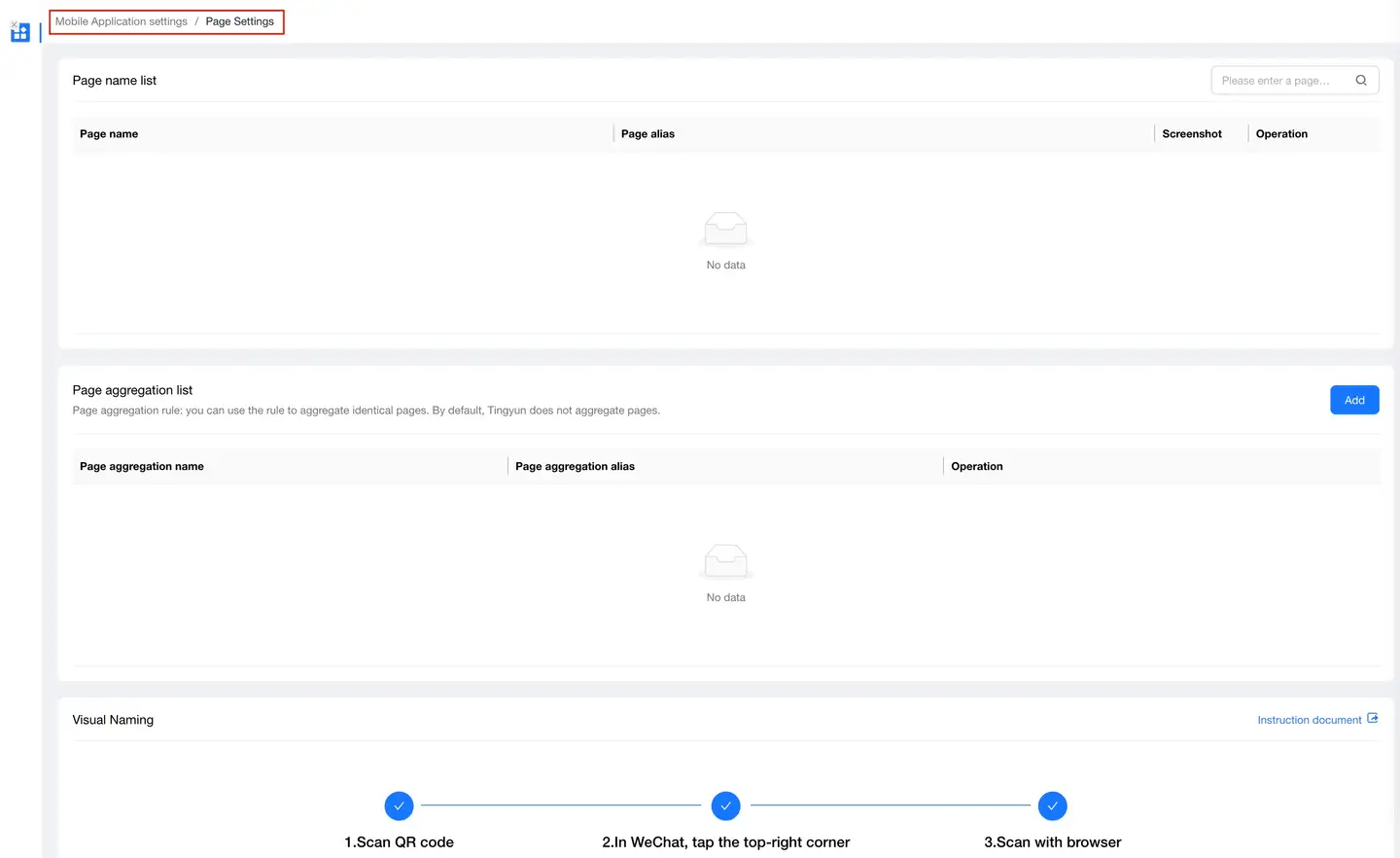
Then select the Visual Configuration tab.
- Method 2:
In the left navigation bar, select User Experience > Action Experience Analysis.
Click the Action Configuration button in the upper right corner of the action analysis list.
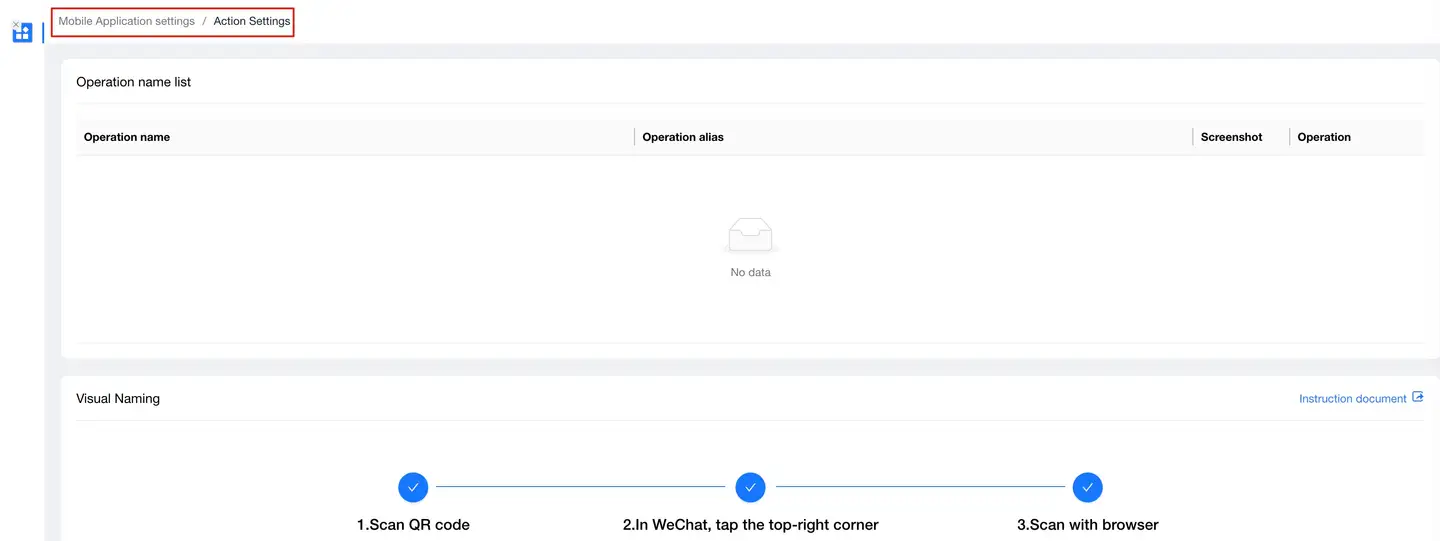
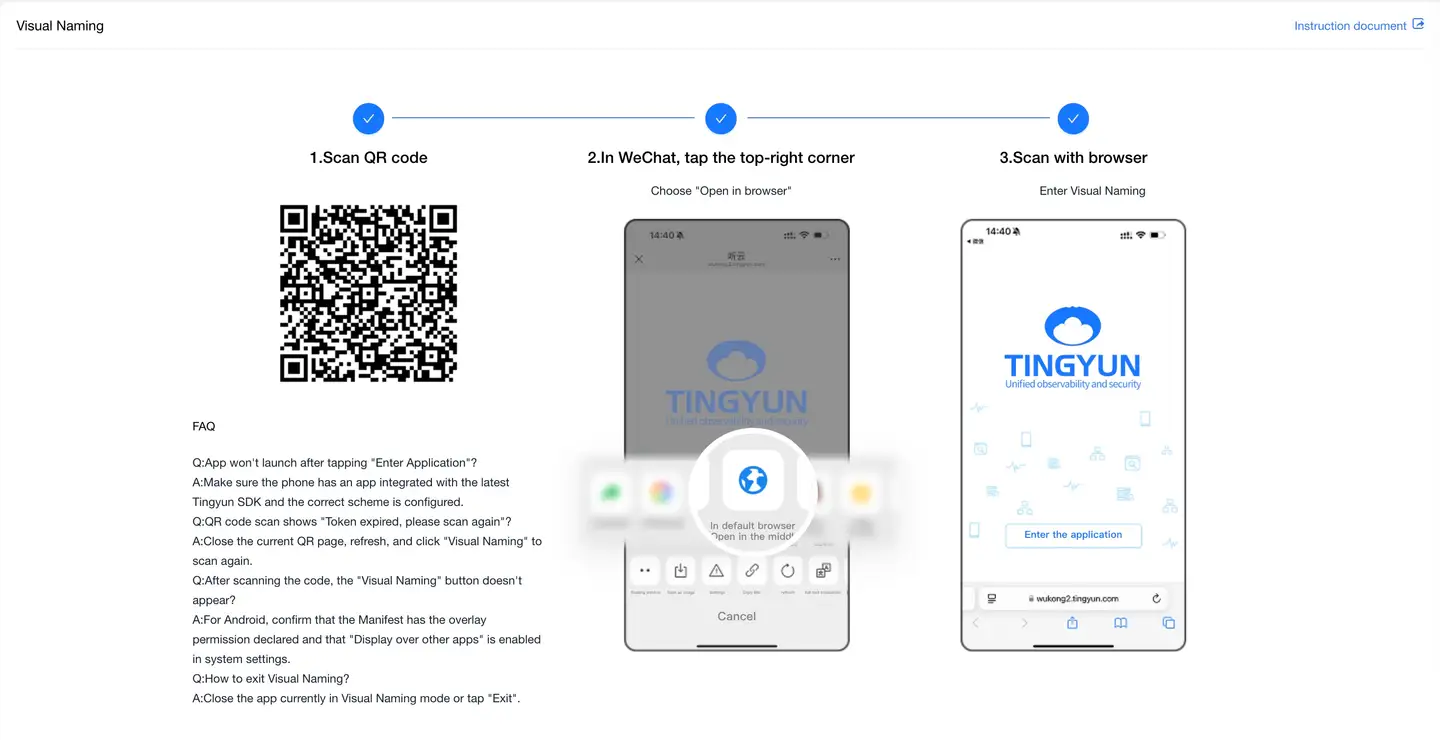
Scan with Phone and Open in Browser
When scanning with WeChat or camera, you need to open it in a browser. After scanning in the browser, the following page will open. Click "Enter Application" to directly launch the coded App (URLScheme needs to be added).
Using Visual Configuration
After launching visual configuration, you will see the following interface. Click the "Floating Box" to view specific functions.
Visual Page Naming
-
Click the "Floating Box" and select "Page Naming".
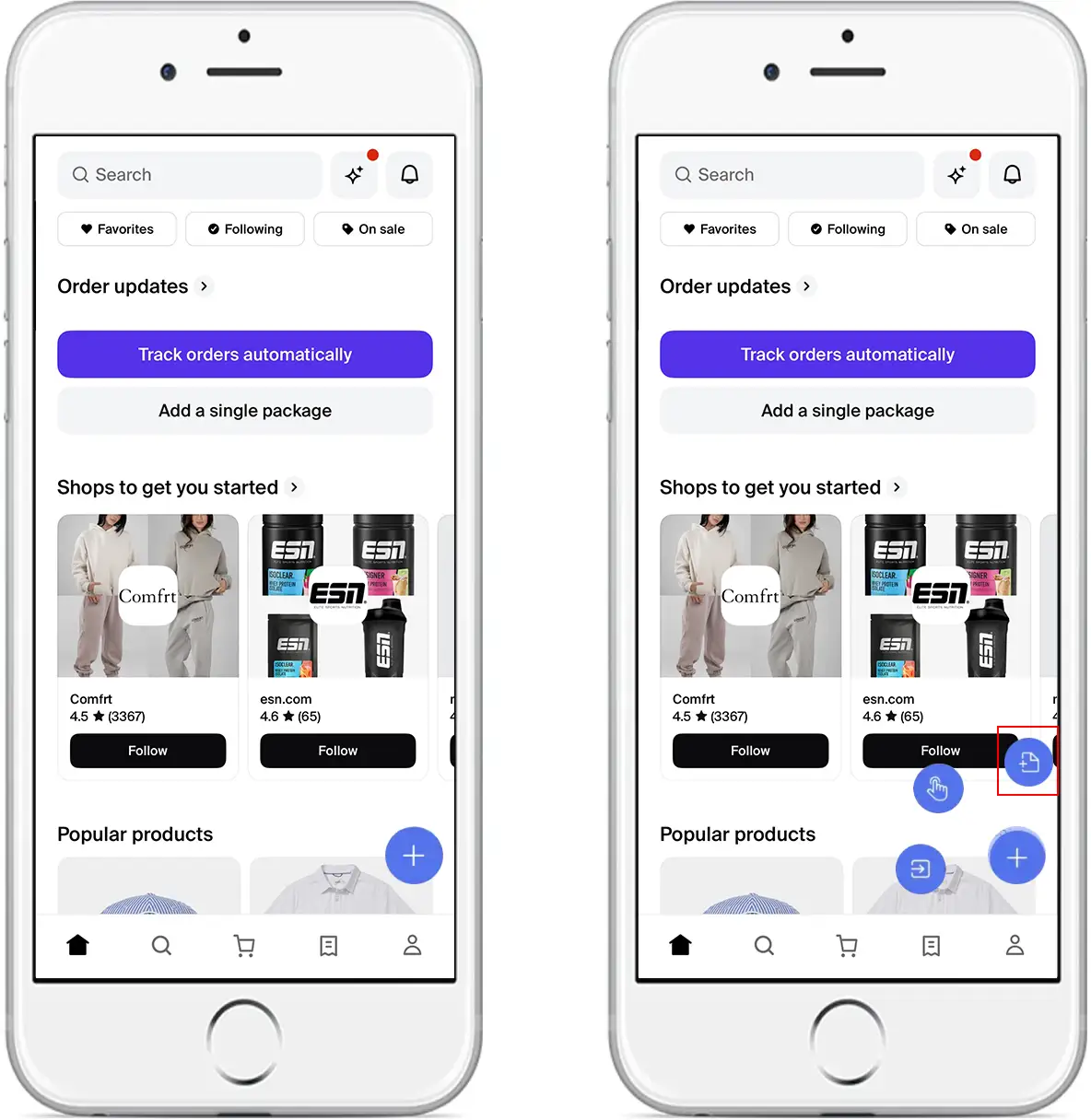
-
Add a "Page Name" and click "Upload". When you see "Upload Successful", it means the page has been automatically associated with the backend data.
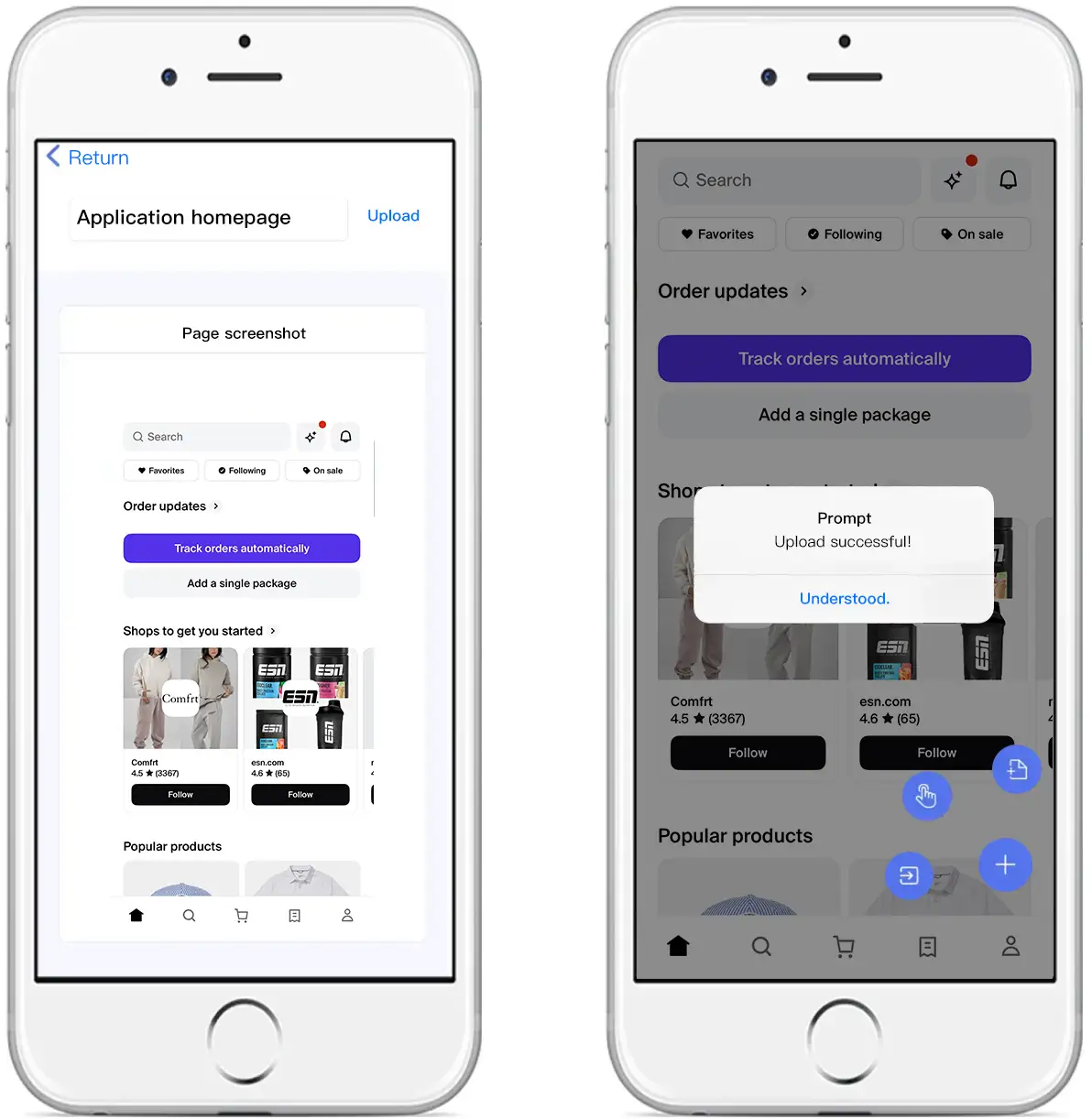
- Log in to the reporting platform to verify the data.
Visual Action Naming
-
Click the "Floating Box" and select "Action Naming".
-
Drag the "Hand Icon" to the selected action, and select the control location in the candidate action page.
-
You can add action names and page names for both the "action" and its "page". Click upload, and when you see "Upload Successful", it means the page has been automatically associated with the backend data.
-
Log in to the reporting platform to verify the data.
Exit Visual Configuration
Click the "Floating Box" and select "Exit Visual Configuration" to exit. To start again, you need to scan the QR code again.