Quick Start
Select Real User Monitoring in the navigation bar to enter the Application List page, which displays all applications with Mobile SDK installed. The list shows application name, user experience score, active device count, launch count, launch time, interactive time, first screen time, operation time, request response time, request error rate, crash rate, and stutter rate. You can search for applications by name.
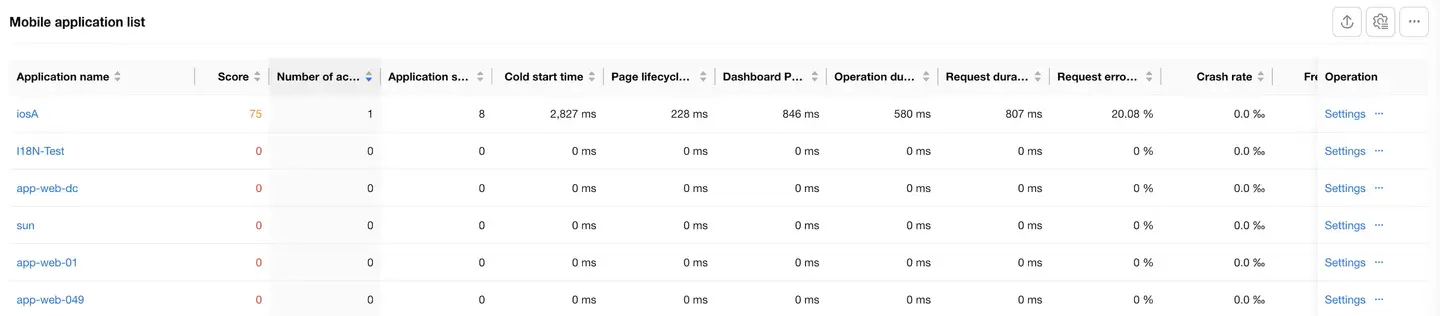
Create New Application
- Click Add Application in the upper right corner of the application list to enter "Data Integration" and select "Mobile APP".
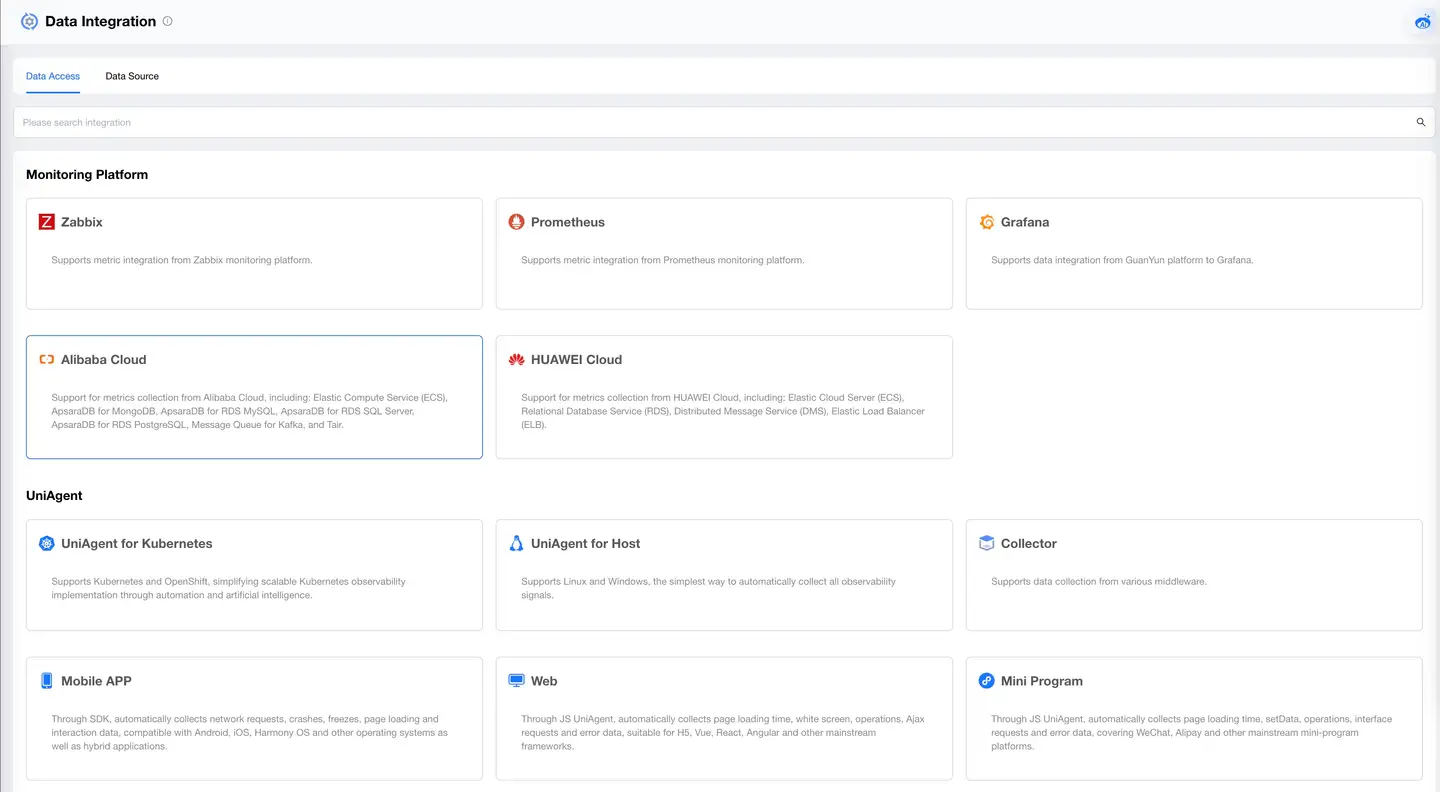
-
Fill in basic information.
Enter App name and App platform. App name supports letters, numbers, and Chinese characters, with a maximum of 32 characters. After completion, click Next. The application will now appear in the application list.

-
Code embedding.
Follow the step-by-step instructions on the interface.
App key, host, and URL Schema are displayed in the code embedding step, as shown below.

-
Check if code embedding is successful.
If code embedding is successful, you can see the application's data in the application list. Click Finish.
If code embedding fails, locate and solve the problem until code embedding is successful (data can be collected), then click Finish.
Modify Application
Find the application you want to modify in the application list, click the Settings link in the settings column to enter the global settings page.
Modify basic settings, security settings, threshold settings, scoring settings, and request settings as needed.
After modifying each tab, you need to click the Save Configuration button.
Disable Application
Find the application you want to disable in the application list, click the Disable link in the settings column to successfully disable it. At this point, the SDK stops collecting data, and the settings column displays Enable. To resume data collection, simply click Enable.
Delete Application
Find the application you want to delete in the application list, click the Delete link in the settings column, then click OK in the popup prompt. After the application is deleted, it will no longer be displayed in the application list.