Alert
Overview
Alert integrates the “detecting anomalies - notifying personnel - quick resolution” process into a closed-loop system. It monitors critical metrics and events in real time through unified rules, routes alerts to designated personnel and channels based on policies, and employs automated noise reduction and convergence mechanisms to ensure precise, timely delivery. This approach effectively reduces Mean Time to Acknowledge (MTTA) and Mean Time to Repair (MTTR) while minimizing disruption from false alarms.
Concepts
1. Alert Subtypes
Alert subtypes include: Periodic Metric Alerts, Event Monitoring Alerts, and VIP Alerts.
Among event monitoring alerts, "New Crash Alerts" and "Long Request Alerts" do not have "Recovery" events and are one-time events. The next version will add an "Occurred" status.
Currently, considering the weekend cycle of events, "Auto Close" has been added for these two events, meaning these two types of events will automatically close 6 hours after occurrence by default.
2. Alert Status
- Alerting: Alert events that have been generated but not yet recovered.
- Recovered: Alert events whose metrics have changed from abnormal to normal status and meet recovery conditions are marked as Recovered.
- Closed: Alert events in "Recovered" status will be considered truly resolved and their status set to "Closed" only after passing through an "observation window period" with no alert jitter. The default "observation window period" is currently 10 minutes.
3. Notification Configuration
- Alert: Alerts that do not generate Problems send notifications using the alert-type notification template content.
- Problem: A Problem contains 1 to n alerts. These alerts send notifications to customers using the "Problem" notification template by default. Contained alerts will not be notified independently.
4. Convergence Principle
AI Smart Convergence determines whether multiple alerts within a certain effective time window are caused by the same root cause. If the algorithm determines they are caused by the same root cause, these alerts are aggregated into one Problem.
Use Cases
Provides metric alerts and event monitoring alerts for entities monitored by the platform, routes events that meet alert conditions to relevant channels and responsible personnel through notification configuration, and uses notification templates to convey alert content.
Configuration Approach
- First, configure notification templates. The system provides default templates for email, SMS, WeChat Mini Program, and WeChat Official Account. Others can be customized.
- Second, configure notification settings, selecting different notification channels and responsible personnel based on the severity level and status of alerts or Problems.
- Finally, configure alert rules by selecting monitoring entities and metrics, setting alert thresholds, and defining trigger conditions to complete the configuration.
Prerequisites
- If setting alert rules for VIP users, first create VIP users and VIP user groups. After configuration, the platform will automatically distribute rules to collectors, and collectors will process data based on VIP identifiers.
- Users marked as VIP will not be "sampled" when APM and RUM collect trace information.
Alert List
As the presentation entry for alert events, it displays all events that are currently Alerting (not limited by "query time window") by default. You can search for alerts of interest through filter conditions.
Time Window
The time range window for querying alert events, typically used together with alert search.
By default, all events that are currently alerting are displayed, not limited by the "query time window".
The query time window only takes effect when "Recovered" or "Closed" is selected for status.
As shown below, the query time window is "Last 30 minutes":
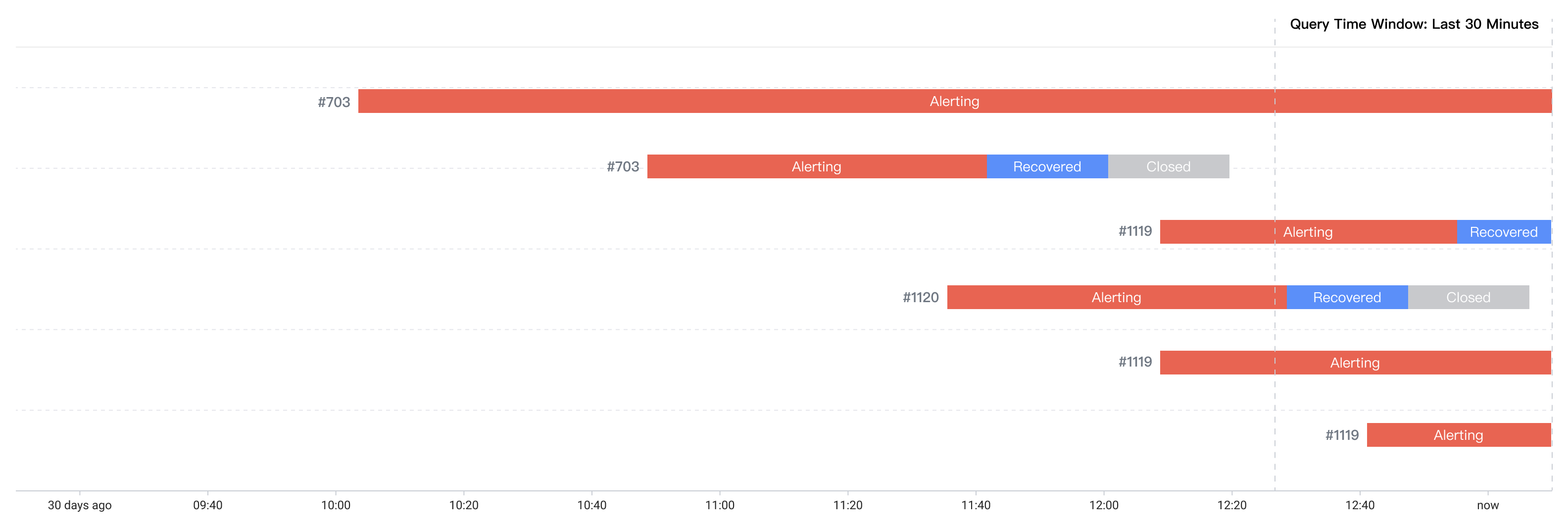
The system displays alerting event data by default, so the following alert IDs will be queried and displayed:
- #703 (Alert event that occurred 30 days ago, status has been "Alerting" all along)
- #1122 (Alert generated within the query time window)
Alert List
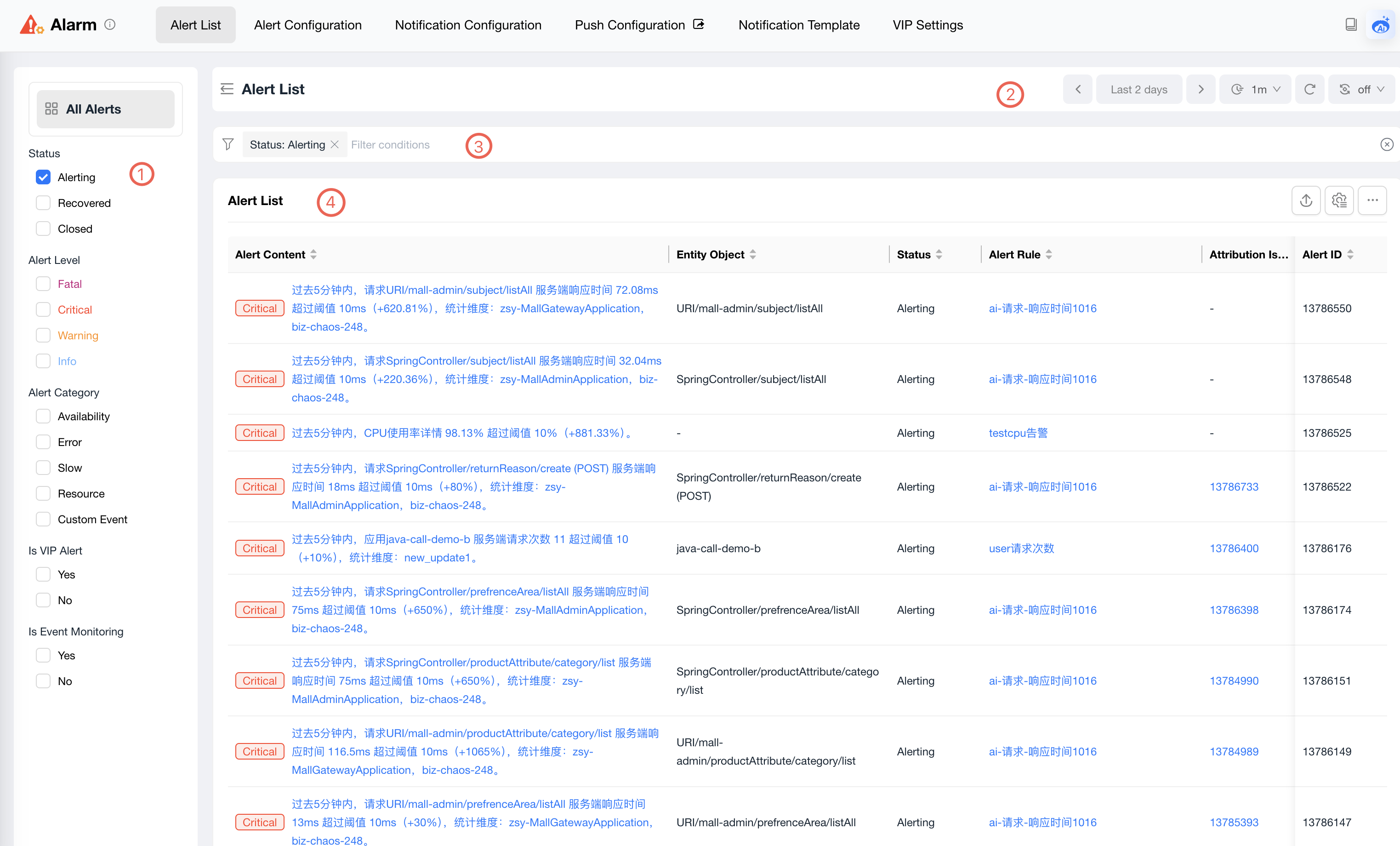
| Page Area | Item | Description |
|---|---|---|
| 1 Filter Bar | Status | Displays "Alerting" alert events by default. |
| Alert Level | Critical, High, Warning, and Info. | |
| Alert Category | Availability, Error, Slow, Resource, Custom Event. | |
| VIP Alert | Yes and No | |
| Event Monitoring | Yes and No | |
| 2 Time Window | Time Control | Find alert information by selecting time controls. |
| 3 Filter Conditions | Alert ID | Exact search |
| Entity Object | Fuzzy match | |
| Alert Rule | Fuzzy match | |
| 4 Alert List | Alert Content | Click to navigate to the alert detail page. |
| Entity Object | Monitoring entity object to which the alert event belongs. | |
| Status | Alerting, Recovered, Closed. | |
| Alert Rule | Click to view details of the alert rule corresponding to this alert event. | |
| Associated Problem | After alert convergence, alerts belong to Problems. Some alerts do not converge and therefore do not belong to Problems. | |
| Alert Category | Availability, Error, Slow, Resource, Custom Event | |
| Alert Time | The last time point that met the alert condition. For example: if an alert is triggered when the threshold is reached 3 times within 5 minutes, the time after the third threshold is reached is used as the alert time. | |
| Duration | Alert close time - Alert time (alert already closed) System current time - Alert time (alert not yet closed) | |
| Recovery Time | Alert recovery may produce alert jitter, so an "observation period" is still required. | |
| Close Time | The time when the alert is truly "ended" after a short observation period starting from alert recovery. | |
| Alert ID | Unique identifier of the alert, used for alert queries. | |
| 5 Alert Actions | Export Excel | Maximum 1000 records limit. |
| Custom Headers | You can flexibly select which column fields to display. | |
| Add to Dashboard | You can add the alert list to an existing dashboard. |
Alert Details
Displays the entire lifecycle status process of the alert event, alert metric trend chart, and alert event attribute information.
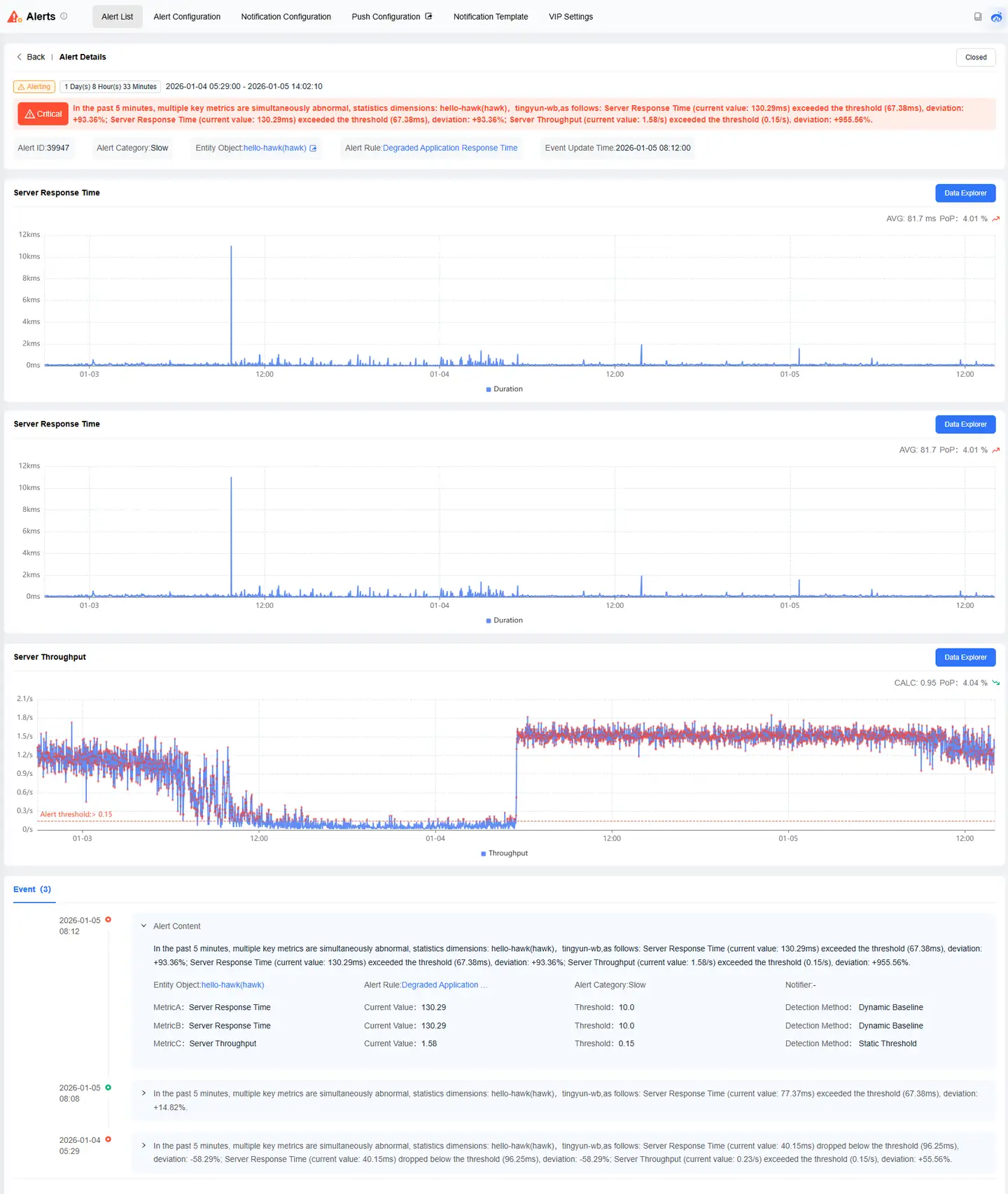
| Page Area | Item | Description |
|---|---|---|
| 1 Alert Title | Alert Level | Critical, High, Warning, and Info. |
| Title Description | Latest alert event description. | |
| 2 Alert Attributes | Alert ID | Unique identifier of the alert, used for alert queries. |
| Alert Category | Availability, Error, Slow, Resource, Custom Event | |
| Entity Object | Monitoring object of the alert entity | |
| Alert Rule | Click to display details in the right drawer panel | |
| 3 Metric Trend Chart | Metric Name | Name of the alert metric |
| Alert Line | Alert line formed by alert thresholds | |
| Trend Chart | Unclosed alerts: Look forward 1x time + Alert duration Closed alerts: Look forward 1x time + Alert duration + Look backward 1x time | |
| Multidimensional Exploration | Click to enter the Multidimensional Exploration page to further explore issues revealed by this metric trend chart. | |
| 4 Events | Alert Timeline | Displays the latest alert event details from top to bottom |
| Alert Details | Displays basic attribute information of the alert event. Hover over the notifier to display specific notification channels, whether the notification API call was successful, and notification time. |
Alert Configuration
Overview
Complete alert rule configuration by selecting monitoring entities and metrics, setting alert trigger conditions, and matching notification strategies to ensure alerts and notifications are generated when monitoring data triggers alert rule conditions.
Configuration Approach
- Select alert entities and metrics:
- Select "Configure by Entity Model" method.
- Select "Configure by Metric Model" method.
- Configure alert thresholds: Static Threshold, Dynamic Baseline, Smart AI Algorithm
- Event Generation: Event title, content, category, and level.
- Convergence Configuration: Can configure convergence or no convergence.
- Notification Strategy: Select existing strategies or create new strategies to complete.
Configuration Guide
Creating Alert Configuration
| Parameter Configuration | Item | Description |
|---|---|---|
| Basic Information | Rule Name | Name the alert rule |
| Configure by Entity Model | Entity Model | Traditional alert configuration method. First select alert entities, then select metrics to configure based on alert entities. |
| Expiration Time | Alert events are not generated during expiration time. | |
| No Data Resolution Wait Time | If recovery has not occurred after waiting 1 day, the system automatically sends a recovery event. | |
| Filter Entities | Trigger Condition | Meet all of the following conditions (AND relationship), Meet any of the following conditions (OR relationship) |
| Based On | Filter entities by tags | |
| Filter | Tag key | |
| Condition Expression | Equal to, Exists, In | |
| Add | Add a filter condition | |
| Configure by Metric Model | Metric Model | Default "METRIC" model. |
| Query Offset | For delayed metrics, configuring the minute offset of the sliding evaluation window can make event generation more accurate | |
| VISUALIZE | Select "Metric + Metric Statistical Function" | |
| WHERE | Filter metric data range through attributes of metric data | |
| Static Threshold | Trigger Method | Greater than, Greater than or equal to, Less than, Less than or equal to, Equal to, Not equal to |
| Static Threshold | Input alert threshold | |
| Dynamic Baseline | Baseline Configuration | Select baseline days as the baseline value to compare with current metric values |
| Baseline Algorithm | Offset baseline percentage Offset baseline fixed value | |
| Offset Threshold | Percentage value or specific fixed value | |
| Trigger Method | Greater than baseline, Less than baseline, Deviate from baseline (including offset upper and lower limits) | |
| Smart AI Algorithm | Sensitivity | Between 1-100, larger values represent stricter anomaly detection |
| Trigger Method | Greater than upper threshold, Less than lower threshold, Exceed threshold boundaries | |
| No Data Reported | No Data Reported | Alert when metrics have no data reported |
| Event Monitoring | Event Type | No Data Alert, No Heartbeat Alert, Request Duration Alert, New Crash Rate Alert |
| Event Generation | Event Title | System provides default values. You can configure using "constants + variables" |
| Event Description | System provides default values. You can configure using "constants + variables" | |
| Event Category | Availability, Error, Slow, Resource, Custom Event | |
| Event Level | Critical, High, Warning, and Info | |
| Convergence Configuration | No Convergence | Only generate alerts, do not generate Problems |
| AI Smart Convergence | Generate both alerts and Problems | |
| Notification Strategy | Select | If the platform has matching strategies, they will be automatically associated and displayed. If not, click "Add Notification Strategy" |
| Add Notification Strategy | Display the add notification strategy page in the right drawer panel | |
| Page Save/Cancel | Cancel | Do not save current configuration |
| OK | Save the configuration page |
Alert Configuration List
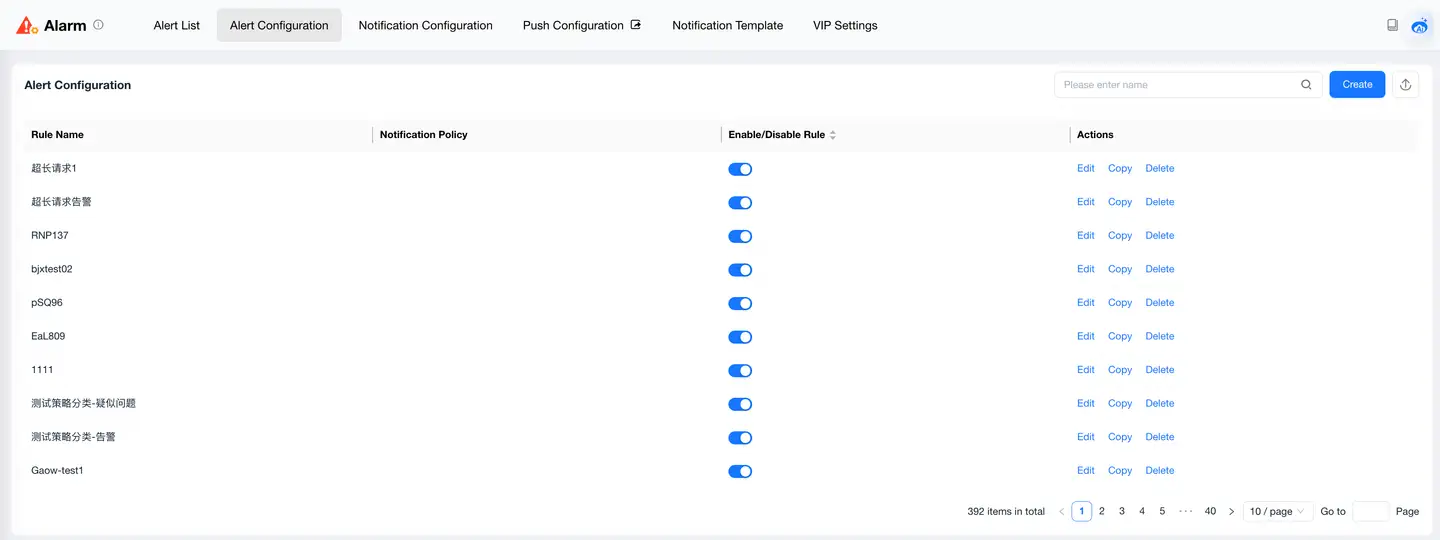
| Item | Description |
|---|---|
| Rule Name | Name of the alert configuration rule |
| Notification Strategy | Display names of matched notification strategies, 1-n. |
| Rule Enabled | Unique identifier of the alert, used for alert queries. |
| Actions | Edit: Modify existing alert configuration Copy: Copy an existing alert configuration Delete: Delete an existing alert configuration |
| List Search | Supports fuzzy matching search for alert rule names. |
| New | Click the "New" button. A floating window below provides two scenarios: "Alert Rule Creation" and "VIP Alert Rule Creation". Select the corresponding alert rule scenario to create based on your needs. |
| Export | Click the "Export" icon to export up to 1000 list records in Excel file format. |
Notification Configuration
Overview
The notification configuration function aims to help you flexibly manage alert notifications, ensuring that critical events can quickly reach relevant personnel and improving problem response efficiency.
Configuration Approach
- First determine the push type: "Alert" or "Problem".
- Set push trigger conditions.
- Configure corresponding notification channels and recipients.
- Click Save to complete configuration.
Configuration Guide
Creating Notification Configuration
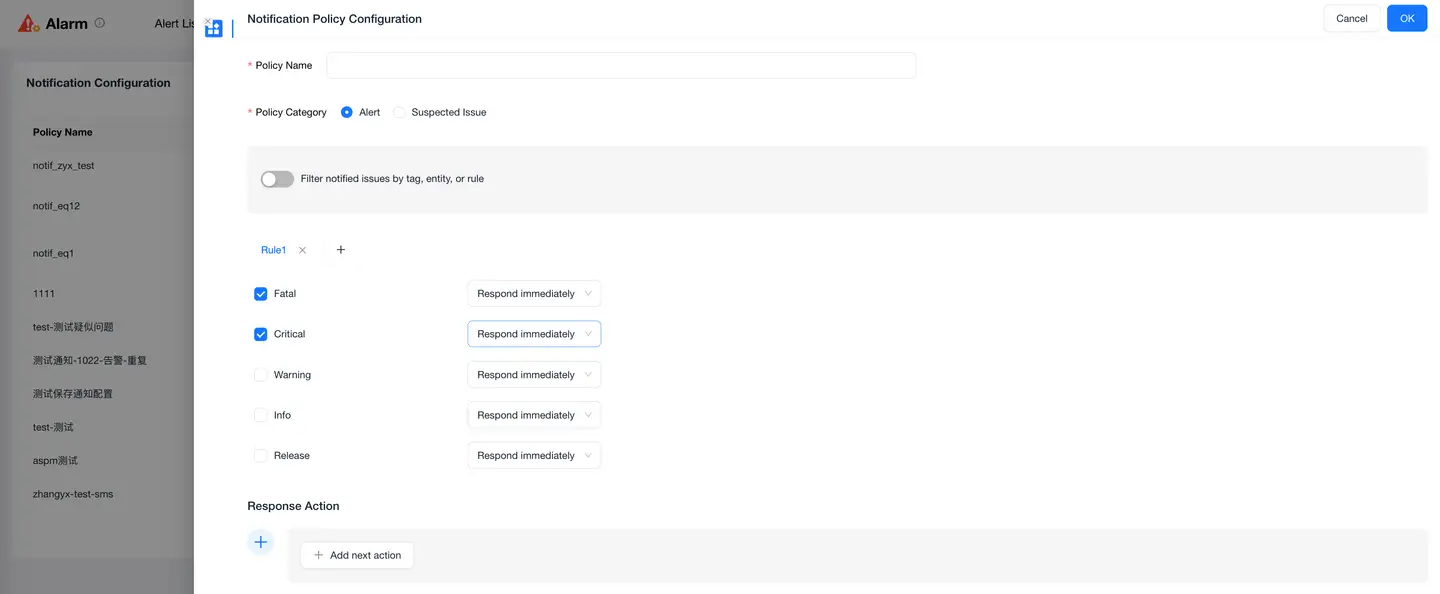
| Parameter Configuration | Item | Description |
|---|---|---|
| Basic Information | Strategy Name | Name the notification strategy |
| Strategy Information | Strategy Category | Alert, Problem |
| Filter notification issues by tags, entities, or rules | Toggle, representing enable and disable. | |
| Alert Rule | Select an alert rule to configure the corresponding notification strategy | |
| Filter by Tags | Entity objects with tags can be filtered | |
| Filter by Entity | Entity object attributes, filter through selection | |
| Filter by Alert Rule Group | For alert rules configured through "Metric Model Configuration", filter through the "Group" field | |
| Rule Conditions - Alert | Critical | Highest severity level of alerts |
| High | Second highest severity level of alerts | |
| Warning | Medium severity level of alerts | |
| Info | Lowest severity level of alerts | |
| Resolved | Status corresponding to alert recovery | |
| Rule Conditions - Problem - Problem Status Changes | New Problem Detected | Trigger notification when a new problem is detected |
| Problem Resolved | Trigger notification when a problem is resolved | |
| Problem Closed | Trigger notification when a problem is closed | |
| Problem Reopened | Trigger notification when a problem is reopened. When a problem is in resolved status and new events are added to the problem, it becomes reopened status. | |
| New Entity Added to Problem | When new alert event entities are added to the problem | |
| Rule Conditions - Problem - Problem Root Cause Changes | Root Cause Changed | Trigger notification when the root cause determination of a Problem changes |
| Rule Conditions - Problem - Problem Level Changes | Problem Level Changed to Critical (FATAL) | Trigger notification when severity is critical |
| Problem Level Changed to Error (ERROR) | Trigger notification when severity is error | |
| Problem Level Changed to Warning (WARNING) | Trigger notification when severity is warning | |
| Problem Level Changed to Info (INFO) | Trigger notification when severity is info | |
| Response Actions | General Notification | Includes voice, SMS, email, Enterprise WeChat (personal), Enterprise WeChat (Mini Program). Select notification channel, notification template, recipients/recipient groups, notification time range |
| Third-party Notification | Notification objects configured in third-party push. Select notification channel, notification template, recipients/recipient groups, notification time range | |
| Page Save/Cancel | Cancel | Do not save current configuration |
| OK | Save the configuration page |
Notification Configuration List
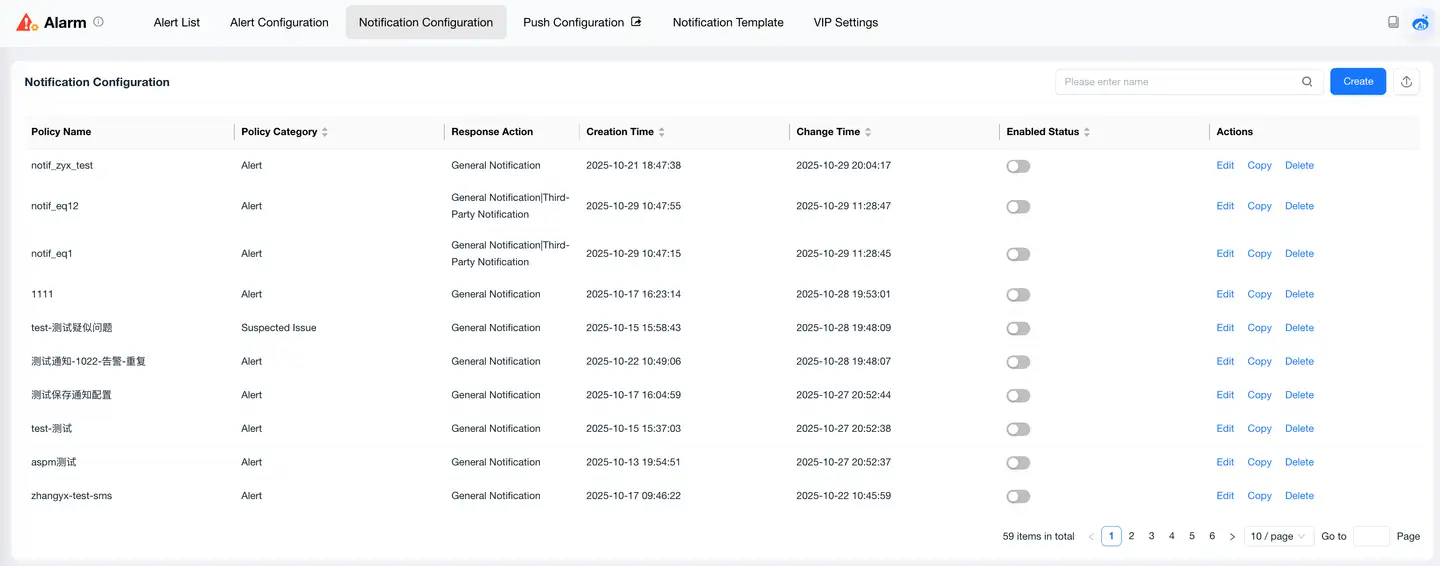
| Page Area | Item | Description |
|---|---|---|
| List Header | Strategy Name | Critical, High, Warning, and Info. |
| Strategy Category | Latest alert event description. | |
| Response Actions | Unique identifier of the alert, used for alert queries. | |
| Created Time | Availability, Error, Slow, Resource, Custom Event | |
| Modified Time | Monitoring object of the alert entity | |
| Enabled Status | Enable or disable notification configuration | |
| List Actions | Edit | Modify notification configuration strategy. |
| Copy | Quickly copy existing notification configuration. | |
| Delete | Click the New button in the upper right corner to configure notification strategy. | |
| Search Area | Search Condition | Fuzzy match alert strategy name |
| New | Click to open a new configuration page in the right drawer panel | |
| Export | Click the "Export" icon to export up to 1000 list records in Excel file format. |
Notification Templates
Overview
The platform provides default alert notification templates for different notification channels (such as SMS, email, voice, etc.).
You can also manually add custom notification templates.
Note: For the SMS notification channel, you cannot manually create notification templates yourself because of operator restrictions. You can only use the platform's default templates.
Configuration Guide
Creating Notification Template
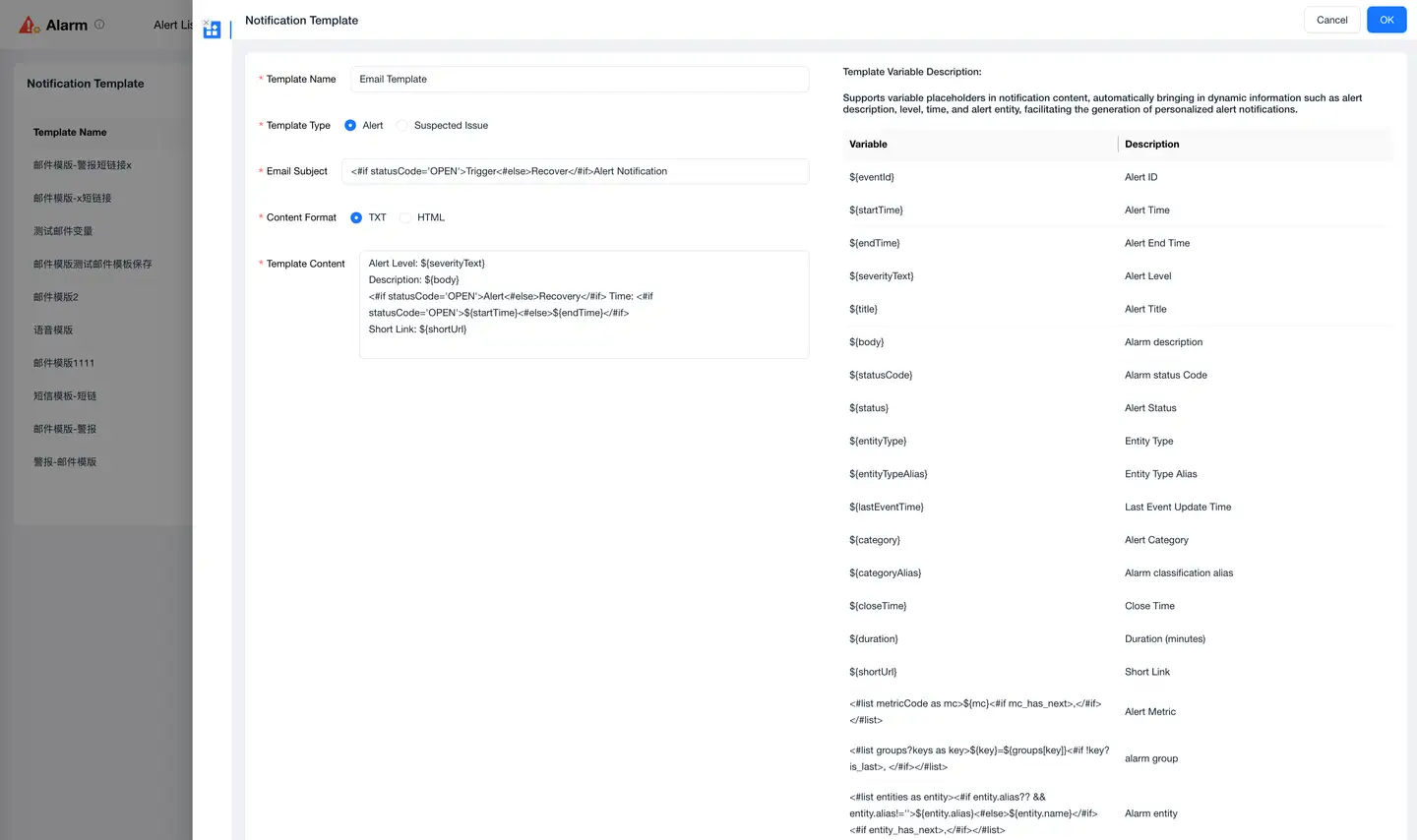
Taking the email notification channel template as an example, the platform provides default template content. You can customize and modify based on this template.
Form elements:
| Item | Description |
|---|---|
| Template Name | Name the notification template. |
| Template Type | Alert, Problem. After clicking to switch, template content and variable descriptions on the right will change dynamically. |
| Email Subject | The system provides a default subject content of "variables + constants". You can customize it. |
| Content Format | TXT (simple format), HTML (rich text format) |
| Include Short Link | Yes, No |
| Template Content | The system provides a default content of "variables + constants". You can customize it. |
| Variable Description | Explains and describes variables in the email subject and content |
| Cancel | Do not save current configuration |
| OK | Save the configuration page |
Template List
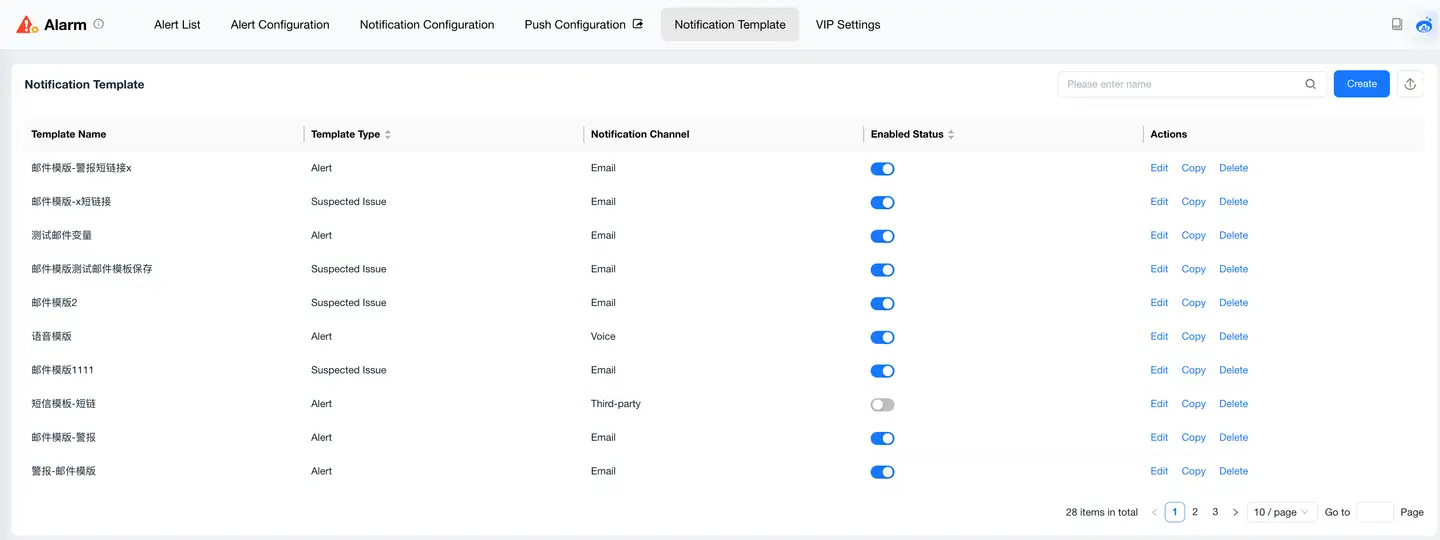
| Page Area | Item | Description |
|---|---|---|
| List Header | Template Name | Notification template name. |
| Template Type | Alert, Problem. | |
| Notification Channel | General Notification and Third-party Notification. | |
| Enabled Status | Enable or disable notification configuration | |
| List Actions | Edit | Modify notification template. |
| Copy | Quickly copy existing notification template. | |
| Delete | Click the New button in the upper right corner to configure notification template. | |
| Search Area | Search Condition | Fuzzy match template name |
| New | Click to open a new configuration page in the right drawer panel | |
| Export | Click the "Export" icon to export up to 1000 list records in Excel file format. |
VIP Settings
Overview
VIP User and VIP User Group functions are used to focus monitoring and alert management on critical users or business objects, supporting the creation of exclusive user groups, customized alert strategies, and notification rules to ensure priority response to critical business events.
Use Cases
Monitor and alert VIP users. When VIP users experience situations such as user experience lag, slow response time, slow backend page service requests, etc., immediately notify the responsible person for VIP users to help troubleshoot and resolve performance experience issues as soon as possible.
Configuration Approach
- First, create VIP users and VIP user groups.
- The platform automatically distributes configured parameters to collectors.
- Collectors automatically tag data with VIP labels according to rules.
- Create VIP user alerts in alert rules.
Configuration Guide
Creating VIP User

| Item | Description |
|---|---|
| VIP User Identifier | User of our platform. Enter user unique identifier |
| VIP User Information | |
| Email address used for email alert notifications | |
| Phone Number | Used for SMS or voice alert notifications |
| Select VIP User Group | Belong to VIP user group |
VIP User List
Manage by manually creating VIP users.
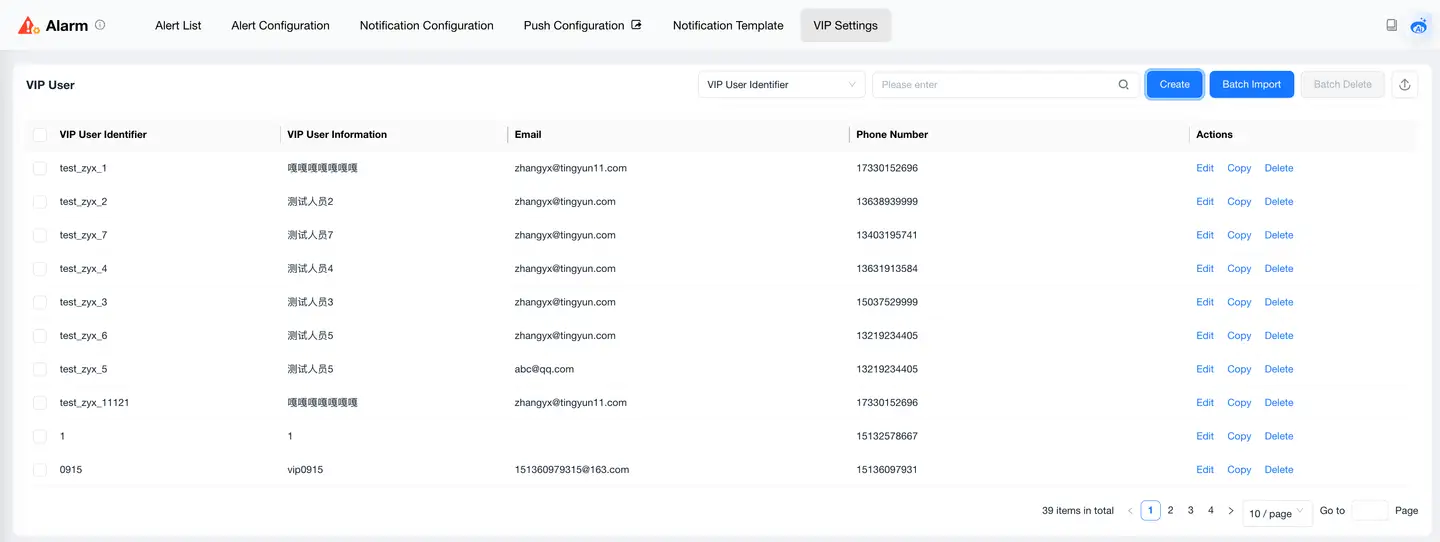
| Page Area | Item | Description |
|---|---|---|
| List Header | VIP User Identifier | Notification template name. |
| VIP User Information | . | |
| Email address of VIP user. | ||
| Phone Number | Phone number of VIP user. | |
| List Actions | Edit | Modify VIP user configuration. |
| Copy | Quickly copy existing VIP user configuration. | |
| Delete | Click the New button in the upper right corner to configure VIP users. | |
| Search Area | Search Condition | Fuzzy match VIP user identifier and VIP user information |
| New | Click to open a new configuration page in the right drawer panel | |
| Export | Click the "Export" icon to export up to 1000 list records in Excel file format. |
Creating VIP User Group

| Item | Description |
|---|---|
| Group Name | Name the VIP user group |
| Filter Method | Filter matching VIP users based on drop-down list values. |
| Member List | Match corresponding content according to filter method and complete by filling in. |
VIP User Group List
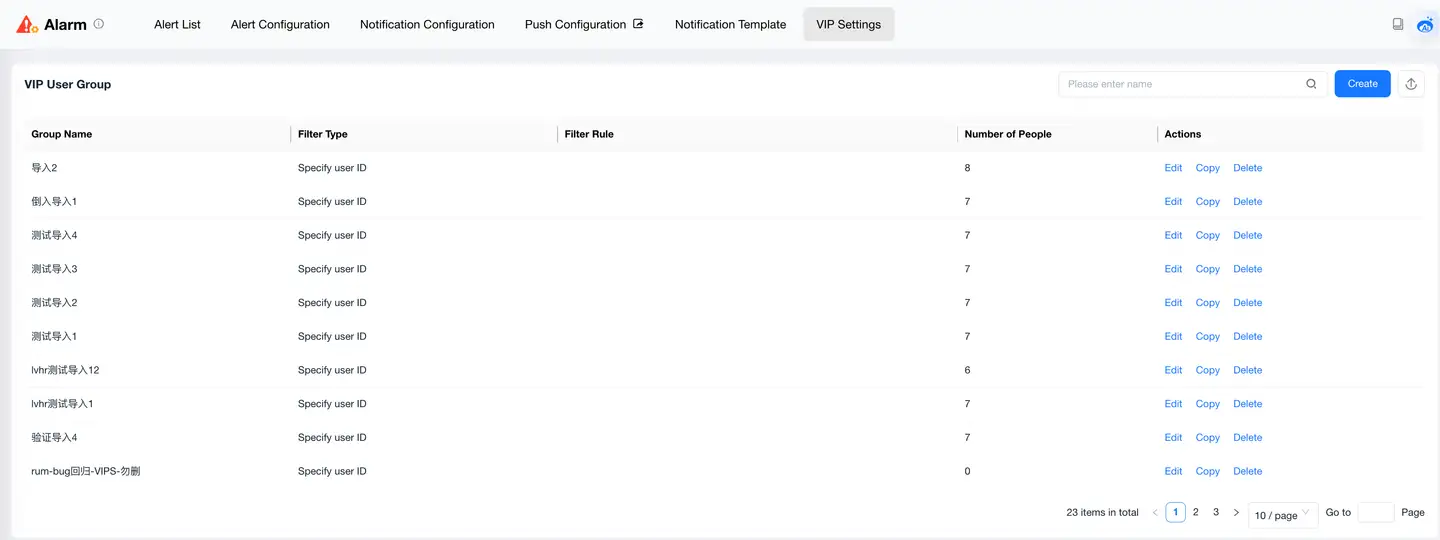
| Page Area | Item | Description |
|---|---|---|
| List Header | Group Name | VIP user group name. |
| Filter Method | Specify User ID, Contains, Not Contains, Equal to, Regular Expression, Starts With Prefix, Ends With Suffix | |
| Member List | Filter member list according to filter method. | |
| Member Count | Number of VIP users in this VIP user group. | |
| List Actions | Edit | Modify VIP user group configuration. |
| Copy | Quickly copy existing VIP user group configuration. | |
| Delete | Click the New button in the upper right corner to configure VIP user groups. | |
| Search Area | Search Condition | Fuzzy match VIP user group name. |
| New | Click to open a new configuration page in the right drawer panel | |
| Export | Click the "Export" icon to export up to 1000 list records in Excel file format. |