mPaaS Deployment
SDK Directory Structure
.
├── bcpkix-jdk15to18-1.69.jar
├── bcprov-jdk15to18-1.69.jar
├── nbs.newlens.android.log-1.0.1.aar
├── nbs.newlens.nativecrash-2.0.7.aar
├── rewriter
│   ├── json-20231013.jar
│   ├── nbs.newlens.so.parser-1.2.1.jar
│   ├── tingyun-ea-agent-android-class-rewriter-2.17.4.jar
│   └── tingyun-ea-agent-android-gradle-plugin-2.17.4.jar
├── shark-1.0.2.jar
├── tingyun-android-base-1.0.2.aar
├── tingyun-basemonitor-1.0.2.aar
├── tingyun-dump-1.0.2.aar
├── tingyun-ea-agent-android-2.17.4.aar
└── tingyun-javaleak-1.0.2.aar
Adding Dependencies to Portal Project
Add the following to the project-level build.gradle file.
buildscript {
    dependencies {
        classpath fileTree(dir: 'rewriter', include: ['*.jar']) // Extract the SDK's rewriter folder to the same directory as the project-level build.gradle file. The jar packages in the rewriter folder are only used during compilation and will not be packaged into the apk.
    }
}

allprojects {
    repositories {
         flatDir {
            dirs 'libs'
        }
    }
}
Add the following to the app-level build.gradle file.
apply plugin: 'newlens'

dependencies {
   // Copy the SDK to the portal project's libs directory
   // Please replace "Version" with the specific version number
   implementation(name: 'tingyun-ea-agent-android-version', ext: 'aar')
   implementation(name: 'nbs.newlens.nativecrash-version', ext: 'aar') // Required for native crash collection
   implementation(name: 'nbs.newlens.android.log-version', ext: 'aar') // Required for log recall
   // To collect OOM data, kotlin-gradle-plugin 1.3+ is required, and dependencies on androidx.core:core-ktx, androidx.appcompat:appcompat, androidx.lifecycle:lifecycle-process, com.squareup.okio:okio, etc.
   implementation(name: 'tingyun-javaleak-version.aar', ext: 'aar') // Required for OOM collection
   implementation(name: 'tingyun-basemonitor-version.aar', ext: 'aar') // Required for OOM collection
   implementation(name: 'tingyun-android-base-version', ext: 'aar') // Required for OOM collection
   implementation(name: 'tingyun-dump-version', ext: 'aar') // Required for OOM collection
   implementation files('libs/shark-version.jar') // Required for OOM collection
   implementation files('libs/bcpkix-jdk15to18-version.jar') // Required for SM encryption
   implementation files('libs/bcprov-jdk15to18-version.jar') // Required for SM encryption
}
Adding Dependencies to Bundle Projects
Each bundle needs to be configured for instrumentation. Add the following to the project-level build.gradle file.
buildscript {
    dependencies {
        classpath fileTree(dir: 'rewriter', include: ['*.jar']) // Extract the SDK's rewriter folder to the same directory as the project-level build.gradle file. The jar packages in the rewriter folder are only used during compilation and will not be packaged into the apk.
    }
}
Add the following to the app-level build.gradle file.
apply plugin: 'newlens'
If the plugin needs to call methods in the SDK, add the following to the app-level build.gradle file.
dependencies {
    // Copy tingyun-ea-agent-android-version.aar to the bundle project's libs directory
   compileOnly fileTree(include: ['*.aar'], dir: 'libs')
}
Setting Up Application
You need to use a custom Application in the portal.
public class MyApp extends com.alipay.mobile.quinox.LauncherApplication {

    @Override
    public void onCreate() {
        super.onCreate();
    }
}
Configure the Application in the portal's AndroidManifest.
<application
    android:name=".MyApp"
>
Adding the SDK
Obtaining AppKey


Initializing the SDK
Initialize the SDK in the onCreate() method of the Application.
// "Appkey" should be obtained from the Tingyun platform
// "Host" is the "Redirect" server address from the Tingyun platform, do not add protocol prefix
NBSAppAgent.setLicenseKey("AppKey").setRedirectHost("Host").startInApplication(this.getApplicationContext());
The SDK uploads data via HTTPS by default. If the server only supports HTTP, set setHttpEnabled(true).
NBSAppAgent.setLicenseKey("AppKey").setRedirectHost("Host").setHttpEnabled(true) .startInApplication(this.getApplicationContext());
Permission Configuration
The SDK requires "network permission" to interact with the server.
<!-- Required permission for server interaction -->
<uses-permission android:name="android.permission.INTERNET"/>
<!-- Optional permission to obtain the current device's network and WiFi status, e.g., 3G, 4G, 5G, WiFi. Recommended to add. -->
<uses-permission android:name="android.permission.ACCESS_NETWORK_STATE"/>
<!-- Optional permission for obtaining network status on Android 10 devices with targetSdkVersion 29 and above -->
<uses-permission android:name="android.permission.READ_PHONE_STATE" />
<!-- Optional permission for using the "visual operation naming" feature -->
<uses-permission android:name="android.permission.SYSTEM_ALERT_WINDOW"/>
<uses-permission android:name="android.permission.SYSTEM_OVERLAY_WINDOW"/>
<!-- Optional permission to obtain base station information of the current mobile network connection -->
<uses-permission android:name="android.permission.ACCESS_COARSE_LOCATION"/>
Enabling Module Function Switches on First Launch
For compatibility reasons, on first launch the SDK only enables all function modules in debug mode, and only enables the crash module in non-debug mode. You can enable the SDK's module switches through the following interface.
- Module function switch interface
/*
 Due to the SDK's first initialization not yet interacting with the Tingyun platform, the default module switches only enable the "crash module". You can customize the modules enabled on first launch through this interface.
 @warning: Calling this interface to set startup options means the SDK's first launch is not controlled by the Tingyun platform switches
 */
NBSAppAgent.setStartOption(int option);
- Code example
// Call during SDK initialization to enable all function modules on first launch
NBSAppAgent.setLicenseKey("AppKey").setRedirectHost("Host").setStartOption(511).start(this.getApplicationContext()); // Enable all functions on first initialization
Network Instrumentation
The project needs to implement a custom RpcInterceptor and add the corresponding methods of Tingyun's NBSInterceptorHelper in each method.
// mPaaS RPC can only add one interceptor. If the project already has an interceptor, you can directly call the corresponding methods of NBSInterceptorHelper in the interceptor's callback methods.
rpcService.addRpcInterceptor(OperationType.class, new CommonInterceptor());

public class CommonInterceptor implements RpcInterceptor {

    private Handler handler = new Handler(Looper.getMainLooper());

    @Override
    public boolean preHandle(Object o, ThreadLocal<Object> threadLocal, byte[] bytes, Class<?> aClass, Method method, Object[] objects, Annotation annotation, ThreadLocal<Map<String, Object>> threadLocal1) throws RpcException {
        RpcInvocationHandler rpcInvocationHandler = (RpcInvocationHandler) Proxy.getInvocationHandler(o);
        RpcInvokeContext rpcInvokeContext = rpcInvocationHandler.getRpcInvokeContext();

        com.networkbench.agent.impl.instrumentation.NBSInterceptorHelper.preHandle(annotation, rpcInvokeContext);
        return true;
    }

    @Override
    public boolean postHandle(Object o, ThreadLocal<Object> threadLocal, byte[] bytes, Class<?> aClass, Method method, Object[] objects, Annotation annotation) throws RpcException {
        RpcInvocationHandler rpcInvocationHandler = (RpcInvocationHandler) Proxy.getInvocationHandler(o);
        RpcInvokeContext rpcInvokeContext = rpcInvocationHandler.getRpcInvokeContext();

        com.networkbench.agent.impl.instrumentation.NBSInterceptorHelper.postHandle(annotation, rpcInvokeContext);
        return true;
    }

     @Override
    public boolean exceptionHandle(Object o, ThreadLocal<Object> threadLocal, byte[] bytes, Class<?> aClass, Method method, Object[] objects, final RpcException e, Annotation annotation) throws RpcException {

        // The SDK defines some network error codes, such as unknown host 901, connection failure 902, connection timeout 903, SSL error 908, etc. Undefined error codes will not be displayed in reports. You can convert mPaaS error codes as needed

        int errorCode = e == null ? 0 : e.getCode();
        switch (errorCode) {
            case 0   :
            errorCode= 900;break;
            case 1   :
            errorCode= 900;break;
            case 2   :
            errorCode= 901;break;
            case 3   :
            errorCode= 908;break;
            case 4   :
            errorCode= 903;break;
            case 5   :
            errorCode= 903;break;
            case 6   :
            errorCode= 900;break;
            case 7   :
            errorCode= 900;break;
            case 8   :
            errorCode= 900;break;
            case 9   :
            errorCode= 902;break;
            case 10  :
            errorCode= 900;break;
            case 13  :
            errorCode= 900;break;
            case 15  :
            errorCode= 902;break;
            case 16  :
            errorCode= 901;break;
            case 18  :
            errorCode= 900;break;
        }

        com.networkbench.agent.impl.instrumentation.NBSInterceptorHelper.exceptionHandle(annotation, errorCode);
        return true;
    }
}
Embedded WebView Instrumentation
The SDK supports automatic collection of H5 data for methods like MPNebula.startUrl() and MPNebula.startApp() without additional configuration.
If the project uses embedded WebView, manual instrumentation is required.
- Related interface
/**
* @param h5Page H5Page object
* @param apWebViewClient If there is a custom APWebViewClient implementation class, pass this object; otherwise pass null
* @param apWebChromeClient If there is a custom APWebChromeClient implementation class, pass this object; otherwise pass null
*/
NBSNebulaWebViewConfig.configWebView(H5Page h5Page, APWebViewClient apWebViewClient, APWebChromeClient apWebChromeClient);
- Code example
MPNebula.getH5ViewAsync(this, param, new H5PageReadyListener() {
    @Override
    public void getH5Page(H5Page h5Page) {
        LinearLayout.LayoutParams lp = new LinearLayout.LayoutParams(
                        LinearLayout.LayoutParams.MATCH_PARENT, LinearLayout.LayoutParams.MATCH_PARENT);
        // When there is no custom APWebViewClient or APWebChromeClient, only pass the h5Page object
            NBSNebulaWebViewConfig.configWebView(h5Page, null, null);

        mLayout.addView(h5Page.getContentView(), lp);
        }
    });
Obtaining User Identifier
By adding a "user identifier", you can search for specific users' performance issues on the Tingyun reporting platform.
- Related interface
// userIdentifier can contain up to 64 characters, supports Chinese, English, numbers, and underscores, but cannot contain spaces or other escape characters
NBSAppAgent.setUserIdentifier(String userIdentifier);
- Code example
public class MainActivity extends Activity {
    public void onCreate(Bundle savedInstanceState) {
        super.onCreate(savedInstanceState);
        String userIdentifier = getUserID();
        NBSAppAgent.setLicenseKey("AppKey").withLocationServiceEnabled(true)
        .start(this.getApplicationContext());
        // The user identifier can be an email, phone number, or any information that identifies the user, e.g., xxx@tingyun.com
        NBSAppAgent.setUserIdentifier(userIdentifier);
      }
}
Enabling SM Encryption
The SDK supports sending data using SM (Chinese National Standard) encryption.
Note:
SM encryption is only supported on Android 6.0 and above. After enabling SM encryption, SDKs on Android 5.x and below will not collect data.
To enable SM encryption, you must integrate
bcpkix-jdk15to18-version.jarandbcprov-jdk15to18-version.jar.The server must also enable SM encryption.
- Related interface
// isEncryptionRequired defaults to false. Set to true to enable SM encryption
NBSAppAgent.encryptionRequired(boolean isEncryptionRequired)
- Code example
NBSAppAgent.setLicenseKey("AppKey").setRedirectHost("Host")
.encryptionRequired(true) // Enable SM encryption
.start(this.getApplicationContext());
ProGuard Configuration
Add the following to your ProGuard configuration file to ensure the SDK works properly.
# ProGuard configurations for NetworkBench Lens
-keep class com.networkbench.** { *; }
-dontwarn com.networkbench.**
-keepattributes Exceptions, Signature, InnerClasses
# End NetworkBench Lens
If your project uses OkHttp 3, add the following to proguard.cfg to avoid affecting network metric collection.
-keep class okhttp3.** { *;}
-dontwarn okhttp3.**
If SM encryption is enabled, add the following to proguard.cfg to avoid affecting data collection.
-keep class org.bouncycastle.**{ *;}
-dontwarn org.bouncycastle.**
If you need to retain line number information, add the following to proguard.cfg.
-keepattributes SourceFile,LineNumberTable
Building and Compiling
First build the bundle sub-projects, then build the portal project.
Embedding Verification
After embedding, you can use "LogCat" to view the Tingyun SDK log output for data collection server verification. The TAG is NBSAgent. Standard log output is as follows:
NBSAgent start
NBSAgent enabled
NBSAgent V "TingYun_Version" // TingYun_Version is the current SDK version
connect success
Appendix (Optional Configuration)
Enabling Visual Naming
Enabling the visual naming feature allows you to rename "native pages" and "operations" within the app by clicking, and display them in the user experience module.
-
Obtain the Scheme.
In the app's "Settings" under "Modify Settings", select [URL Scheme].
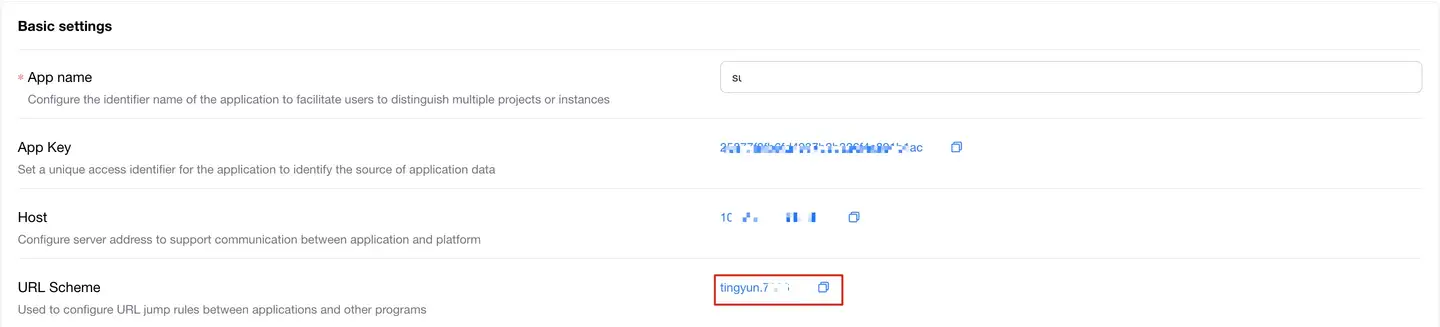
-
Add the scheme configuration to the "LAUNCHER Activity" in the AndroidManifest.xml file as shown below:
<activity android:name=".MainActivity">
            <intent-filter>
                <action android:name="android.intent.action.MAIN" />
                <category android:name="android.intent.category.LAUNCHER" />
            </intent-filter>
  <!-- Please add the entire intent-filter block here and ensure there is only one data field -->
            <intent-filter>
                <data android:scheme="tingyun.xxxx" />
                <!-- Replace "tingyun.xxxx" in the scheme with the URL Scheme from the Tingyun report settings page -->
                <action android:name="android.intent.action.VIEW"/>
                <category android:name="android.intent.category.DEFAULT"/>
                <category android:name="android.intent.category.BROWSABLE"/>
            </intent-filter>
  <!-- Please add the entire intent-filter block here and ensure there is only one data field -->
 </activity>