Android Gradle Deployment
Adding the Plugin
-
Add the following to the project-level build.gradle file.
buildscript {
    ext.tingyun_sdk_version = '2.17.5' // Tingyun SDK version
    ext.tingyun_ndk_version = '2.0.8' // Tingyun NDK version
    repositories {
        maven { url "https://nexus2.tingyun.com/nexus/content/repositories/snapshots/" }
    }
    dependencies {
        classpath "com.networkbench:tingyun-ea-agent-android-gradle-plugin:$tingyun_sdk_version"
    }
}

allprojects {
    repositories {
        maven { url "https://nexus2.tingyun.com/nexus/content/repositories/snapshots/" }
    }
} -
Add the following to the app-level build.gradle file.
apply plugin:'newlens' // Place after apply plugin: 'com.android.application'

dependencies {
      implementation "com.networkbench:tingyun-ea-agent-android:$tingyun_sdk_version"
      implementation "com.networkbench.newlens.agent.android2:nbs.newlens.nativecrash:$tingyun_ndk_version" // Required for native crash collection
      implementation "com.networkbench:nbs.newlens.android.log:1.0.1" // Required for log recall
      // To collect OOM data, kotlin-gradle-plugin 1.3+ is required, and dependencies on androidx.core:core-ktx, androidx.appcompat:appcompat, androidx.lifecycle:lifecycle-process, com.squareup.okio:okio, etc.
      implementation "com.networkbench:tingyun-javaleak:1.0.2" // Required for OOM collection
      implementation "org.bouncycastle:bcprov-jdk15to18:1.69" // Required for SM encryption
      implementation "org.bouncycastle:bcpkix-jdk15to18:1.69" // Required for SM encryption
}
Adding the Tingyun SDK
-
Obtain the Tingyun App Key.


-
Initialize the SDK.
i. Initialize the Android SDK in the onCreate() method of the Application.
// "Appkey" should be obtained from the Tingyun platform
// "Host" is the "Redirect" server address from the Tingyun platform, do not add protocol prefix
// setStartOption(7) sets network, user experience, and crash collection to be enabled on first launch, only effective on first launch
NBSAppAgent.setLicenseKey("AppKey").setRedirectHost("Host").setStartOption(7).start(this.getApplicationContext());
ii. The SDK uploads data via HTTPS by default. If the server only supports HTTP, set "setHttpEnabled(true)".
NBSAppAgent.setLicenseKey("AppKey").setRedirectHost("Host").setHttpEnabled(true).setStartOption(7).start(this.getApplicationContext());
Permission Configuration
The Tingyun App SDK requires "network permission" to interact with the server.
<!-- Required permission for server interaction -->
<uses-permission android:name="android.permission.INTERNET"/>
<!-- Optional permission to obtain the current device's network and WiFi status, e.g., 2G, 3G, 4G, WiFi. Recommended to add -->
<uses-permission android:name="android.permission.ACCESS_NETWORK_STATE"/>
<!-- Optional permission for obtaining network status on Android 10 devices with targetVersion 29 and above -->
<uses-permission android:name="android.permission.READ_PHONE_STATE" />
<!-- Optional permission for using the "visual operation naming" feature -->
<uses-permission android:name="android.permission.SYSTEM_ALERT_WINDOW"/>
<uses-permission android:name="android.permission.SYSTEM_OVERLAY_WINDOW"/>
<!-- Optional permission to obtain base station information of the current mobile network connection -->
<uses-permission android:name="android.permission.ACCESS_COARSE_LOCATION"/>
Adding WebView Configuration
Note: For details on automatic JS probe injection and Tencent "X5 Webview" configuration, see API Documentation.
To collect WebView data, you need to set setDomStorageEnabled(true) and call the setWebViewClient() method. If the instrumented app doesn't call this method, please add the following:
WebSettings webSettings = webview.getSettings();
webSettings.setDomStorageEnabled(true);
webview.setWebViewClient(new WebViewClient(){});
- Related interface
/*
To collect WebView data, this interface must be called in the onProgressChanged() method of WebChromeClient
 */
NBSWebChromeClient.initJSMonitor(view, newProgress);
- Code example
webview.setWebChromeClient(new WebChromeClient(){
    @Override
        public void onProgressChanged(WebView view, int newProgress) {
            NBSWebChromeClient.initJSMonitor(view, newProgress);
            super.onProgressChanged(view, newProgress);
        }
});
Obtaining User Identifier
By adding a "user identifier", you can search for specific users' performance issues on the Tingyun reporting platform.
- Related interface
// userIdentifier can contain up to 256 characters, supports Chinese, English, numbers, and underscores, but cannot contain spaces or other escape characters
NBSAppAgent.setUserIdentifier(String userIdentifier);
- Code example
public class MainActivity extends Activity {
    public void onCreate(Bundle savedInstanceState) {
        super.onCreate(savedInstanceState);
        String userIdentifier = getUserID();
        NBSAppAgent.setLicenseKey("AppKey")
        .start(this.getApplicationContext());
        // The user identifier can be an email, phone number, or any information that identifies the user, e.g., xxx@tingyun.com
        NBSAppAgent.setUserIdentifier(userIdentifier);
      }
}
Enabling SM Encryption
The SDK supports sending data using SM (Chinese National Standard) encryption.
Note:
SM encryption is only supported on Android 6.0 and above. After enabling SM encryption, SDKs on Android 5.x and below will not collect data.
To enable SM encryption, you must integrate
bcpkix-jdk15to18-version.jarandbcprov-jdk15to18-version.jar.The server must also enable SM encryption.
- Related interface
// isEncryptionRequired defaults to false. Set to true to enable SM encryption
NBSAppAgent.encryptionRequired(boolean isEncryptionRequired)
- Code example
NBSAppAgent.setLicenseKey("AppKey").setRedirectHost("Host")
.encryptionRequired(true) // Enable SM encryption
.start(this.getApplicationContext());
ProGuard Configuration
Add the following to your ProGuard configuration file to ensure the Tingyun App SDK works properly.
# ProGuard configurations for NetworkBench Lens
-keep class com.networkbench.** { *; }
-dontwarn com.networkbench.**
-keepattributes Exceptions, Signature, InnerClasses
# End NetworkBench Lens
If your project uses OkHttp 3, add the following to proguard.cfg to avoid affecting network metric collection.
-keep class okhttp3.** { *;}
-dontwarn okhttp3.**
If SM encryption is enabled, add the following to proguard.cfg to avoid affecting data collection.
-keep class org.bouncycastle.**{ *;}
-dontwarn org.bouncycastle.**
If you need to retain line number information, add the following to proguard.cfg.
-keepattributes SourceFile,LineNumberTable
Building and Compiling
gradle clean build
Embedding Verification
After embedding, you can use "LogCat" to view the Tingyun App SDK log output for data collection server verification. The TAG is NBSAgent. Standard log output is as follows:
NBSAgent start
NBSAgent enabled
NBSAgent V "TingYun_Version" // TingYun_Version is the current SDK version
connect success
Function Module Switch Verification:
After embedding, you can use "LogCat" to view the Tingyun App SDK log output for function module verification. Filter by "TAG" as "TingYun". Standard log output is as follows:
D/TingYun: networkModule is true
D/TingYun: uiModule is true
D/TingYun: crashModule is true
D/TingYun: webviewModule is true
D/TingYun: socketDataModule is true
D/TingYun: crossAppModule is true
D/TingYun: anrModule is true
D/TingYun: userActionModule is true
D/TingYun: cdnModule is false
D/TingYun: recordModule is true
D/TingYun: allTraceCollectModule is true
D/TingYun: violenceModule is true
D/TingYun: logModule is true
D/TingYun: oomModule is true
D/TingYun: batteryModule is true
D/TingYun: batteryErrorEnabled is true
D/TingYun: recordNetworkEnabled is true
D/TingYun: cpuModuleEnabled is true
D/TingYun: fpsModuleEnabled is true
Appendix (Optional Configuration)
Enabling Visual Naming
Enabling the visual naming feature allows you to rename "native pages" and "operations" within the app by clicking, and display them in the user experience module.
-
Obtain the Scheme.
In the app's "Settings" under "Modify Settings", select [URL Scheme].
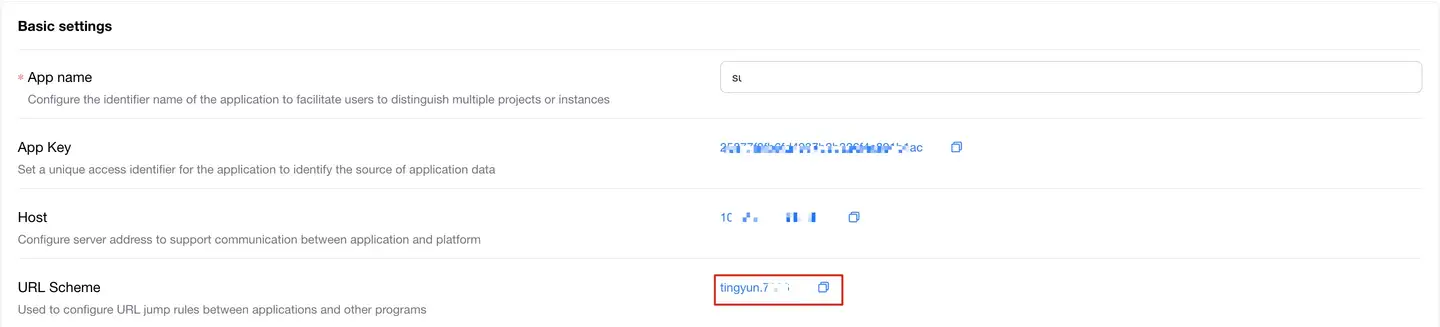
-
Add the scheme configuration to the "LAUNCHER Activity" in the AndroidManifest.xml file as shown below:
<activity android:name=".MainActivity">
            <intent-filter>
                <action android:name="android.intent.action.MAIN" />
                <category android:name="android.intent.category.LAUNCHER" />
            </intent-filter>
  <!-- Please add the entire intent-filter block here and ensure there is only one data field -->
            <intent-filter>
                <data android:scheme="tingyun.xxxx" />
                <!-- Replace "tingyun.xxxx" in the scheme with the URL Scheme from the Tingyun report settings page -->
                <action android:name="android.intent.action.VIEW"/>
                <category android:name="android.intent.category.DEFAULT"/>
                <category android:name="android.intent.category.BROWSABLE"/>
            </intent-filter>
  <!-- Please add the entire intent-filter block here and ensure there is only one data field -->
 </activity>