Introduction
Data Collection
The Agent collects the response time of each method and statistical analysis of response times (maximum, minimum, average, and standard deviation) by instrumenting specific methods. In the system, you can view the response time and invocation count of these classes and methods.
In addition, it can also collect thread stacks, database execution plans, custom parameters, HTTP request parameters, and other information. For example:
- Application request controllers and scheduling activities
- Database operation symbols
- NoSQL operation symbols
- Database and NoSQL instance information
- External service calls
- Visualization analysis
- Uncaught exceptions and counts
- Process memory and CPU usage
Data Transmission
By default, the Java Agent uses HTTP to transmit data. You can enable or disable HTTPS transmission in the Java Agent configuration file tingyun.properties, as shown below:
# Use HTTPS to transmit data
# When set to true, the Agent will use HTTPS to receive and send data
# default: false
# ssl=false
Note: tingyun.properties is located in the tingyun folder after extracting tingyun-agent-java-[version].zip.
Firewall Restrictions
If you have configured a firewall, you need to add the IP address and port of the Agent Collector to the allowlist. If high availability deployment is involved, be sure to configure all IP addresses and ports.
If your host or collector.addresses is configured with a domain name, you can use the dig command to check the IP. On Linux, enter the following command:
dig <domain>
Note: If the dig command is not available, it may not be installed. dig is part of bind; you can try installing bind-utils. If you use yum, run yum install bind-utils.
Flowchart
- Download the agent
- Extract the agent to the specified directory
- Configure tingyun.properties in agent directory
- Add
-javaagent:/\${path}/tingyun-agent-java.jarto the JVM parameters in the startup script of the business application - Restart the business application
- Check the data on the platform after 5 minutes
License Key Description
The License Key is the unique identifier for the Agent to distinguish user accounts. Please keep it safe.
To view the LicenseKey value: Hover the mouse over the account name in the lower left corner, select Account Management in the hover menu, and view the License Key in the Account Information tab, as shown below:
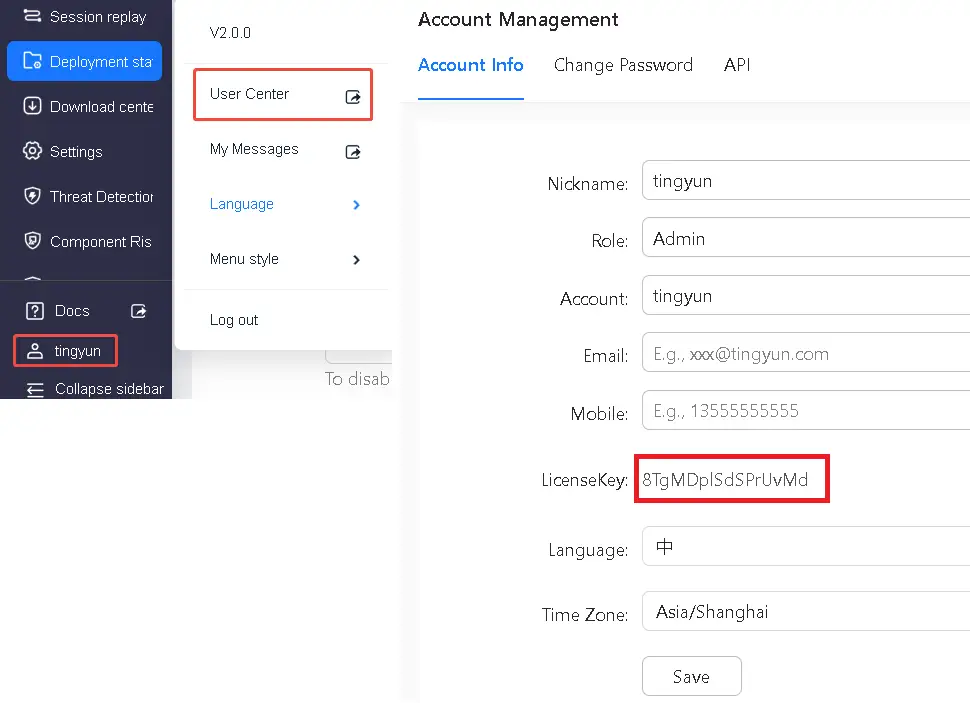
After downloading the Agent package, you need to manually modify the License Key value in tingyun.properties for it to take effect.
Agent Download
In the left navigation bar, click Application & Microservice > Deployment Management, then select the Download Center tab, and select Java Agent to download. The Agent installation package is named tingyun-agent-java-X.X.X.zip, where X.X.X is the version number.
Agent File Description
The tingyun-agent-java-X.X.X.zip file contains the following:
- tingyun-agent-java.jar: The core Agent file, containing the core logic and extension plugins.
- tingyun-agent-core.jar: Responsible for handling Agent startup, upgrade, uninstall, etc.
- tingyun.properties: Java Agent configuration file, including License Key, application name, etc. Please fill in according to the instructions in the configuration file.
- extensions/: Extension directory for plugins and custom method monitoring XML configuration files.
- ReleaseNote: Agent version update notes.
Agent File Operation Description
When the Application Server starts, the Agent will look for the tingyun.properties file in the same directory as tingyun-agent-java.jar. The Agent will record runtime logs in the logs subdirectory under the directory where tingyun-agent-java.jar is located (please ensure this directory has write permissions).
tingyun-agent-java.jar uses the current host system time at runtime.