Install Java Agent in Docker Environment
Prerequisites
- The installer is familiar with the manual installation process of the Java Agent.
- The Agent Collector has been installed.
- Before installing the Agent, ensure that the local browser time, server time zone, and time are all consistent. If there are multiple servers, ensure that the local browser, all server time zones, and times are consistent. Otherwise, it may affect data accuracy, such as incorrect topology, etc.
Install Java Agent Inside Docker Container
-
Use
docker imagesto view local images.
-
Use the
docker pscommand to view running containers.
-
Run
docker exec -it <container_id> /bin/bash.
For other steps, please refer to the Manual Installation Guide.
Install Java Agent via Dockerfile
Installation by Modifying Configuration File
Take the Tomcat environment as an example. The Dockerfile is shown below:
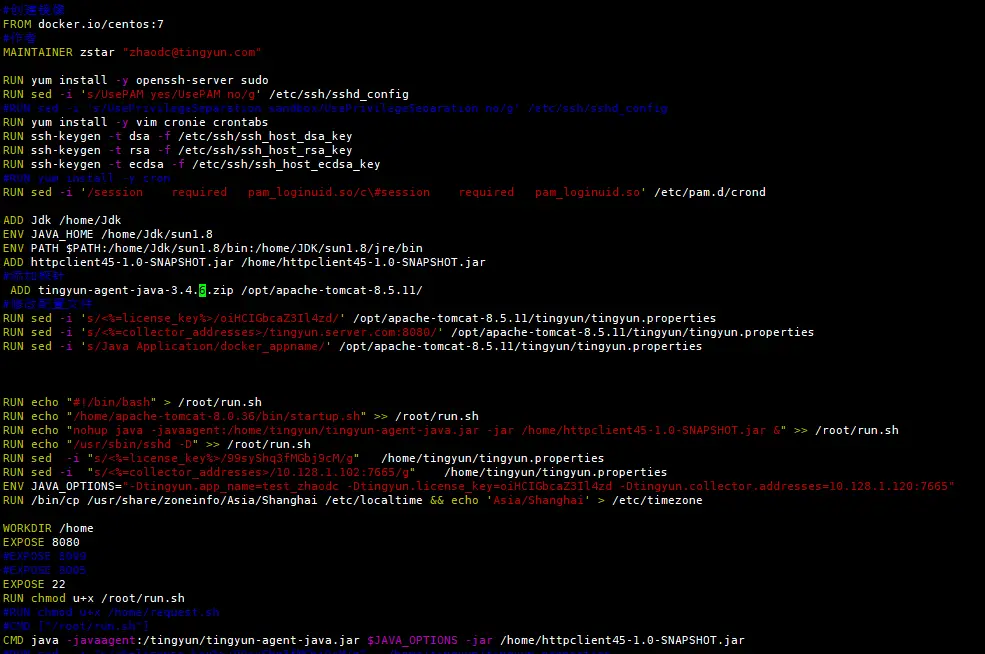
The related configuration for embedding the Agent is as follows:

Configuration details:
-
Add the Agent installation package to the docker image and specify the extraction directory as /opt/apache-tomcat-8.5.11/.
ADD tingyun-agent-java-3.4.6.zip /opt/apache-tomcat-8.5.11/Note: Some containers generated by Dockerfile do not support the unzip command. It is recommended to extract the Agent zip package first, repackage it as a tar.gz, and then upload it.
-
Modify the tingyun.properties file and catalina.sh configuration file.
-
Modify license_key.
RUN sed -i 's/<%=license_key%>/oiHCIGbcaZ3Il4zd/' /opt/apache-tomcat-8.5.11/tingyun/tingyun.properties -
Add the address and port of the Agent Collector server.
RUN sed -i 's/<%=collector_addresses>/tingyun.server.com:8080/' /opt/apache-tomcat-8.5.11/tingyun/tingyun.properties -
Modify the application name.
RUN sed -i 's/Java Application/docker_appname/' /opt/apache-tomcat-8.5.11/tingyun/tingyun.properties -
Back up the modified script file.
RUN cp /opt/apache-tomcat-8.5.11/bin/catalina.sh /opt/apache-tomcat-8.5.11/bin/catalina.sh.bak -
Add the Agent startup parameter.
RUN sed -i '1a\export CATALINA_OPTS="$CATALINA_OPTS -javaagent:/opt/apache-tomcat-8.5.11/tingyun/tingyun-agent-java.jar"' /opt/apache-tomcat-8.5.11/bin/catalina.sh -
Run the
docker buildcommand to create an image containing the Java Agent.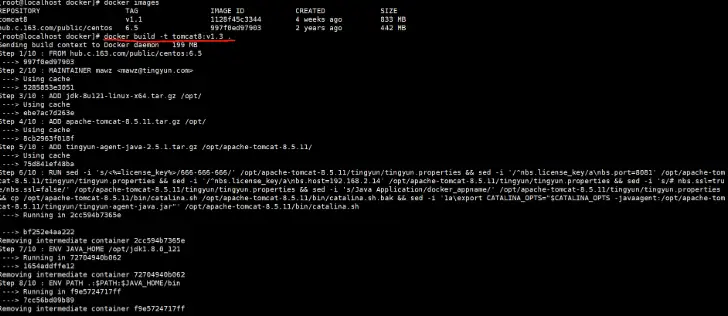
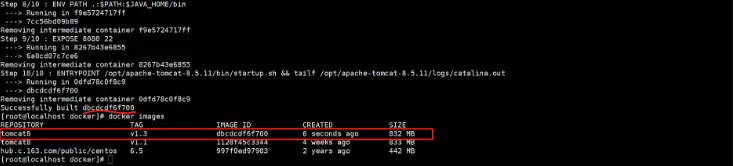
-
-
Based on the image, create and run a container, check the Agent logs and reports, and observe whether performance data is uploaded normally.
Installation by Adding JVM Parameters
Configure JAVA_OPTS, and add the following three parameters after -javaagent, separated by spaces:
-Dtingyun.app_name=${APP_NAME} -Dtingyun.license_key=${LICENSE_KEY} -Dtingyun.collector.addresses=${COLLECTOR_ADDRESSES}
- -Dtingyun.app_name: Application name, recommended to be the business name of the application.
- -Dtingyun.license_key: Associated with your Tingyun account. Data collected by the Agent will be uploaded to the account bound to this LicenseKey.
- -Dtingyun.collector.addresses: The address and port of the Agent Collector server, e.g., tingyun.server.com:8080. For high-availability deployment, be sure to configure all Agent Collector server addresses and ports in the same data center, separated by commas.